
JPG to PDF: How to Combine Multiple Images into One PDF File in Seconds
Have you ever struggled to send a dozen receipts or vacation photos, only to have the email server reject them? We've all been there—trying to share a bunch of photos only to have the recipient complain they can't open them. Turning those messy collections into a single, clean PDF is the easiest fix. In this guide, I'll show you exactly how to combine multiple images into one PDF file in seconds using a free JPG to PDF converter.

Published June 13, 2026 • 5 min read

The Old Way vs. The Clean PDF Way
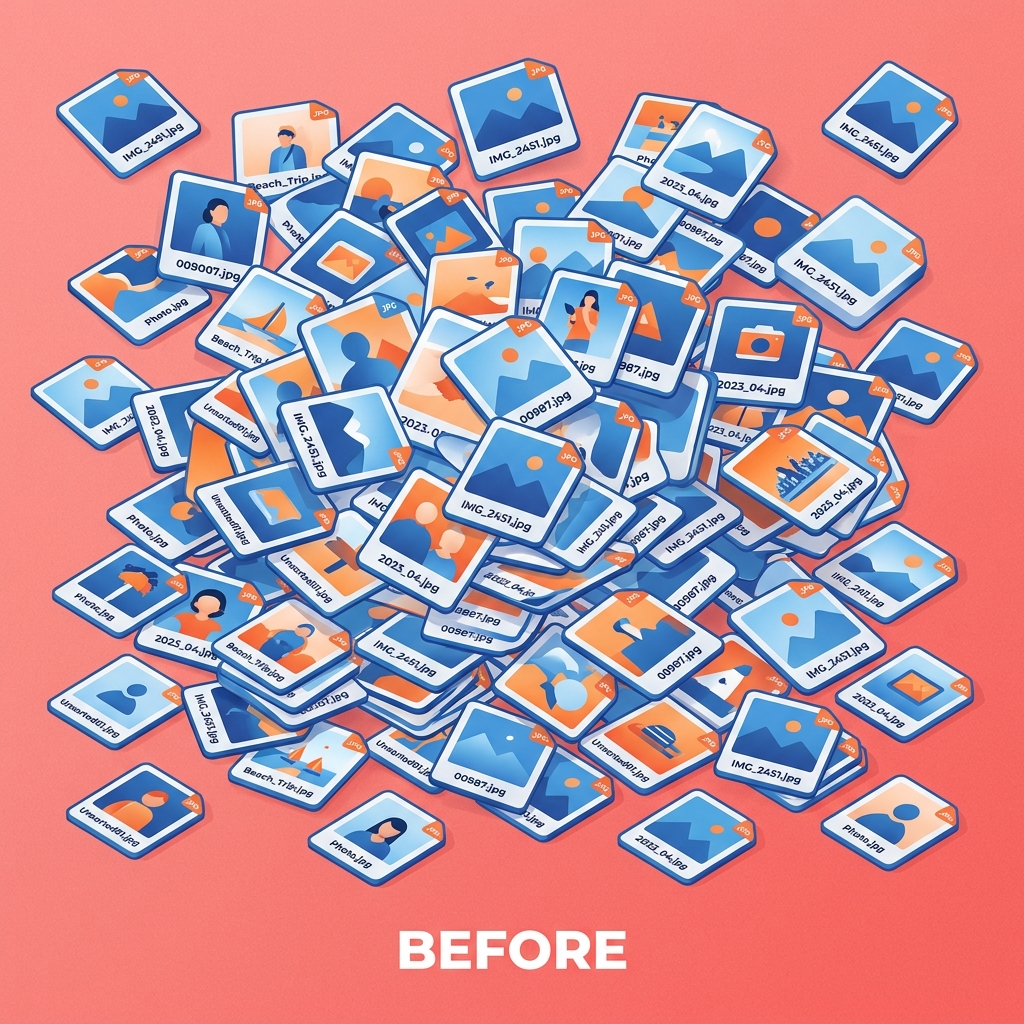
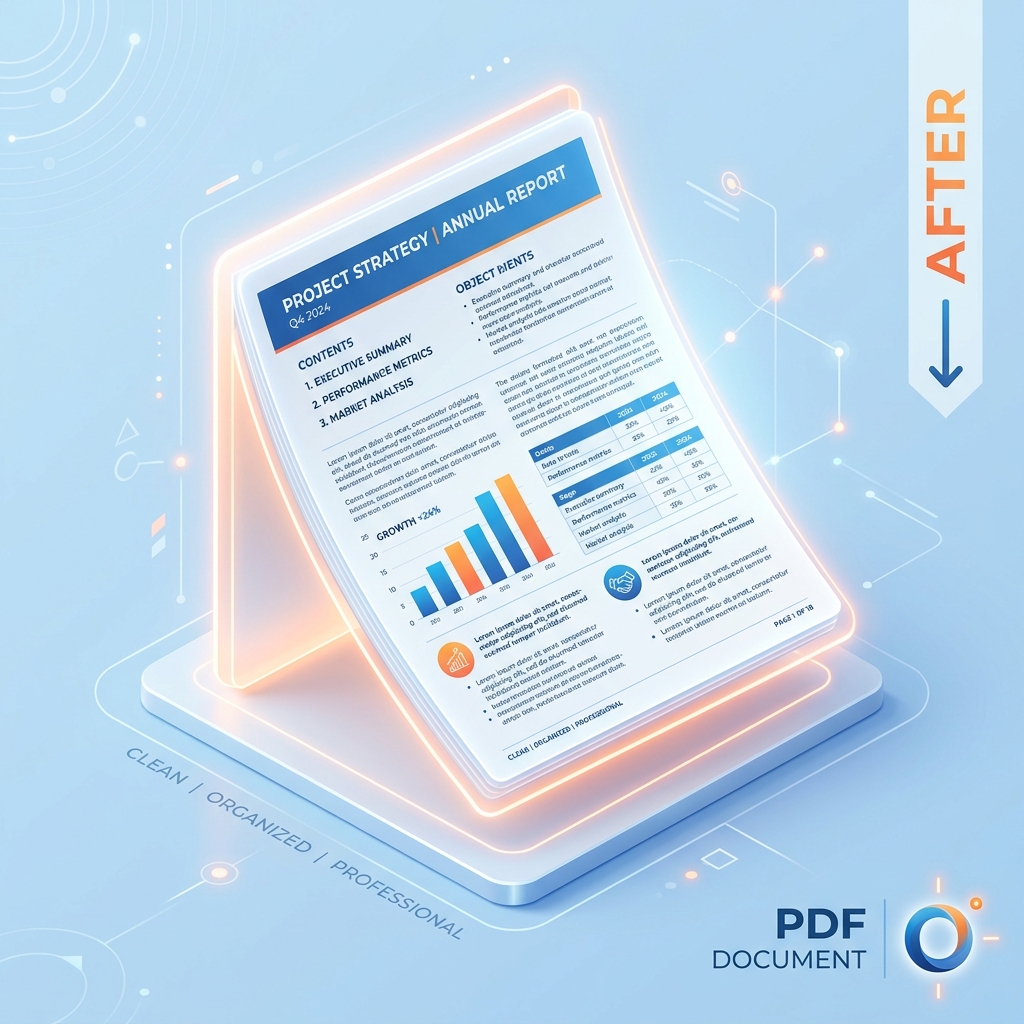
Are you still attaching 15 separate JPGs to emails? Try dragging the slider below. You'll see how consolidating images into one document makes everything cleaner and more professional.
Why Combine Images into a Single PDF?
It's easy to think a few attachments are fine, but professional situations demand organized files. Combining them into one neat PDF file ensures your reader views the images exactly as you intended.
❌ The Old Way: Disorganized
- A desktop covered in randomly named image files
- Scrolling forever to find that one specific photo
- Sharing via email is cumbersome
- No consistency in formatting
- Large, unoptimized file sizes
✅ The New Way: One PDF
- Everything packed neatly into one document
- Easy sharing, viewing, and printing
- Looks polished and is easy to read on any device
- Searchable content and unified structure
- Consistent formatting on all devices
Saving Time and Paper
Instead of printing physical copies or scanning individual documents one by one, creating a digital PDF file is instantaneous. It drastically reduces paper waste and organizes your workspace immediately. Following PDF/A standards for image-based documents helps ensure long-term accessibility.
Better Organization for Sharing
Sending 15 separate JPG files via email is a recipe for disaster. Attachments get lost, the order gets scrambled, and recipients get frustrated. Packaging them into a single PDF ensures document integrity and prevents files from being separated.
How JPG to PDF Conversion Helps You Stay Organized
Merging multiple photos into one document is incredibly useful across various scenarios. Real estate agents combine property photos into one PDF for easy client sharing. Students merge scanned notes or textbook pages into organized study materials. Photographers and designers create beautiful, compact portfolios that anyone can open without specialized software. I've seen real estate agents lose a sale because a buyer couldn't open 12 separate photo attachments on their phone — one PDF solves that instantly.
The Fastest Way: Use Our Free JPG to PDF Widget
Try it right here. Select your photos, drag them around to reorder, and click convert. It happens entirely in your browser. Drag the thumbnail for your cover page to the front, and the rest follows in order — no need to rename files first.
Step-by-Step Guide (If You Prefer Doing It Manually)
Step 1 – Gather Your Images
Locate all the photos, scanned documents, or screenshots you want to combine. Put them in an easily accessible folder. Our tool supports JPG, PNG, GIF, and WEBP formats. Read up on formats via the PDF Association.
Step 2 – Upload and Order
Click the upload button above. Once loaded, you will see thumbnails of your images. Pro Tip: Just drag and drop the thumbnails to rearrange them perfectly without renaming files.
Step 3 – Generate PDF
Select your preferred page size and margins, then click the "Convert to PDF" button. After merging, you can also compress the PDF if you need to reduce the file size further.
Frequently Asked Questions About JPG to PDF
Yes – our converter accepts JPG, PNG, WEBP, and even GIF (first frame). All images will be merged into a single PDF in the order you set.
No. The tool preserves original image quality. You can adjust DPI and page size to keep everything sharp.
For practical reasons, we recommend up to 50 images at once. The converter works entirely in your browser, so performance depends on your device.
Absolutely. Drag and drop thumbnails to reorder them instantly. You can also delete individual images.
No – everything runs in your browser. No downloads, no signup, no hidden costs.
Just upload one image and click “Convert to PDF”. It’s the same process – you’ll get a one-page PDF.
For standard documents use A4 or Letter. For full‑screen photo albums, choose “Auto” to keep original image dimensions.
Yes. Use the margin selector (0, 10, or 20 pixels) to add white space around each image.
Completely free, no watermarks, no signup. We believe in simple, privacy‑first tools.
After converting, you can merge multiple PDFs, compress file size, rotate pages, add watermarks, and much more – all free.
Ready to Combine Your Images into One PDF in Seconds?
Dealing with messy email attachments is a pain. Our free online JPG to PDF converter tool lets you quickly merge multiple images into a single PDF document without the hassle. It's completely free, requires no signup, adds no watermark, and processes your files securely in your browser so your privacy is guaranteed. Give it a try — drop in your files in the widget above and see how it looks.
Convert JPG to PDF →Explore Other PDFZora Tools
Sign documents yourself or request secure electronic signatures from others.
Secure your PDFs with password protection and encrypt documents.
Add text or images to your PDF in seconds. Customize font and transparency.
Convert PDF to HTML preserving exact layout seamlessly.
Bonus Productivity Tools


Disclaimer: PDFZora provides online file manipulation tools for convenience. We are not a legal consultancy firm, and we do not provide legal advice. Users are solely responsible for ensuring that any manipulated or converted documents comply with applicable laws and regulations.