
How to Merge PDF Files on iPhone or Android (NO APP NEEDED)
How to merge PDF files on iPhone or Android (NO APP NEEDED): open Safari or Chrome, pick your PDFs, merge them, and save. You do not install another app.
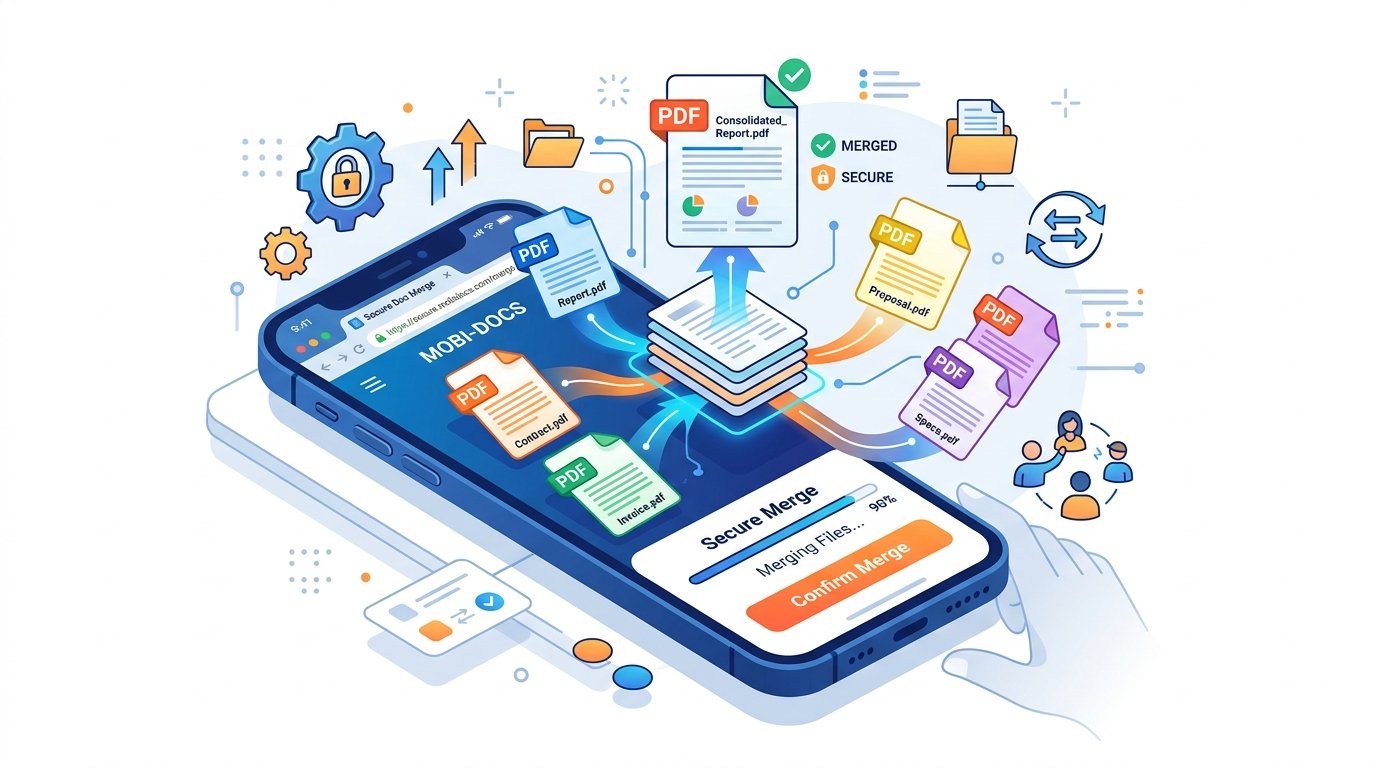
In short: how to merge PDF files on iPhone or Android (NO APP NEEDED) is a browser job. Open a merge tool, pick PDFs from Files or Downloads, put them in order, tap merge, then save. No App Store or Play Store detour.
Why you search how to merge PDF files on iPhone or Android (NO APP NEEDED)
Most people do not wake up wanting a PDF editor. They have three receipts, or a cover letter plus a certificate, and someone asked for one file. App stores will happily sell you a full suite for that. Then you hit a login wall, a trial, or an app that eats storage you do not have.
Learning how to merge PDF files on iPhone or Android (NO APP NEEDED) in the browser is slower to discover, but once you know the path it is simple: pick files, merge, download.
Merge on your phone with PDFZora
PDFZora Merge PDF works in the browser on iPhone and Android. No install, no account, and it does not stamp a watermark on the file.
Merge PDFHow to merge PDF files on iPhone or Android (NO APP NEEDED) in Safari
Step 1 — Open Merge PDF 01
Open Safari and go to PDFZora’s Merge PDF page. You are not downloading anything. If Safari asks to paste a password for a locked PDF, that file needs unlocking first.
Step 2 — Grab the files 02
Tap upload. The iOS picker talks to the Files app, so look in On My iPhone, iCloud Drive, or Downloads. You can grab more than one PDF in the same pass.
Step 3 — Check the order 03
Whatever sits first in the list becomes page one. Drag the stack so a cover letter is not buried under an appendix.
Step 4 — Merge, then save 04
Tap merge and wait for the download. Safari usually drops it in Files → Downloads. From there, Share it to Mail or WhatsApp like any other document.
How to merge PDF files on Android with no app
The Android path is the same idea as how to merge PDF files on iPhone or Android (NO APP NEEDED): browser, upload, order, download.
Step 1 — Open the page 01
Chrome or Samsung Internet both work. Open Merge PDF the same way you would open any site.
Step 2 — Find the PDFs 02
They are often in Downloads. If they still live in Gmail or WhatsApp, save them to the phone first or the picker will look empty.
Step 3 — Merge and pull the file back 03
Reorder if you need to, tap merge, then check Downloads. Attach that one file instead of a pile of singles.
Where the file actually goes
iPhone / iPad
Treat Files as home base. If you cannot see the new PDF, search Downloads. iPad uses the same Safari steps, just with more room to drag.
Android
Chrome’s download tray is the usual landing spot. A Files app helps if you have several folders and the name is easy to miss.
When merging is worth it
- Applications — resume, ID, and certificates as one upload.
- Expenses — a month of invoice PDFs instead of a photo dump.
- Travel — ticket, hotel, and insurance in one file you can open offline.
- Camera scans — turn photos into PDF pages first, then combine them.
Mistakes when you merge PDF files on iPhone or Android
- Wrong order. The tool will not guess. Line the files up before you tap merge.
- Leaving the tab too soon. If you jump to another app mid-download, you may get a truncated file. Wait until it finishes.
- Huge scans. Phone photos stuffed into PDF get fat. If email bounces the size, compress a copy of the merged file.
- Password-locked files. Unlock them first if you know the password. Do not send that password in the same chat as the PDF.
- Installing an app “just this once.” For a one-off merge, a browser page is enough. You can always install something later if you live in PDFs all day.
After you merge
If you only need a few pages, split the file. If page 4 should have been page 1, reorder after the merge rather than starting over. Do the combine first; tidy second.
That still counts as how to merge PDF files on iPhone or Android (NO APP NEEDED): you already have one document. Extra tools are optional, not the first step.
If the download never appears
On iPhone, pull down in Files → Downloads, or search the name you just saved. Safari sometimes labels it “document.pdf”. On Android, open the Chrome download list (the arrow icon) before hunting through folders. If the tab was backgrounded, run the merge again and keep the screen awake until the file lands.
iPad follows the iPhone steps. The larger screen just makes drag-and-drop less fiddly. You still do not need a separate PDF app for a one-off combine.
FAQ
1. How to merge PDF files on iPhone or Android (NO APP NEEDED)?
Use Safari or Chrome, open a merge page, pick files from Files or Downloads, then save. That is how to merge PDF files on iPhone or Android (NO APP NEEDED) without the App Store or Play Store.
2. Can I merge PDFs on Android without a Play Store app?
Yes. Chrome or Samsung Internet will open the same page. Save mail attachments to Downloads first if they do not show up in the picker.
3. Do I need to create an account?
Not on PDFZora. Merge PDF is free, does not ask you to register, and does not add a watermark.
4. Where is the merged file on iPhone?
Usually Files → Downloads. If it is missing, search the filename. Share from there into Mail or another folder.
5. Can I change file order before combining?
Yes. Drag the list so the first item is the first section of the finished PDF. That is easier than splitting later.
6. The file is too large to email. What next?
Compress a copy of the merged PDF and send that. How much it shrinks depends on scans and images. There is no honest fixed percentage.
Ready to merge PDF files on iPhone or Android?
If you needed how to merge PDF files on iPhone or Android (NO APP NEEDED), the browser path is enough. No extra app, no account, no watermark on a simple merge.
Merge My PDFs NowPopular PDFZora Tools
Convert, protect and clean up your PDF
Free everyday utilities
Disclaimer: Merged output can vary with PDF structure, fonts, and images. Use only files you have the right to combine. PDFZora does not guarantee a specific file size or layout after merging.