
How to Redact Sensitive Information from a PDF Permanently (Free Online Tool)
Remove text, images, and hidden data for good — free, no signup required.
Redact PDF Now →
Quick Answer: How to Redact Sensitive Information from a PDF Permanently
If you’re searching for how to redact sensitive information from a PDF permanently with a free online tool, here’s the short version: drawing a black box over the text is not redaction. The original text usually stays inside the file, and anyone can copy, paste, or search it.
Skip the drawn box and use a tool that truly deletes the content: upload your PDF, mark the text or areas to remove, apply the redaction, then download the new file. PDFZora’s Redact PDF tool handles this in three steps, and it’s 100% free with no registration and no watermarks.

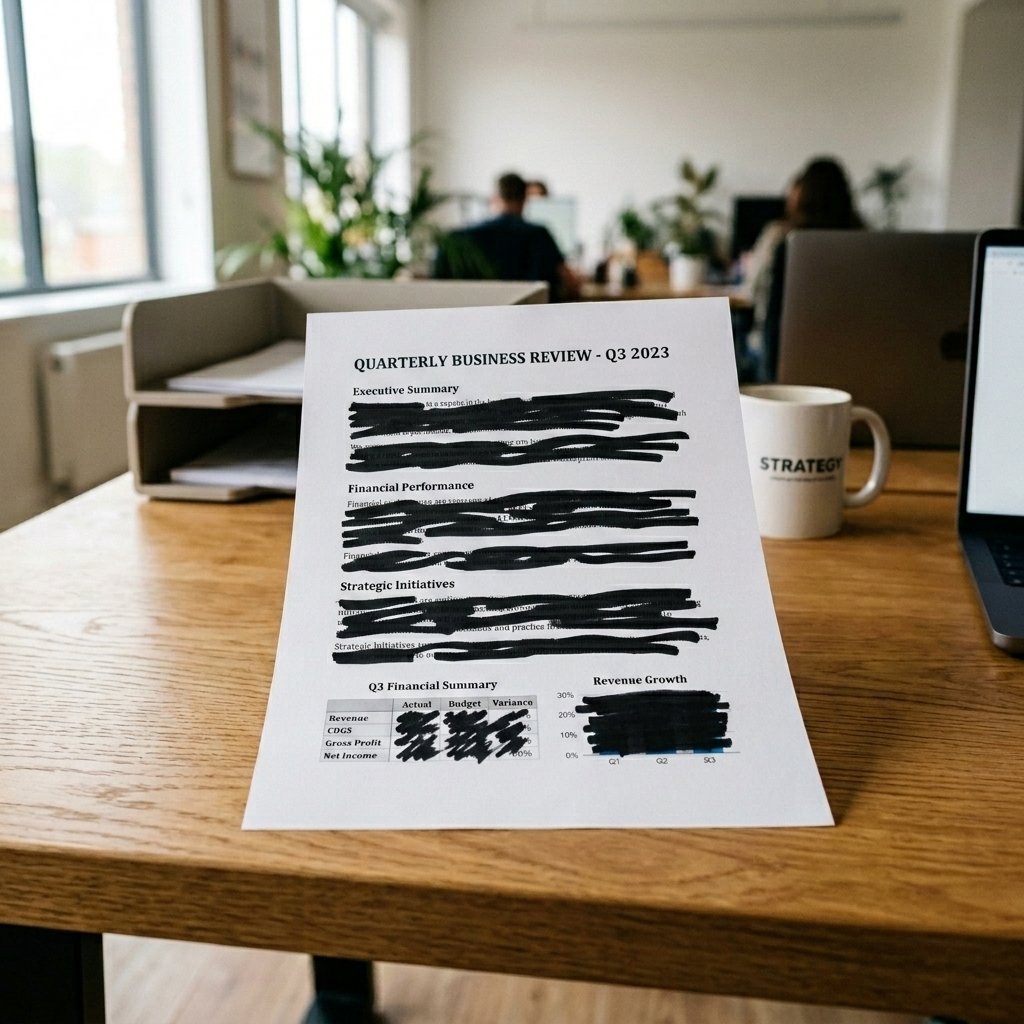
Real redaction leaves nothing behind to find. A dark layer over the text is not enough.
Why Drawing a Black Box Is Not Redaction
A PDF stores content as data (characters, image objects, file properties), separate from how the page looks. Drawing a rectangle in a regular viewer only adds a visual layer on top. The sensitive characters underneath stay in the file, so anyone can select across the black box, press Ctrl+C, and paste the “hidden” text. Searching works too.
That’s not a rare slip-up: courts and government agencies have released improperly “redacted” files that exposed exactly what they meant to hide. Adobe’s Acrobat documentation draws the same line: proper redaction removes content instead of obscuring it. Handling customer, patient, or employee data? The FTC’s data security guidance and HHS’s HIPAA privacy guidance set clear expectations.
What True Redaction Does
Real redaction deletes the characters and image data you select, so nothing recoverable is left behind the mark. What’s gone stays gone, which is exactly what you want before sharing, publishing, or filing.
Redact PDFs Free Online with PDFZora
PDFZora’s Redact PDF tool does exactly what this article describes: it permanently removes the text and image data under your marks instead of drawing a mask over them. It runs in your browser: nothing to download, nothing to install, nothing to pay.
PDFZora Redact PDF — Free Online Tool
Mark the text or areas to remove, confirm, and download a sanitized PDF. According to PDFZora, transfers are SSL-encrypted and uploaded files are automatically deleted after 60 minutes.
- ✅ 100% Free
- ✅ No Watermark
- ✅ No Registration
- ✅ Works Online
- ✅ Files Auto-Delete After 1 Hour
How to Redact a PDF Permanently in 3 Steps
Here’s the full workflow, start to finish:
Upload Your PDF
Open the Redact PDF tool and click “Select PDF”, or drag and drop your file into the upload box. It runs in any modern browser, no account needed.
Select the Text or Areas to Redact
Highlight the exact text to remove, or draw rectangles over images, signatures, stamps, and tables. Check the live preview, then confirm the selection to apply the redaction.
Download the Redacted File
Save the sanitized PDF to your device. The content under your marks is removed from the file, not just hidden, so it can’t be copied or recovered. Keep the unredacted original; the redacted copy can’t be restored.
📋 What to Redact: A Quick Checklist
- Personally identifiable information: names, addresses, phone numbers, email addresses, national ID and Social Security numbers, dates of birth
- Financial data: bank account and routing numbers, card numbers, tax IDs, salaries
- Health information: patient names, record numbers, diagnoses, insurance IDs
- Business-sensitive data: trade secrets, unreleased financials, client names, internal pricing
- Visual identifiers: faces, signatures, stamps, barcodes, screenshots with sensitive details
6 Redaction Mistakes That Leak Sensitive Data
Avoid these and your documents will be safer than most:
Using comment or shape tools as “redaction.” Overlays don’t delete data — only a redaction feature does.
Forgetting metadata and comments. Check Document Properties and strip comments and attachments before the file goes out.
Ignoring scanned pages. Text in scans isn’t selectable, so mark the area itself. You can also run the file through PDFZora’s OCR to PDF tool first.
Redacting your only copy. Redaction is permanent. Keep the original file before you start.
Skipping the final check. Open the downloaded file and run the copy-paste and search test on every redacted item.
Sending the wrong version. Name the finished file clearly (for example, contract-redacted.pdf).
Black Box vs. True Redaction: What Actually Gets Removed
| What you get | Black box drawn in a viewer | PDFZora Redact PDF | Desktop redaction (e.g., Acrobat Pro) |
|---|---|---|---|
| Hides content visually | ✅ Yes | ✅ Yes | ✅ Yes |
| Deletes the selected text & image data | ❌ No — text stays in the file | ✅ Yes — permanent | ✅ Yes |
| Works in the browser, no install | ✅ Usually | ✅ Yes | ❌ Requires desktop software |
| Cost | Free (but unsafe) | 🆛 100% Free | 💰 Paid subscription |
Desktop tools like Acrobat Pro do true redaction too. They just aren’t free.
Watch the Tool in Action
Marking and applying redactions in PDFZora.
Frequently Asked Questions
No. A box drawn with a comment or shape tool only covers the text visually. The characters stay in the file and can be copied, searched, or uncovered by anyone. Use a redaction tool that deletes the content, then run the copy-paste test on the saved file.
Not when the redaction is done properly. Once a true redaction tool saves the file, the selected data is removed from the document itself and cannot be recovered. That’s also why you should keep an unredacted original if you may need it later.
Redaction targets the content you mark. PDFs can also carry metadata such as the author name, creation dates, and revision history, plus comments and attachments. Review those separately in your viewer’s Document Properties before sharing a file publicly.
Yes — mark the area you want hidden, exactly as you would anywhere else on the page. If you also want to select or search the scanned text, run the file through PDFZora’s free OCR to PDF tool first, then redact.
Remove the password first with PDFZora’s Unlock PDF tool, save a copy, and then redact it. Most tools cannot modify a file they cannot open.
According to PDFZora, transfers are SSL-encrypted, no human views your files, and uploads are automatically deleted after 60 minutes. Check the tool page for current details.
Ready to Protect Your Documents?
A black box only hides sensitive data. Real redaction removes it. Sanitize your PDF in three quick steps, right in your browser.
Redact My PDF Now →Key Takeaway
Black boxes hide data; real redaction removes it. Redact your PDF free with PDFZora in three steps, then run the copy-paste test on the saved file. If you can find the text, so can everyone else.
Popular PDFZora Tools
Work with documents
Free everyday utilities
Disclaimer: The information provided in this blog post is for educational and informational purposes only. It does not constitute legal or professional advice. While we strive to provide accurate and up-to-date information on data redaction and compliance (such as GDPR, HIPAA, and FOIA), privacy laws vary by jurisdiction and are subject to change. Always consult with a qualified legal professional or compliance officer to ensure your organization's document security practices meet the necessary legal standards.