
You're Probably Using PDFs the Wrong Way—Here's the Better Method
Stop making common PDF mistakes. Learn the better method to edit, convert, and manage PDFs for free.
Convert Any PDF Free in Seconds →🔒 100% secure – your files never leave your browser.
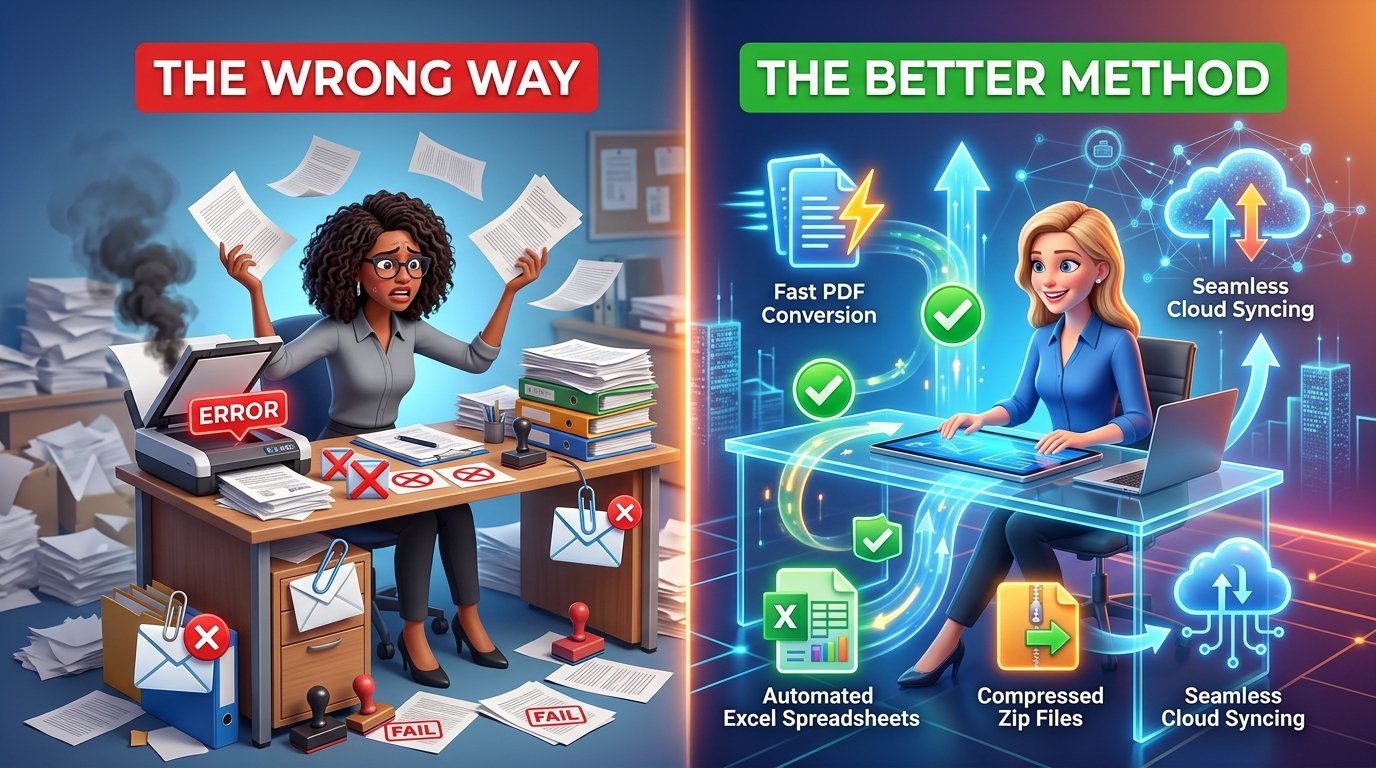
"Stop making these common PDF mistakes – learn the better method today."
📌 Quick Navigation
We launched PDFZora to fix a simple frustration: PDFs should be effortless, yet most people still print them to sign or waste 45 minutes retyping a table into Excel. If that sounds familiar, here's the truth: You're Probably Using PDFs the Wrong Way—Here's the Better Method to handle documents faster — free, and without the busywork.
📌 Key Takeaways:
- Stop printing PDFs – edit text & layout directly with PDF to Word
- Extract tables instantly into spreadsheets with PDF to Excel
- Compress files before emailing – save hours every week
Stop printing, retyping, and emailing oversized PDFs. Convert and compress them in your browser — start with the free PDF to Word converter.
Fix My PDFs Free →📌 Real-World PDF Bottlenecks & The Better Method
If you retype tables or print documents to sign, you're probably using PDFs the wrong way. With the better method — free browser tools like PDF to Word and Compress PDF — the same tasks take seconds.
Most working professionals treat Portable Document Format (PDF) files like paper — fixed and unchangeable without a printer and scanner. But the format, shaped by frameworks like NIST document standards, was built as a flexible digital container. The right browser tools unlock that flexibility in seconds.
🛡️ Why Use PDFZora's Free PDF Tools?
- 100% free — no fees, watermarks, or limits
- Private — files never leave your browser
- No signup — instant access
- Nothing to install — works in any browser
Are You Using PDFs the Wrong Way? Take the Audit
Tick every habit that sounds like you — each one means you're using PDFs the wrong way:
Score: 0 Mistakes Selected
The 7 Deadly PDF Mistakes & Their Modern Fixes
These are the 7 costliest signs you're probably using PDFs the wrong way — with the better method fix for each one.
Mistake #1 – Printing and Scanning to Edit
Printing a PDF to scribble edits and re-scan it is classic proof that you're using PDFs the wrong way. It blurs fonts, strips metadata, and breaks screen-reader access — an issue flagged in ADA accessibility guidelines.
The Better Method – Edit Directly
Convert the file straight into an editable Word document — fonts, margins, and spacing preserved. Edit in seconds, no printer needed.
Mistake #2 – Retyping Tables by Hand
Pasting PDF tables into Excel usually collapses everything into one jumbled column — forcing 30–60 minutes of manual retyping.
The Better Method – Convert to Excel
Smart parsing converts PDF tables directly into clean Excel sheets — columns, rows, and numbers ready for formulas.
Mistake #3 – Sending Uncompressed Large PDFs
Unoptimized images and graphics can bloat a 5-page file into a 45MB attachment — and most mail servers reject anything over 20MB.
⚠️ Example: email a 48MB PDF to 12 clients and it bounces — deadline missed. Don't let file size cost you opportunities.
The Better Method – Compress PDF
Compress images smartly without visible quality loss — shrink files up to 85% so size limits stop blocking your emails.
Mistake #4 – Ignoring Unsearchable Scans
A scanned PDF is just a photo of paper — no text underneath, so Ctrl+F, highlighting, and copying all fail.
The Better Method – OCR PDF
Run Optical Character Recognition (OCR) to add an invisible text layer — turning dead scans into searchable, copyable documents.
Mistake #5 – Manual Page Reordering
Need to cut page 3 or swap pages 10 and 12? Many people re-print and re-scan the whole bundle just to reorder pages.
The Better Method – Organize PDF
Reorder, rotate, delete, or add pages with drag-and-drop — right in your browser, with live preview.
Mistake #6 – Sending Unprotected Sensitive Files
Emailing unencrypted tax, medical, or financial PDFs is a major risk — and black-box markup in basic viewers still leaves text copyable underneath.
The Better Method – Protect & Redact PDF
Lock files with 256-bit password encryption, and truly redact sensitive text so it can't be recovered.
Mistake #7 – Juggling Too Many Tools
Juggling random web apps, extensions, and paid subscriptions fragments your workflow — and risks your data.
The Better Method – One Platform for Everything
Instead of using PDFs the wrong way with scattered apps, do it all in PDFZora's free suite — convert, compress, merge, split, and edit in one secure place.
👨💼 Who Benefits Most From the Better Method?
These teams gain the most from switching to the better method:
⚖️ Lawyers & Legal Teams
Permanently redact client PII and shrink exhibits under e-filing size limits.
📊 Accountants & Auditors
Turn audit reports into Excel sheets — no retyping.
👥 HR & Recruiters
Merge resumes, password-protect contracts, and watermark draft offers.
The Wrong Way vs the Better Method — Before & After
Here's the full picture: every wrong-way habit below maps to the better method that replaces it.
| Workflow Category | The Wrong Way (Old Method) | The Better Method (PDFZora) |
|---|---|---|
| Editing Content | ❌ Print, edit by hand & scan | ✓ Edit directly with PDF to Word |
| Extracting Tables | ❌ Re-type data cell by cell | ✓ Convert to Excel automatically |
| Handling Large Files | ❌ Email bounce-backs & size limits | ✓ Compress PDF — often up to 85% smaller |
| Scanned Documents | ❌ Unsearchable image PDFs | ✓ OCR PDF – searchable text layer |
| Page Reordering | ❌ Print & manually collate pages | ✓ Organize PDF – drag & drop visualizer |
| Document Security | ❌ Send raw unprotected files | ✓ Protect PDF – 256-bit password |
💡 Bonus Productivity Tips to Speed Up Your Workflow
Fixed the 7 mistakes? These 4 habits lock in the better method:
Name files so you can find them in 5 seconds
Name files YYYY-MM-DD_client_topic_v1.pdf — and merge related PDFs instead of juggling attachments.
Compress before you share, every time
Make Compress PDF a pre-send habit — small files send quickly and almost never bounce.
Batch similar tasks together
Batch similar jobs together — convert on Monday, organize on Friday — to cut handling time.
Learn 3 keyboard shortcuts
Ctrl+F to search (works after OCR), Ctrl+P → Save as PDF to create PDFs, and Ctrl+Shift+T to reopen a closed tool tab.
Frequently Asked Questions
ATurn it into an editable Word doc with PDFZora's free PDF to Word converter, edit, then save back as PDF. No printing or signup — the better method for everyday edits.
AUse a converter that preserves fonts, margins, and layout — PDFZora's free PDF to Word tool keeps the original look.
ARun it through a free Compress PDF tool — often 85% smaller, so it fits email limits.
AUse a free Merge PDF tool — order your files and combine them in seconds, in your browser.
AAdd a password with a free Protect PDF tool — essential before emailing sensitive documents.
ARun OCR (Optical Character Recognition) — it adds a searchable text layer for find and copy with Ctrl+F.
Ready to Stop Using PDFs the Wrong Way?
Want a faster, safer way to handle files? You're Probably Using PDFs the Wrong Way—Here's the Better Method: skip printing, retyping, and pricey software — edit, convert, compress, and protect right in your browser, free and private.
Popular PDFZora Tools
Jump straight to the most-used PDF and productivity tools.
Pingback: How AI Is Changing the Way We Edit: 7 Actionable Tips to Elevate Your Editing Game