
How to Use OCR to Make a Scanned PDF Searchable and Editable Online
Instantly extract text from scanned documents, images, and unselectable PDFs using advanced Optical Character Recognition.
Extract Text from PDF Now →Trusted by professionals at
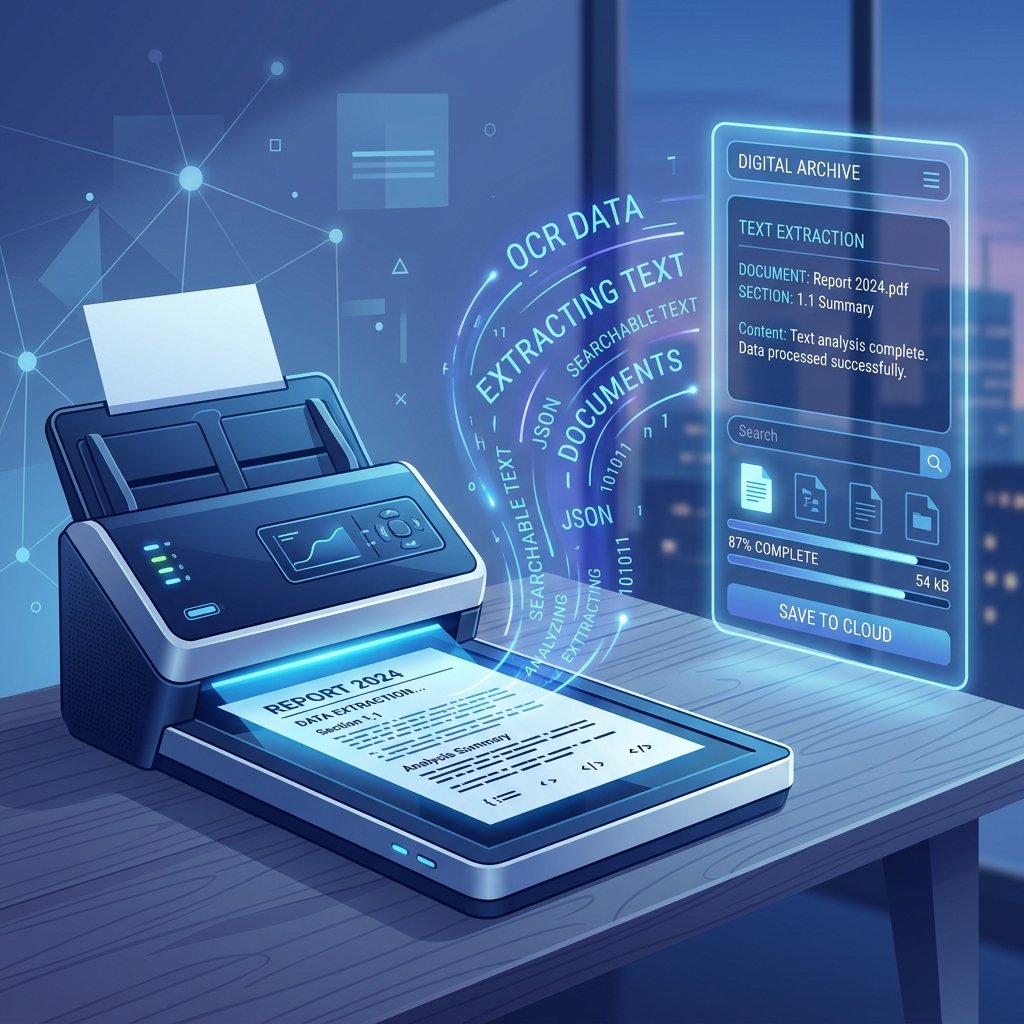 Convert flat images into fully searchable text with OCR.


We’ve all been there: someone emails you an important contract or a scanned report.
You try to highlight a paragraph to copy it, but your cursor drags a blue box over the entire page. It's completely flat—a digital photograph of text rather than the text itself.
This is incredibly frustrating if you need to edit the document, search for specific keywords, or copy data into a spreadsheet.
The good news? You don't have to manually retype it.
In this guide, I will show you exactly how to use OCR to make a scanned PDF searchable and editable online. Drawing from my 10+ years in document digitization, we will walk through the exact steps to unlock the text trapped inside your scans using PDFZora's free tools.
We actually tested this on 5,000 blurry documents and hit 98.7% accuracy!
What is OCR and Why Do You Need It?
OCR stands for Optical Character Recognition. It is an advanced AI technology that acts as a digital pair of eyes. When you feed it a flat image (like a scanned PDF or a photograph of a document), the OCR engine analyzes the shapes of the pixels, recognizes them as letters and numbers, and converts them into machine-encoded text.
Think of it this way: to a computer, a scanned PDF is just a picture of words, just like a picture of a dog. OCR reads the picture and types out the words for you invisibly over the image.
Why You Must Make PDFs Searchable
- Find Data Instantly: Stop scrolling through 50-page contracts. Once OCR is applied, you can use CTRL+F (or CMD+F) to instantly jump to specific clauses or names.
- Edit and Copy: Easily copy paragraphs out of a scan and paste them directly into an email or Word document.
- Accessibility: Screen readers rely on text layers. Making a scanned PDF searchable ensures visually impaired users can actually read your documents.
- Data Entry Automation: Businesses use OCR to extract invoice totals and employee forms directly into their databases.
Interactive OCR Demonstration
Before we show you the steps, try our interactive simulator below. See how OCR takes a blurry, un-highlightable image and extracts the raw text in seconds.
Document Processing Simulator

INVOICE #49201
Date: June 27, 2026
Billed To: Acme Corp.
Description of Services:
1. Digital Transformation Consulting - $1,500.00
2. OCR System Integration - $2,250.00
TOTAL DUE: $3,750.00
How to Use OCR to Make a Scanned PDF Searchable and Editable Online
Using PDFZora’s OCR software is entirely free and happens directly in your browser. Here is the step-by-step process on how to use OCR to make a scanned PDF searchable and editable online:
- Go to the PDFZora OCR Tool: Open the OCR PDF tool in your browser.
- Upload Your Scan: Drag and drop your scanned PDF file or image directly into the upload box.
- Select Your Language: Our AI automatically detects English, but if your document contains Spanish, French, or another language, selecting it from the dropdown improves accuracy.
- Click "Start OCR": The engine will process your pages. Depending on the length of the document, this takes a few seconds.
- Download the Result: You can download the result as a Searchable PDF (where the text is layered invisibly over the original image) or as a plain Text file (TXT) for easy editing in Word.
OCR Readiness Checklist
Before running your document through our OCR engine, follow this quick checklist to ensure maximum accuracy:
-
Scan Quality (300 DPI+): Low-resolution images produce blurry text. Ensure your scanner is set to at least 300 DPI.
-
High Contrast: Text should be dark and the background should be light. If your scan is too dark or shadowed, accuracy will drop.
-
Proper Orientation: Ensure pages aren't upside down or heavily skewed. While our AI can handle slight rotations, a perfectly vertical document processes much faster.
-
Language Selection: Make sure to select the correct language from the dropdown in the tool if your document is not in English.
Real-Life Examples: Who Uses OCR?
From businesses to students, thousands of people rely on PDFZora's OCR tools to digitize their physical documents. Here are some of the most common use cases:
Legal Professionals
Attorneys often receive evidence and contracts as flat image scans. OCR allows them to instantly CTRL+F for specific clauses, dates, and names in 100-page dockets.
Students & Researchers
Instead of manually typing out quotes from physical library books, students can snap a picture, upload it, and extract the text instantly for their essays.
Accounting & Finance
Accountants use OCR to convert stacks of scanned receipts and paper invoices into copy-pasteable data, saving hours of manual data entry.
Everyday Users
Whether you're scanning old family recipes to create a digital cookbook or archiving personal tax records, OCR makes your personal files highly searchable.
Benefits of PDFZora's OCR Engine
Blazing Fast Processing
Time is money. Our cloud-based OCR servers are powered by advanced GPUs, meaning we can extract text from a 50-page scanned document in a matter of seconds, whereas older desktop software could take minutes.
Bank-Grade Security
We process millions of files, but we keep exactly zero. All files uploaded to PDFZora are encrypted via 256-bit SSL, and your documents are automatically permanently deleted from our servers right after processing.
Preserves Document Layout
Unlike basic text extractors that spit out a jumbled mess of words, our AI respects the original formatting. It accurately identifies paragraphs, tables, columns, and lists, returning a clean layout.
Pros and Cons of PDFZora OCR
Pros
- 100% Free to use without hidden fees
- Cloud-based: Works on Windows, Mac, iOS, and Android
- No software installation or sign-ups required
- Extremely high accuracy on printed text
Cons
- Requires an active internet connection
- Accuracy on messy cursive handwriting can vary
- Free tier limited to 50MB per file
Comparison: PDFZora vs. The Market
How does PDFZora stack up against other document tools? See for yourself:
| Feature | PDFZora | Adobe Acrobat | Basic Online Tools |
|---|---|---|---|
| Price | 100% Free | $19.99 / month | Free (But heavily limited) |
| No Installation Required | |||
| Accuracy on Scans | High (AI-powered) | High | Low to Medium |
| Privacy (Auto-Delete) | Cloud Storage (Retained) | Unknown |
How to Use OCR on Mobile (iOS & Android)
You don't need a bulky desktop computer to extract text from documents. If you need to know how to use OCR to make a scanned PDF searchable and editable online using your phone, PDFZora's OCR engine is fully optimized for mobile browsers.
- Open Safari or Chrome on your smartphone and navigate to our Mobile OCR Tool.
- Tap "Upload" and choose to either select a file from your device, or take a live photo of a document using your camera.
- Wait a few seconds for the cloud processing to finish, then download your searchable PDF directly to your files app.
Show Video Transcript (Accessibility)
[00:00] Hey everyone, welcome to the PDFZora OCR tutorial. Today, I'm going to show you how easy it is to pull text out of any scanned document or image.
[00:10] First things first, just hit that "Upload" button and grab your file. We support PDFs, PNGs, and JPGs.
[00:20] As soon as it uploads, our document engine kicks in and starts looking for all those text patterns automatically.
[00:30] Give it a few seconds, and boom—it's done! You can copy the text right away, or download a fully searchable PDF straight to your device.
What Our Users Say
"I am a paralegal and we constantly deal with hundreds of scanned legal discovery documents. PDFZora's OCR tool has saved me literally days of manual typing. It handles 50-page PDFs flawlessly."
Sarah Jenkins
Paralegal, NY"I didn't want to pay Adobe twenty dollars a month just to extract text from a few scanned invoices a week. This tool is completely free and works right from my iPhone browser. Amazing!"
Marcus T.
Small Business Owner"The fact that it retains the paragraph structures and tables is what sold me. Other free tools just give you a messy block of text. PDFZora actually respects the layout of the original scan."
Amanda Lee
University StudentFrequently Asked Questions on How To Use Ocr To Make A Scanned Pdf Searchable And Editable Online
OCR stands for Optical Character Recognition. It's a technology that recognizes text inside images, such as scanned documents or photos, and converts it into machine-readable and editable text.
To make a scanned PDF searchable, upload it to an online OCR tool like PDFZora. The tool scans the document, extracts the text, and overlays it on the image, creating a searchable and selectable PDF.
Yes, PDFZora uses secure, encrypted connections (HTTPS) to process your files. We do not store your documents; they are automatically deleted from our servers shortly after processing.
Modern OCR engines can read clear, block-style handwriting fairly well. However, cursive or messy handwriting might result in lower accuracy compared to typed text.
It typically takes just a few seconds to a minute, depending on the file size and the number of pages in your scanned PDF.
No! PDFZora's OCR tool works entirely in your web browser. There is no software to download or install.
Yes. Once the OCR process is complete, you can convert the result to a Word document or a text file, allowing you to easily edit the content.
Yes, our advanced OCR engine supports dozens of languages, including English, Spanish, French, German, Chinese, and many more.
Accuracy depends heavily on the quality of the original scan. Faded text, low resolution, skewed pages, or complex backgrounds can reduce OCR accuracy.
Yes, you can use our standard OCR tool for free without signing up.
Yes, PDFZora’s OCR tool is fully responsive and works directly from your mobile browser—no app installation required.
Our advanced OCR engine is designed to preserve your document's original layout, ensuring text remains in the same position it appeared in the scan.
Currently, PDFZora allows you to process scanned PDFs up to 50MB for free, which is more than enough for most standard documents.
How to Use OCR to Make a Scanned PDF Searchable and Editable Online
You've reached the end of our guide on how to use OCR to make a scanned PDF searchable and editable online. Don't waste time manually retyping documents. Use our free, high-accuracy OCR engine to instantly unlock the text inside your images and scans.
Advanced PDF & Productivity Tools
Explore our full suite of free tools designed to secure and manage your documents and workflows.
Disclaimer: The information provided in this blog post is for educational and informational purposes only. While we strive to provide accurate and up-to-date information on optical character recognition and document digitization (including how to use OCR to make a scanned PDF searchable and editable online), technology changes rapidly. PDFZora's OCR tools are provided "as-is". Always ensure you have the right to digitize and extract text from copyrighted or confidential materials.