
Split a PDF into Pages or Chapters Online – No Software
Want an easy way to split a PDF into pages or chapters online? Do it in your browser—no install and no account required.
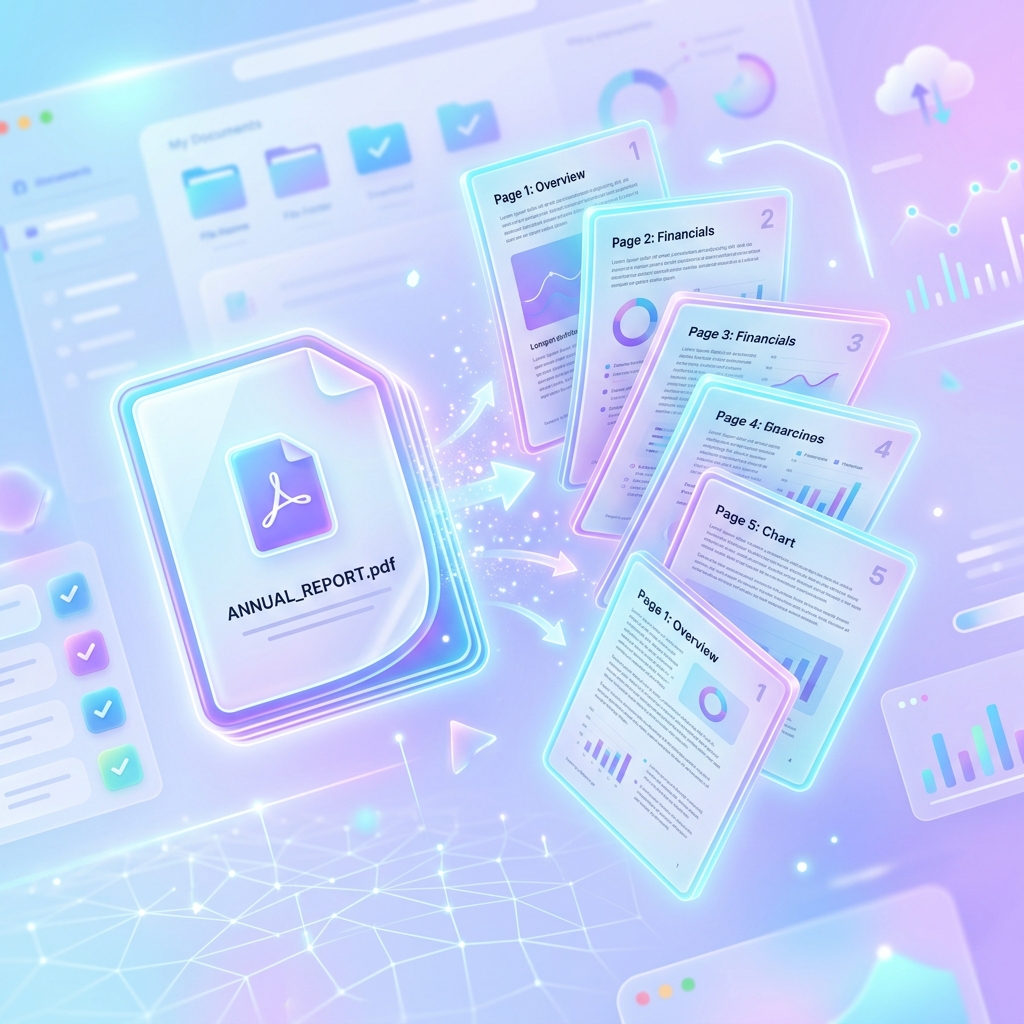
Why split a PDF into pages or chapters?
A single PDF is handy for storage, but it is not always practical to share the whole file. People often split a PDF into pages or chapters online so they can send smaller documents without everything else attached. The Library of Congress overview of the PDF format family explains how PDFs package page-based text and graphics in one file—which is why extracting pages is a common need.
How to split a PDF into pages or chapters online
Follow these four steps to split a PDF into pages or chapters online. Save a backup of the original file first.
-
Open a tool to split a PDF into pages or chapters
Open PDFZora Split PDF in a current browser such as Chrome, Firefox, Safari, or Edge. It works on desktop and mobile. You do not need to install software.
-
Upload your PDF
Choose the file from your device or drag it into the upload area. If the PDF is password-protected, unlock it first, and only if you have the password and permission to open it. PDFZora’s Split PDF tool accepts files up to 50 MB.
-
Choose how to split
Every page: creates one PDF per page. Useful for single-page forms, tickets, or invoices.
Page ranges or chapters: enter ranges such as
1-8, 9-20, 21-35when you split a PDF into pages or chapters online. Each range becomes its own file. Use the page order shown in the PDF viewer, which may differ from printed footer numbers. -
Split and download
Start the split, then download the new files. If you get several outputs, a ZIP download helps keep them together. Open one file to confirm the pages look right before you share anything.
1-12, 13-27, 28-40 are quicker than guessing page by page. If you will publish or share the new files widely, review Section 508 guidance on creating accessible PDFs so the split documents stay usable for more readers.
Split a PDF into pages or chapters: which option?
When you split a PDF into pages or chapters, both options come down to the same choice: which pages belong in each new file?
- One PDF per page when each page stands on its own.
- Custom ranges when you want sections or chapters kept together.
- A short range such as
4-6when you only need a few pages from a longer file.
For example, a 40-page handbook might use 1-2 for the cover, then 3-14, 15-27, and 28-40 for chapters. If the pages are out of order, fix the order first, then split.
Split a PDF into pages or chapters online vs desktop software
Full desktop PDF editors are useful for complex layout work. If you only need to split a PDF into pages or chapters online, a browser tool is often enough and avoids an install.
| Factor | Online (PDFZora) | Desktop software |
|---|---|---|
| Setup | Works in a browser | Install and updates required |
| Cost for a basic split | Free on PDFZora | Often a paid license |
| Best fit | Extract pages or ranges | Heavy editing and design |
| Where you can use it | Any device with a browser | Usually one installed computer |
Stick to well-known HTTPS sites for document tools. On PDFZora Split PDF, file transfer uses SSL encryption, and uploaded files are set to be deleted automatically after processing (about one hour, per the tool page). Only upload files you have the right to process. For broader privacy risk practices when handling personal data in documents, see the NIST Privacy Framework.
Common mistakes when you split a PDF into pages or chapters online
Page 1 in the tool is the first page of the file. That is not always the same as the number printed in the footer.
Unless you want the same pages in more than one file, keep ranges sequential and non-overlapping.
Unlock a protected PDF only when you are allowed to. If a scan is larger than 50 MB, compress it first, then split.
Splitting separates pages. It does not run OCR or turn a scan into editable text. For scan and remediation context, see Penn State’s guidance on PDF accessibility.
After you split
After you split a PDF into pages or chapters, you may still want to merge files again, compress a large result, rotate a sideways page, or add a password before sending something sensitive. Related tools are linked under More PDFZora Tools at the bottom of this page.
FAQs: split a PDF into pages or chapters online
1. Can I split a PDF into pages or chapters online without installing software?
Yes. You can split a PDF into pages or chapters online with PDFZora Split PDF in your web browser. You do not need desktop software, a plugin, or an account.
2. Is PDFZora Split PDF free? Will it add a watermark?
Yes, it is free to use. No account is required, and PDFZora does not add a watermark to your split files.
3. Can I split a PDF by chapters?
Yes. To split a PDF into pages or chapters online by section, enter one page range per chapter—for example 1-12, 13-28, 29-45. Each range is saved as its own PDF.
4. Is there a file size limit?
When you split a PDF into pages or chapters online on PDFZora, files up to 50 MB are accepted. If your scan is larger, compress it first, then split.
5. Does splitting change quality or formatting?
Splitting copies pages into new files. Text, images, and layout stay as they appear in the original PDF.
6. Can I split a password-protected PDF?
Only if you know the password and are allowed to open the file. Unlock it first, then run the split. Do not use unlock tools to bypass protection you are not authorized to remove.
Ready to split a PDF into pages or chapters?
Split a PDF into pages or chapters online in your browser. Free to use, no signup, and no watermark on the files you download.