
How to Find and Replace Text in a PDF Without Converting to Word First
Need to fix a date, a name or a typo? Here is how to find and replace text in a PDF without converting to Word first — three real methods, plus a free browser tool: no account, no watermark.
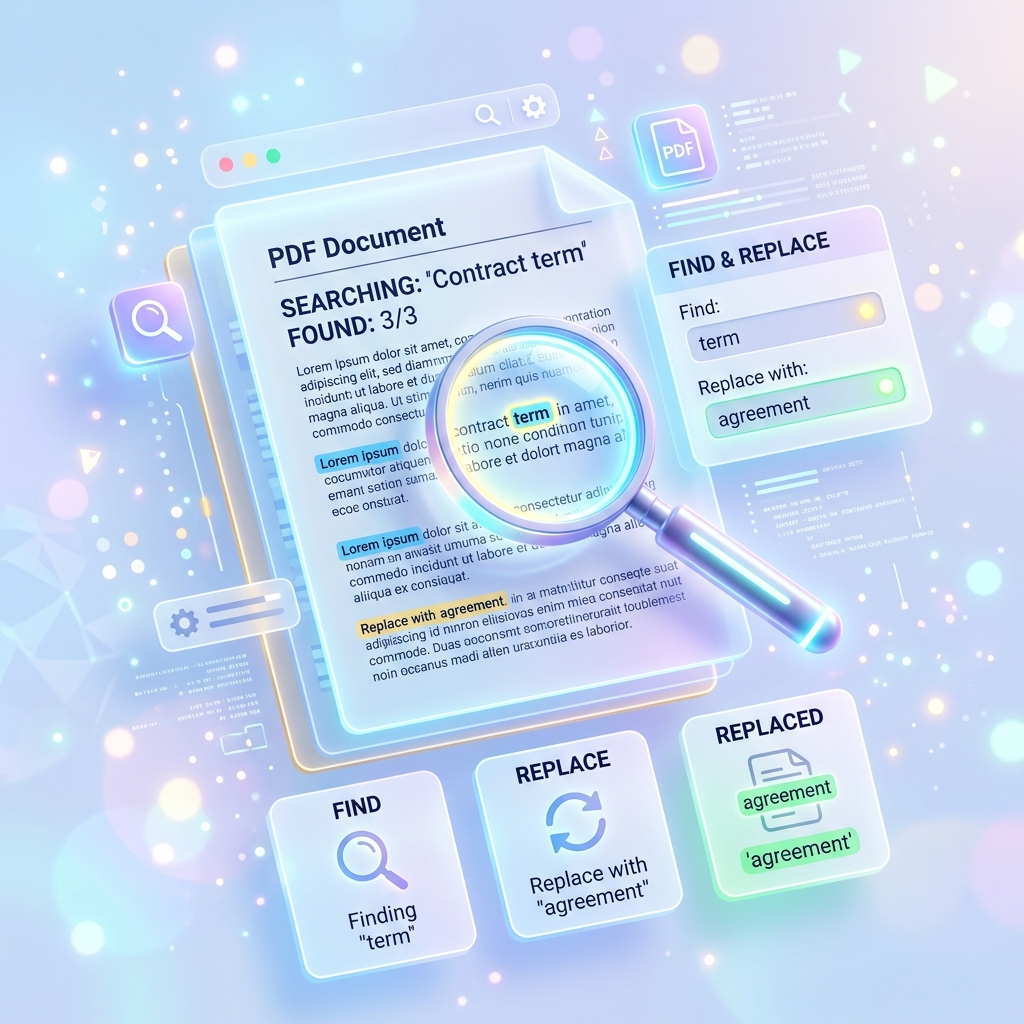
Quick answer: how to find and replace text in a PDF without converting to Word first
Edit the PDF itself instead of rebuilding it in a word processor. For quick find and replace text in PDF files that stays on your device, use a free browser tool. If the design must stay pixel-identical, use Acrobat's Edit PDF; for a one-off typo, Preview or LibreOffice Draw work too.
One limit applies to all three: a scanned PDF is only a picture, so there is no text layer to replace — run OCR first.
Why converting to Word usually wrecks the layout
A PDF pins every character and image to a fixed spot on the page — the format is standardised as ISO 32000, and the Library of Congress calls it a page-oriented document format. Word flows text instead, so a round-trip re-guesses every element: shifted margins, substituted fonts, a logo that jumps pages.
The 3 real methods, compared
| Method | Cost & signup | Edited where? | Replaces all at once? | Use it for |
|---|---|---|---|---|
| 1. PDFZora Find & Replace Text | Free • no account • no watermark | In your browser | Yes — case-insensitive Replace All | Text-first documents: invoices, forms, quotations |
| 2. Adobe Acrobat "Edit PDF" | Paid subscription | On your computer | No — one match at a time | Designs that must stay exact |
| 3. macOS Preview / LibreOffice Draw | Free • no account | On your computer | No — manual overlay | One-off typo fixes in an app you have |
Method 1 — PDFZora Find & Replace Text in PDF files (free, in-browser)
What this tool does
- Free
- No signup
- No watermark
- Runs in your browser
- One-click Replace All
It performs find and replace text in PDF files and hands back the updated file — no upload step, because it reads and rewrites your PDF in the browser with client-side JavaScript. Type the old text and the new, then click Replace All: every match on every page swaps at once, ignoring letter case.
The find and replace tool extracts your PDF's text and writes a new, simpler PDF (Helvetica, plain line flow). Images, custom fonts, text boxes and multi-column layouts are not carried over, so a designed original will not look the same. Keep the original.
Step by step
- Add your file. Choose Select file or drag your PDF in. Text-based PDFs work; scans do not.
- Type what to find and replace — an old date, a misspelled name, a product code.
- Type the replacement and click Replace All. Every match is highlighted in the editable preview — check it before you continue.
- Convert & Save, then Download. The tool writes edited-yourfilename.pdf in your browser; your original stays untouched.
Method 2 — Adobe Acrobat "Edit PDF" (paid, keeps the design)
Use this when the layout must survive untouched: Acrobat edits existing text objects instead of rebuilding the page, so margins, images and tables stay put.
- Open the PDF and switch to Edit (older builds call it Edit PDF).
- Click the text and retype it. Surrounding text reflows inside its own block.
- Find and replace each remaining instance with Ctrl+F (Cmd+F on Mac).
- Save a copy with File > Save As, so the original stays untouched.
Two limits before you pay: Edit PDF handles one occurrence at a time, and you can only type in a font installed on your computer — if a font is embedded but missing from your system, Acrobat limits you to changing its colour or size. It also needs paid Acrobat, not the free reader.
Method 3 — macOS Preview or LibreOffice Draw (free, manual)
- Open the PDF in Preview and show the Markup toolbar (pen icon).
- Cover the old text with a filled white rectangle.
- Type the new text in a box over the same spot, matching size and font by eye.
- Export with File > Export as PDF. LibreOffice Draw does the same on Windows and Linux; results vary on complex layouts.
The original words stay in the file — selectable, searchable, copyable — which is how confidential details leak. Use a tool built for permanent removal: Acrobat's redaction tools mark, apply and sanitise the content.
Mistakes to avoid
- Working on your only copy. Duplicate the PDF first.
- Replacing a term that appears more often than you think when you find and replace. "2024" can also hit invoice numbers and totals — read the preview.
- Expecting a scanned PDF to work. A page returning "[Image/Scanned Page]" has no text layer — run OCR first.
- Assuming the export looks identical. Method 1 rebuilds the text; methods 2 and 3 approximate — open both.
- Forgetting the parts nobody reads. Headers, footers and file properties can still hold the old name.
Search the old term (Ctrl+F / Cmd+F) to confirm it is gone → check the header and footer → compare page 1 of both versions. Too big to email? Compress PDF. Adding revised pages? Merge PDF.
Find and replace text in PDF files: FAQs
Can I find and replace text in a PDF without converting it to Word first?
Yes. All three methods find and replace inside the PDF itself, so Word never comes into it. Use the browser tool for text-first documents, or Acrobat to keep the exact layout.
Is PDFZora's Find & Replace Text tool really free, with no account and no watermark?
Yes. It is free to use, needs no registration, and the PDF you download carries no PDFZora watermark.
Does PDFZora upload my PDF to a server?
No. It reads your PDF and writes the new one inside your browser, so the file is not uploaded to PDFZora's servers. Follow your organisation's policy on sensitive documents.
Will the formatting stay exactly the same?
Not always. The tool rebuilds the document as a clean, text-based PDF, so images, custom fonts and multi-column layouts are not carried over. For pixel-identical design, use Acrobat.
Can I replace every occurrence at once, and is it case-sensitive?
With PDFZora's tool, yes: a single find and replace pass swaps every match on every page in one click, and matching ignores letter case. Acrobat and Preview find and replace one instance at a time.
Ready to Find and Replace Text in Your PDF Without Word?
Skip the conversion. Enter the text you want to change, replace every match across every page in a single click, and download the revised PDF — free, with no account and no watermark. It suits text-first documents such as invoices, reports and contracts.
More PDFZora Tools
Edit & manage PDFs
Free productivity tools
Disclaimer: The Find & Replace Text tool is free and provided "as-is", without warranties, and editing text carries a risk of formatting changes. It processes your file in your browser; other PDFZora tools work differently, so check their pages. Keep a backup of your originals.