
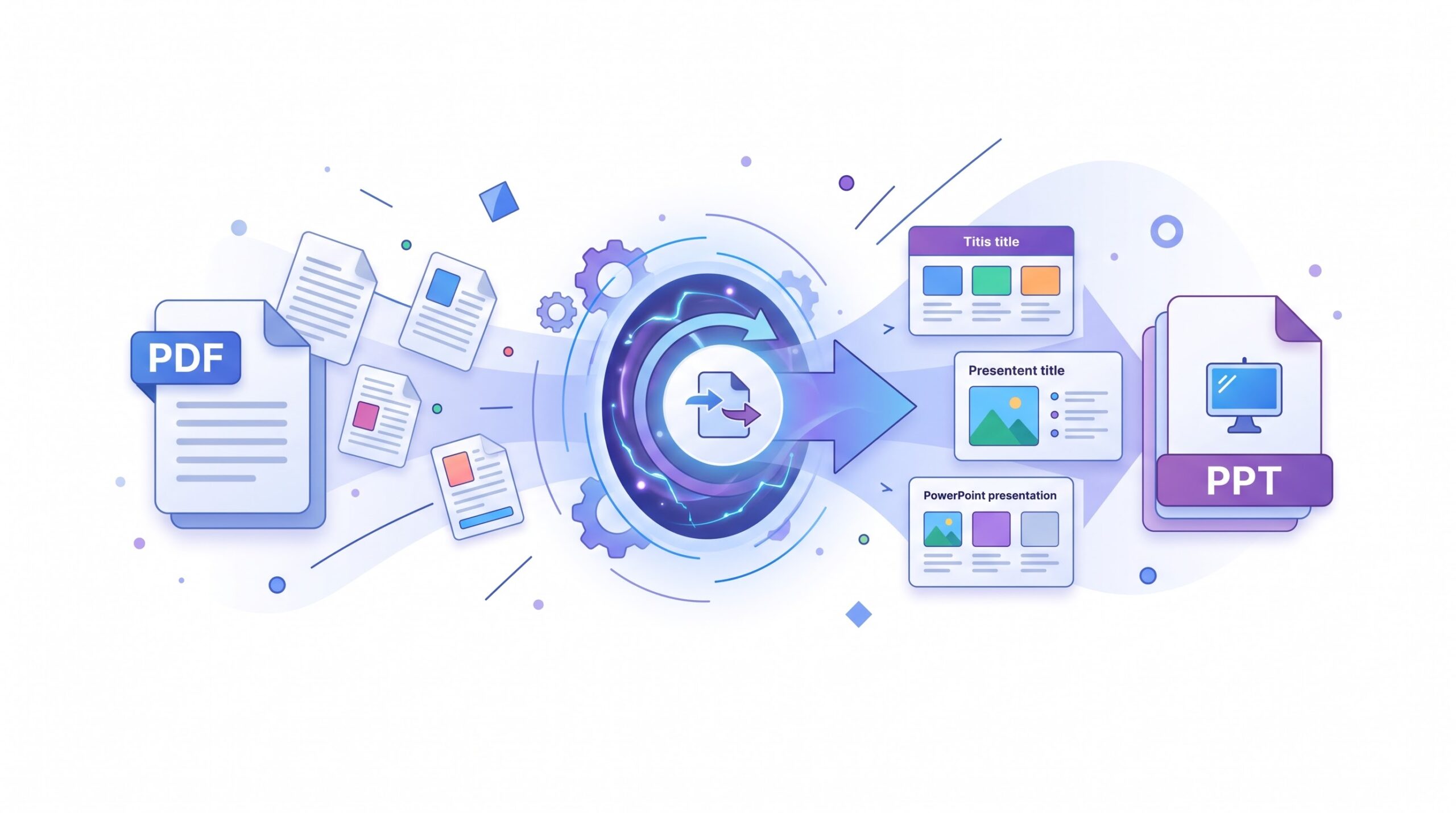
PDF to PowerPoint
Convert a PDF into a PowerPoint presentation, then review and edit the downloaded PPTX file.
- Free to use
- No account
- Nothing to install
- PPTX download
Need a different job done with a PDF?
Browse all free toolsCan I convert a PDF to PowerPoint?
Select a PDF, choose a conversion setting, download the PPTX, then review the slides before sharing.
How to convert a PDF to PowerPoint
Choose a PDF, select settings, and review the PPTX.
-
Add your PDF
Select or drag a PDF into the upload area. Keep the source for comparison.
-
Select conversion settings
Choose a conversion engine and aspect ratio, then select Convert to PowerPoint.
-
Download and inspect slides
Open the PPTX and review slides before sharing.
What the PDF to PowerPoint tool does
The tool creates a PPTX file from a PDF. Review it before sharing.
Editable PPTX output
The tool describes its PPTX output as editable.
Available conversion options
It lists Visual Match, Smart OCR, and Direct Text & Shapes Extraction.
Available options in the tool
| Setting | What it does | Good to know |
|---|---|---|
| Digital PDF | Listed for standard digital PDFs with embedded vector fonts. | Review output. |
| Scanned PDF | Listed as a conversion engine. | Check text after conversion. |
| Slide layout | Match PDF, 16:9, and 4:3 are available. | Choose a setting. |
When PDF to PowerPoint is useful
-
Refresh an old deck
Start with a presentation PDF if the original deck is unavailable.
-
Prepare teaching material
Create a PPTX copy of handouts for class review.
-
Reuse report graphics
Add report pages and check labels before sharing.
-
Build a working draft
Create a meeting or proposal draft, then compare it with the PDF.
Points to check before you convert
Check the downloaded file
- Review before sharing. PDFZora advises checking downloads before sharing.
- Scanned PDFs. Smart OCR & Editable Layout is available.
- Slide size. Match PDF, 16:9, and 4:3 are available.
- Media options. Review vector, image, list, and table options.
- Keep the original. Compare the download with the source PDF.
If the result needs another review
| Problem | Likely cause | What to try |
|---|---|---|
| Text needs checking | The source may be scanned or image-based. | Try Smart OCR, then review the result. |
| Slide size looks wrong | The aspect ratio may not match the source. | Choose Match PDF, 16:9, or 4:3, then convert again. |
| The presentation is too large | High-resolution media may increase file size. | Review media settings. |
| The download is incomplete | The download may not be complete. | Download it again and open it in compatible presentation software. |
How Your Files Are Handled
- No account, no email. You can use the tools without signing up.
- The connection is encrypted. PDFZora uses HTTPS.
- PDFZora does not sell, rent, or trade personal data. Data may still be shared with the companies that help run the site, or disclosed where the law requires it.
- Processing is largely automated. Access to file content is limited to what is needed to run, maintain, secure, or support the service, or to meet a legal obligation.
Processing method can vary by tool. Some operations may run in the browser, while others may require temporary server-side processing. Retention periods depend on the method used. For the latest information about temporary file storage and deletion, see PDFZora's Data Privacy & Security page.
Frequently Asked Questions
Yes. PDFZora lists it as free, with no account or email address required.
No. PDFZora says the tool runs in a browser. Open the PPTX in compatible presentation software.
Use browser downloads or your device’s file manager to find the PPTX.
Open the PPTX and review its slides. Compare it with the original PDF when accuracy matters.
Need another PDF tool?
Browse PDFZora’s collection to find a tool for another document task.
Browse all free tools