
Compress PDF Files Online for Free
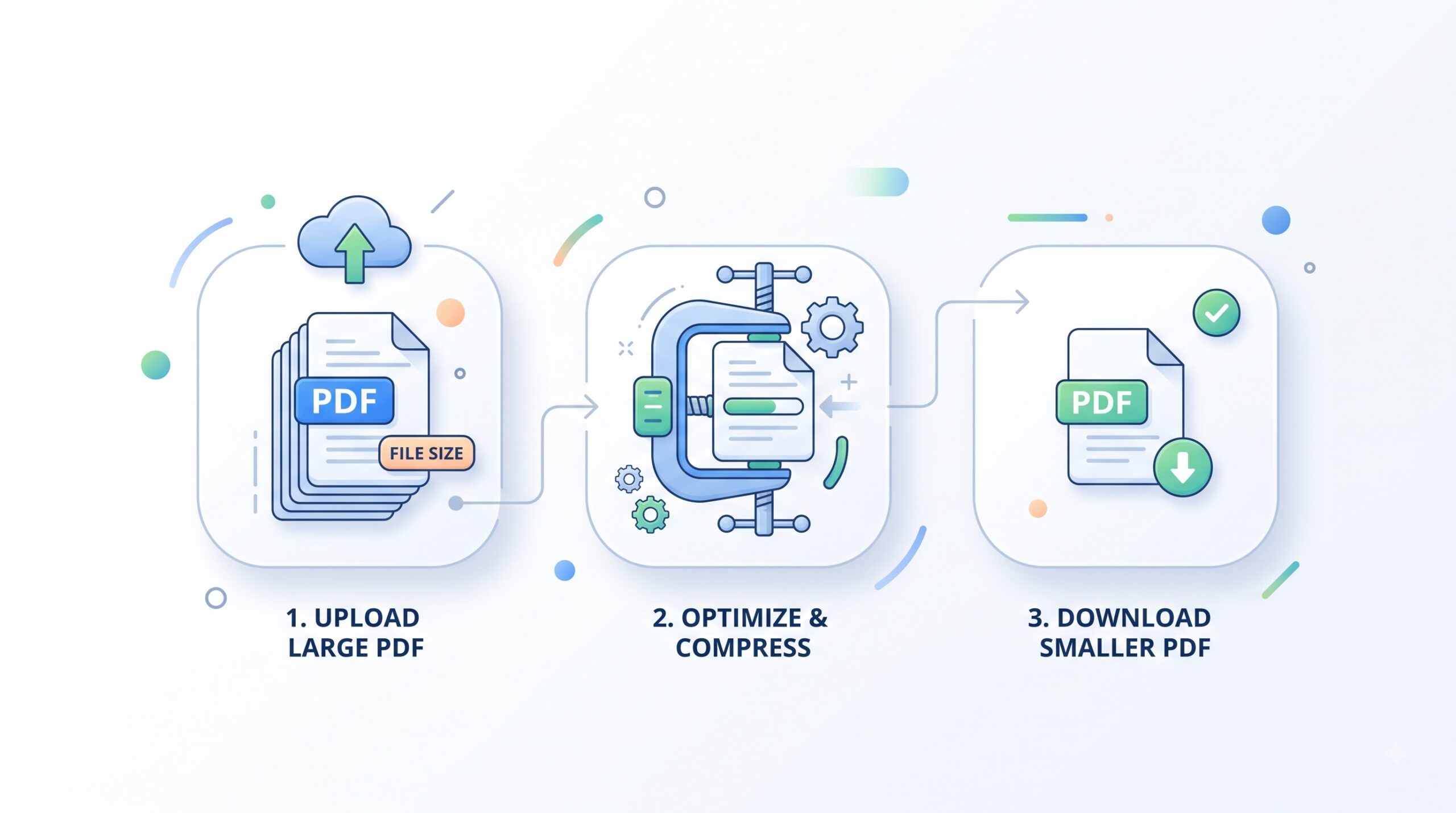
Compress PDF reduces the size of large PDF files so they are easier to email, upload, and store. Choose a compression level, compare the size before and after, and download the smaller file. No account required.
- Free to use
- No account required
- No software to install
- Processed in your browser
Need a different job done with a PDF?
Browse all free toolsQuick answer: how do I compress a PDF?
Add your file to the compressor, choose High, Recommended, or Low compression, then download the result. PDFZora first tidies the PDF's internal structure and, if that is not enough, recompresses the page images. The panel shows the original and compressed sizes, so you can see the saving before you use the file.
How to Compress a PDF
Four steps, one file at a time.
-
Choose a compression level
Recommended is selected by default and suits most documents. Choose High when size matters more than sharpness, or Low to keep as much detail as possible.
-
Add your PDF
Click Select PDF File or drop the file onto the upload box. The tool takes one PDF at a time.
-
Wait for the progress bar
It shows the stage and percentage. Long, image-heavy PDFs take longer than short text documents.
-
Compare the sizes and download
The result shows the Original and Compressed sizes side by side. Open the file and check it before sending it on.
What PDFZora's Compress PDF Tool Does
It works in two passes and keeps the smaller result.
Pass 1 — tidy the structure
The tool rewrites the PDF's internal objects and clears document metadata (title, author, subject, creator, producer, keywords). Nothing on the pages changes, so text stays selectable.
Pass 2 — recompress the pages
If pass 1 does not shrink the file enough, PDFZora renders each page and rebuilds the PDF around recompressed images. Most of the saving happens here — and so does any visible quality change.
Choosing a compression level
| Level | What it does | Best for |
|---|---|---|
| Recommended | Balanced recompression, selected by default. | Reports, forms, and documents you still need to search. |
| High | Smaller pixel dimensions and lower image quality. | Meeting a strict upload limit. Expect softer images. |
| Low | Gentler recompression that keeps more detail. | Scans, portfolios, and pages with fine print. |
When You May Need to Compress a PDF
-
Email attachments
Many mail services reject attachments in the tens of megabytes.
-
Portal upload limits
Job, university, and government portals set their own size caps.
-
Image-heavy documents
Scans, portfolios, and design proofs are large because of their images.
-
Archiving and storage
Shrink invoices, receipts, and statements before long-term storage.
What to Expect, and Where Compression Has Limits
Read this before you choose High compression
- Savings vary by file. Image-heavy scans shrink the most; a text-only PDF that is already optimized may barely change.
- The result can stay about the same. The tool keeps the smallest version it produced and shows both sizes. If it is not smaller, keep your original.
- High compression turns pages into images. Text may stop being selectable or searchable, links and form fields may stop working, and text can look soft when zoomed or printed.
- Metadata is cleared. Title, author, subject, creator, producer, and keywords are removed as the file is rebuilt.
- One file at a time. There is no batch mode.
- Large files depend on your device. Very long or image-heavy PDFs take longer and use more memory. Password-protected or damaged files may not open at all.
Common problems and what to do
| Problem | Likely cause | What to try |
|---|---|---|
| The file barely got smaller | Little image data, or the PDF is already optimized. | Try High compression. If it still will not shrink, reduce the page count and export the pages you need as images. |
| Text can no longer be selected | High compression rebuilt the pages as images. | Re-run the original at Recommended or Low compression. |
| Nothing happens when I add the file | The PDF is password protected, encrypted, or damaged. | Remove the permissions password first, or repair the file and try again. |
| It is slow or the tab freezes | A very long document uses a lot of browser memory. | Close other tabs, or split the PDF into parts and compress each one. |
How Your Files Are Handled
- This tool runs in your browser. As it is built today, Compress PDF does the work on your device rather than uploading the document for processing.
- No account, no email. You do not need to sign up to use the tools.
- The connection is encrypted. PDFZora uses HTTPS.
- PDFZora does not sell, rent, or trade personal data. Data may still be shared with the companies that help run the site, or disclosed where the law requires it.
Processing method can vary by tool. Some operations may run in the browser, while others may require temporary server-side processing. For current information about file handling, retention, and privacy practices, review PDFZora's Data Privacy & Security page. It currently states that temporary processing copies on PDFZora's systems are deleted within one hour after processing.
Frequently Asked Questions
It can. The first pass only tidies the file structure. The second pass recompresses page images, which is where softening appears — most at High, least at Low.
Start with Recommended. Move to High only when you must hit a size limit and do not need to search or copy the text. Use Low when detail matters more than size.
Often, but not guaranteed. If the pages are recompressed as images, the text layer is lost. Recommended and Low keep it more often than High — try selecting a line in the downloaded file before you rely on it.
The tool does not display a fixed size cap. How large a file you can process depends on your device's memory and browser. Split very large files first and compress each part.
No. The compressor handles one PDF at a time. Combine your files into one document first, then compress that.
Reduce your PDF file size
Choose a compression level, add your PDF, and download a smaller file. Free, in your browser, and no account needed.
Browse all free toolsExplore more PDFZora tools
Related guides
-
Guide
How to compress PDF without losing quality
What actually changes inside the file, which level to pick, and how to keep pages readable after compression.
Read the guide -
Guide
How to compress a PDF below 1 MB
Practical steps for the strictest portal upload limits, and what to do when compression alone is not enough.
Read the guide