
How to Convert PDF to Word Without Losing Formatting – Free & Instant
Convert PDF to Word in seconds – keep your fonts, tables and layout.
You need to edit a PDF, so you copy the text into Word — and the layout falls apart. This guide solves that exact problem: how to convert PDF to Word without losing formatting, free and instantly, with no watermark and no account.
⚡ Quick answer
Choose a converter that rebuilds the document, not one that just dumps raw text into a file. With PDFZora's free PDF to Word tool:
- Upload your PDF (drag & drop or select the file).
- Let the engine detect text, fonts, tables, columns and images. OCR handles scanned pages.
- Download the editable
.docxand open it in Word. No signup, no watermark.
Text-based PDFs convert most accurately. Scanned PDFs depend on OCR, so proofread the result before you edit.
Why PDF to Word conversion breaks formatting
PDF and Word store documents in fundamentally different ways, and that mismatch is the whole problem. A PDF is a fixed-layout format defined by the ISO 32000 standard: every character, line and image is drawn at an exact position, so nothing reflows. A Word file (.docx) uses Office Open XML, published as ECMA-376, which is flow-based. Text lives in paragraphs, styles and table objects that re-wrap automatically.
Converting between the two is a reconstruction job, not a copy job. A tool that only extracts characters throws away the structure that held the page together.
What goes wrong, and why
Copy-paste flattens everything. Word can't tell that a PDF column of numbers was a table, so it treats it as ordinary text.
Tables become spaces and tabs. Without real Word table objects, data looks roughly right but breaks the moment you type in it.
Fonts get substituted. A font you do not have installed is swapped for a similar one, so line breaks may shift.
Scans need OCR, full stop. A scanned PDF is an image of a page, not text. Without optical character recognition, nothing converts properly.
What "no loss of formatting" realistically means
Be careful with any tool that promises a pixel-perfect copy. Microsoft's guidance on opening a PDF in Word notes the converted file may not match the original page for page, because lines and pages break at different points. What you can expect from a good converter: paragraphs, fonts, real tables, column layouts, images and headers close enough that you edit instead of rebuild.
Free PDFZora tool for this job
PDF to Word — keep your layout, pay nothing
PDFZora's PDF to Word converter is built for exactly this task: it detects your document's structure and rebuilds it as a fully editable Word file, in your browser.
- 100% free — no subscription
- No signup, no email required
- No watermark on your document
- OCR support for scanned PDFs
- Keeps tables, columns and images
- Works online on any device
- Files auto-deleted after 60 minutes
- Bulk conversion of several PDFs
Upload, convert, download the .docx. Nothing to install.
How to convert PDF to Word without losing formatting (step by step)
The screenshots below are real captures of the PDFZora interface, so you know exactly what to expect.
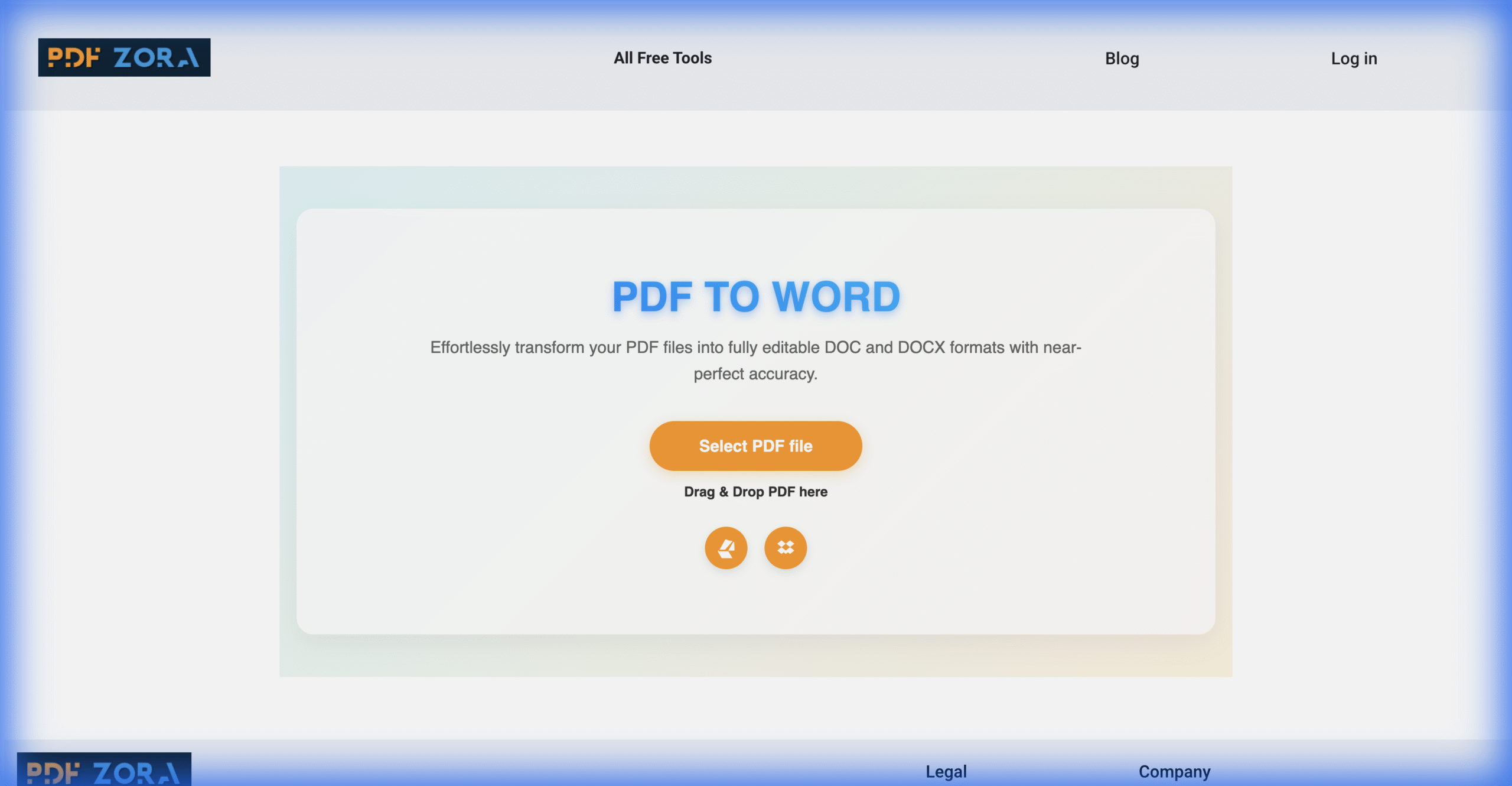
Upload your PDF
Open the PDF to Word tool and click Select PDF file, or drag your document into the upload area. Several PDFs can be queued at once for bulk conversion. No account, no email confirmation.
Let the engine analyse and convert
The converter reads the page structure: text blocks, tables, columns and images. It also works out whether your file is text-based or a scan, and runs OCR so scanned words become editable text rather than pictures.
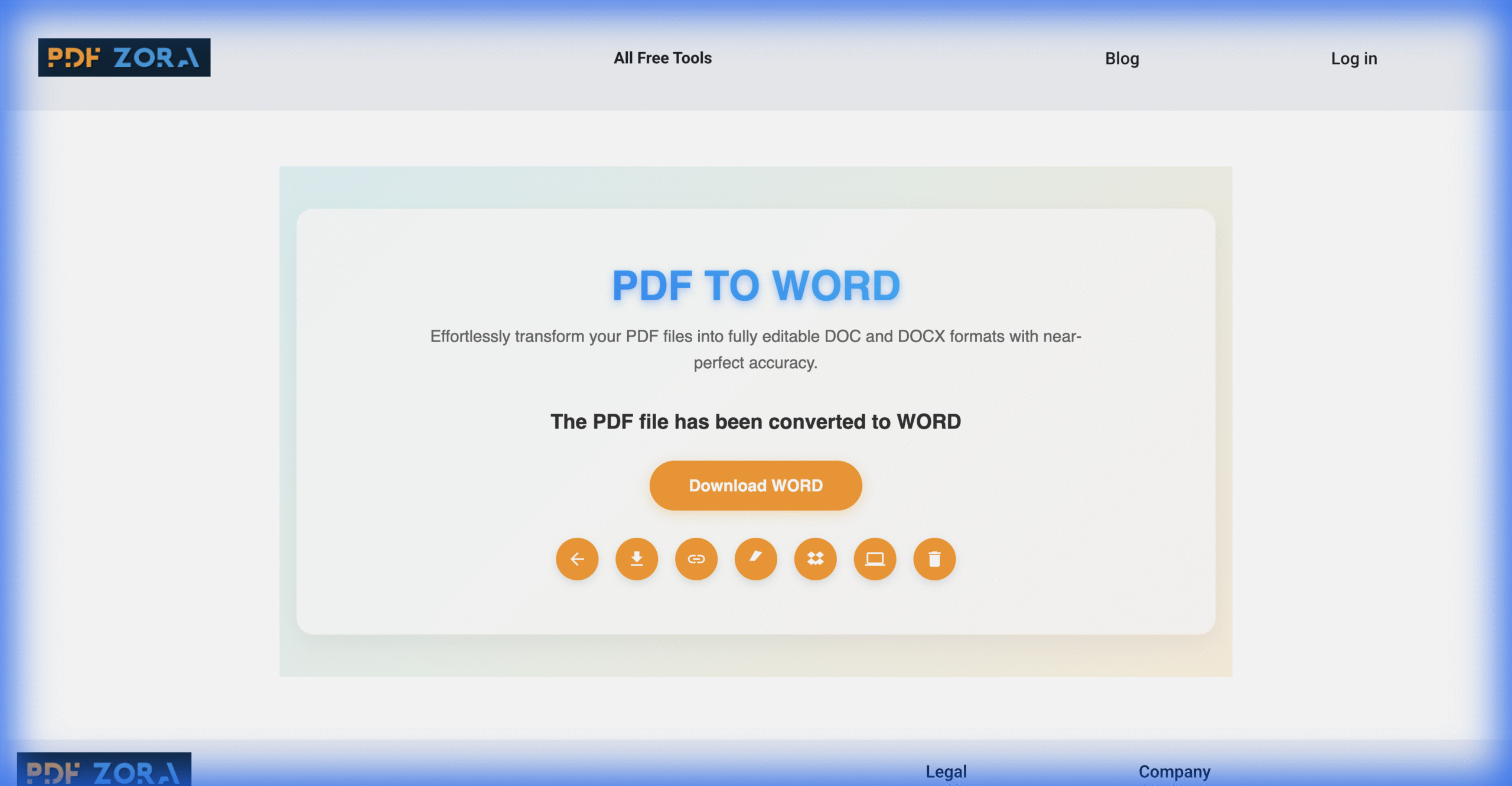
Download the Word file and check it
Click Download WORD, then open the .docx in Word, Google Docs, LibreOffice or Word for the web. Skim it against the original once — a 30-second check saves a lot of clean-up later.
.docx file.What gets preserved — and what can still shift
| Element | Typical result | What to check |
|---|---|---|
| Paragraphs & text | Editable text with line breaks | Rejoin stray breaks with Find & Replace |
| Fonts | Sizes, weights and colours kept | Substituted if the font is missing on your device |
| Tables & columns | Rebuilt as real Word tables and column layouts | Use Distribute Columns Evenly, never spaces |
| Images & logos | Placed with the surrounding text | Set wrap to In Line with Text |
| Headers, footers, page numbers | Detected as repeating page elements | Confirm they sit in the header/footer area |
| Scanned pages | Text extracted with OCR | Proofread names, numbers and symbols |
Complex vector art, fillable forms and equations are the exception. They may arrive as an image, or need tidying by hand.
If something still shifts, fix it in Word (not by re-converting)
Fix tables with Word's table tools. Select the table, then use Layout → AutoFit → AutoFit Window, and Distribute Columns Evenly.
Rejoin broken lines. Find & Replace with ^p → space repairs paragraphs that broke mid-sentence; check the result so you don't merge genuine breaks.
Restore structure with Styles. Apply Heading 1, Heading 2 and Normal styles so every heading is consistent, rather than formatted by hand.
Paste between files correctly. Use Paste → Keep Text Only and reapply styles, or Merge Formatting to keep the destination's look.
Work on a copy. Save a duplicate before editing and keep the source PDF open to compare pages.
💡 Pro tip for scanned documents: If the OCR result contains odd characters, scan or export at a higher resolution and convert again. Cleaner source images beat any post-conversion editing.
Mistakes to avoid
Editing before you check. Compare page one against the PDF first, and test a new tool on a file with tables or a scan — simple text PDFs convert well almost anywhere.
Uploading confidential files anywhere. PDFZora uses 256-bit SSL, deletes files after 60 minutes and has no human review. Even so, follow your own organisation's policy for contracts, ID documents and medical records.
Assuming you have to pay. Word can convert a PDF through File → Open, as described on Microsoft 365's conversion page. An online converter is simply a second route, handy when Word isn't installed or you're on a phone.
Frequently asked questions
1. Can I convert PDF to Word without losing formatting for free?
Yes. PDFZora's PDF to Word converter is free, with no account, no watermark and no payment step. Upload the PDF and download the .docx yourself.
2. Why does my converted Word document lose its formatting?
PDF is fixed-layout and Word is flow-based, so the converter has to rebuild the structure; it cannot just copy it. Tools that only extract text lose tables, columns and image anchoring.
3. Can I convert a scanned PDF to Word?
Yes — scanned pages are read with OCR and turned into editable words. Accuracy depends on scan quality, so always proofread names, figures and symbols.
4. Does the converter add a watermark or need an account?
No. There is no watermark on the output, and no signup, email or software install. It runs in your browser on desktop and mobile.
5. Are my files private?
Transfers use 256-bit SSL, files are processed automatically with no human review, and uploaded and converted files are deleted from the servers after 60 minutes.
6. What if my tables still break after conversion?
Search the document for table problems and fix them in Word. Converting a second time rarely helps: use AutoFit Window, Distribute Columns Evenly, and delete any spaces or tabs standing in for cell borders.
Converting is easy once you know what to look for: let the tool rebuild the structure, then spend your time editing, not reformatting.
Ready to Convert Your PDF to Word?
PDFZora rebuilds your document as a fully editable Word file — free, in your browser, with no watermark and no subscription.
⚡ Convert My PDF Now – Keep Formatting!- ✓ Free
- ✓ No signup
- ✓ Preserves formatting
- ✓ Instant download