
PDFZora Web, Desktop, or Mobile – Which Platform Is Best? (2026 Ultimate Guide)
PDFZora is one free website that runs in any browser — on desktop, laptop, tablet, or smartphone. Here's how to pick the right device for each PDF task, with no app to install and no account to create.
Explore PDFZora Platform Tools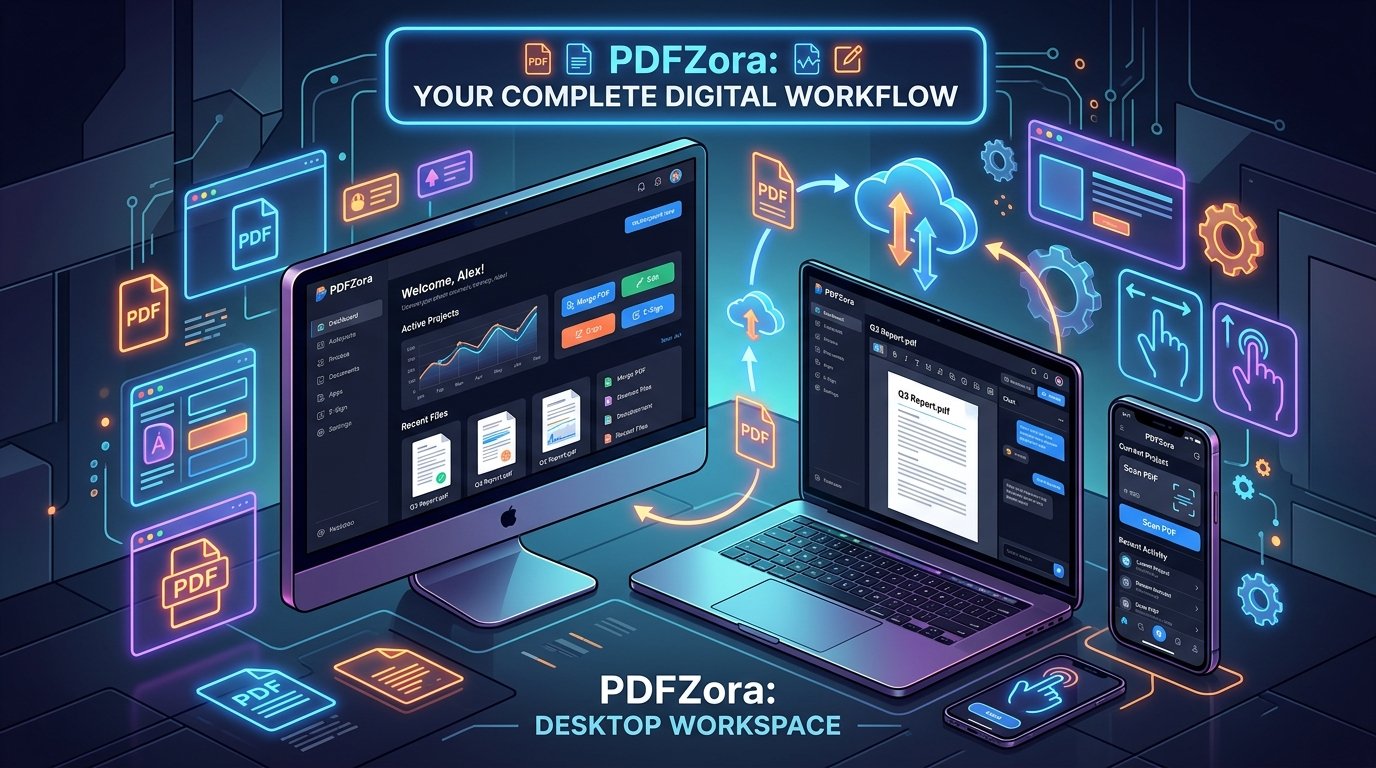
⚡ Quick answer
- There's no separate web, desktop, or mobile edition to choose from. PDFZora is one website that opens in any browser.
- Use it on a desktop or laptop for multi-file batches and detailed page work; use it on a phone or tablet for quick conversions and photos on the go.
- The same tools, features, and pricing apply on every device — only screen size, input method, and portability change.
- It's free to use with no sign-up and no watermarks. You need an internet connection: files are processed online and auto-deleted about 60 minutes later.
Wondering whether you should use PDFZora in a browser, install a desktop program, or download a phone app? You don't need any of those — the PDFZora website is the product, and it looks and works the same everywhere. This guide walks through what actually changes from one device to the next, the six-step workflow that works on every screen, and the file-size and privacy details worth knowing before you start.
Why use PDFZora?
PDFZora puts a full suite of PDF tools — compress, merge, split, convert, edit, sign, and more — behind one web address that looks and works the same on a desktop PC, laptop, Chromebook, tablet, or phone. Because the heavy processing runs on PDFZora's servers rather than your device, an older phone or laptop isn't much of a disadvantage, as long as you have a decent connection.
- Free to use — no account or payment details
- No watermarks added to your files
- Nothing to install or update
- Same tools on Windows, macOS, Linux, iOS & Android
- Works in Chrome, Safari, Edge, Firefox & Opera
- Batch processing for multiple files
What "web, desktop, or mobile" actually means here
Traditional PDF software is a desktop program you install, sometimes paired with a phone app. PDFZora doesn't work that way. It's a website, so the page you open on a Windows PC, a MacBook, a Chromebook, an iPhone, or an Android phone is the exact same product. The question isn't really "which edition?" — it's "which device do I have in front of me right now?"
Only three things genuinely change between devices: screen space (reordering and previewing pages is much easier on a monitor), input (mouse and keyboard versus touch), and where you're working (a desk versus a commute). The tools, the price, and the file you get back stay the same.
What to have ready before you start
- An up-to-date web browser — a current version of Chrome, Safari, Edge, Firefox, or Opera.
- An internet connection. Files are uploaded and processed online — standard server-side processing, not offline work — so stay connected until your download is ready.
- Your file, at or under 50 MB. Compress or split anything larger before you upload.
- A place to save the result — your device's downloads folder, or a cloud drive such as Google Drive, Dropbox, or iCloud.
How to use PDFZora on any device — 6 steps
The workflow below is identical on a desktop, laptop, tablet, or phone.
-
Open PDFZora in your browser
Go to www.pdfzora.com in your browser — there's nothing to download. Bookmark it on a computer, or use your phone browser's "Add to Home Screen" option for an app-like icon.
-
Choose the tool for your task
Compress, merge, split, convert to or from PDF, edit, sign — the full list appears on every device.
-
Check that tool's file-size limit
The tools work with files up to 50 MB each — the same limit no matter which device you use. If a file is larger, run it through the Compress PDF tool first, or split it into smaller files.
-
Add your files
On a desktop or laptop, drag and drop files or use the file picker. On a phone or tablet, tap the upload button and choose from your Files app, photo library, Google Drive, or iCloud.
-
Run the task and stay on the tab
Wait for the upload and processing to finish. Large files and multi-file batches go more smoothly over a stable Wi‑Fi connection. Closing the tab early will interrupt the job.
-
Download and verify the result
Open the finished file and check that the pages, layout, and quality look right. If you'll need it on another device, save it to a cloud drive now — there's no account that syncs files between devices.
Desktop, laptop, or mobile: how they compare
Each setup runs the same website; the differences are about comfort for the job in front of you.
Desktop browser
Windows, Mac, or Linux workstations on a large monitor.
- Best for batches and multi-tab work
- Drag-and-drop, mouse, and keyboard shortcuts
- Roomiest view for page reordering
- Usually the most stable connection
Laptop or Chromebook
The balanced choice for study, travel, and home offices.
- Full toolset with a built-in screen and keyboard
- Portable between home, campus, and cafés
- Easy drag-and-drop with the trackpad
Phone or tablet browser
iPhone, iPad, and Android devices for work on the move.
- Quick one-file conversions anywhere
- Turn photos and scans into PDFs quickly
- Touch controls and share-sheet saving
- Add the site to your home screen
Side-by-side: what actually changes between devices
Same website and same tools everywhere — the differences below are only about day-to-day comfort. Scroll the table sideways on a small screen.
| Factor | Desktop browser | Laptop / Chromebook | Phone / tablet |
|---|---|---|---|
| Software to install | ✓ None | ✓ None | ✓ None |
| Tools & features | Full set | Full set | Full set, touch layout |
| Input method | Mouse + keyboard | Trackpad + keyboard | Touch |
| Page reordering comfort | High | High | Low–medium |
| Large or batch uploads | Easiest | Good, prefer Wi‑Fi | Possible, prefer Wi‑Fi |
| Works offline | No | No | No |
So which should you pick?
The easiest choice when you're at a desk with a monitor or working through a big batch of files.
Hits the sweet spot for studying, travel, and hot-desking between home and campus.
What you want for a single quick file, a photo or scan, or anything urgent away from your desk.
Save the finished file to a cloud drive. Nothing is stored in an online account, so files don't carry over between devices on their own.
Common mistakes to avoid
- Looking for an app to install. You don't need one — PDFZora is a website, not an installable program. Files still upload online, but nothing has to be installed.
- Expecting offline access. Uploads and conversions require an internet connection from start to finish.
- Trying to upload an oversized file. The tools work with files up to 50 MB each — compress or split larger documents first.
- Closing the tab too early. Wait until the finished file is ready to download, or the job gets interrupted.
- Expecting files to sync across devices. They won't — download the result or save it to a cloud drive yourself.
- Using an outdated browser. If the upload area behaves oddly, updating the browser usually fixes it.
Bonus productivity tips
- Bookmark it. Pin PDFZora in your desktop browser or add it to your phone's home screen.
- Compress before you send. Shrink large PDFs to keep email attachments moving smoothly.
- Combine or extract. The Merge PDF tool joins related documents; Split PDF pulls out just the pages you need.
-
Name files clearly with a consistent pattern, e.g.
2026-09-project-name-v1.pdf. - Converting several similar files? Select them all at once with batch upload instead of repeating the same job.
- Download promptly. Server copies are removed about 60 minutes after processing.
Frequently Asked Questions (6 FAQs)
No. PDFZora is browser-based, with no separate program or app-store app. Just open www.pdfzora.com in any modern browser. On a phone or tablet, "Add to Home Screen" gives you a tappable shortcut without installing anything.
Yes — the same tools are available in every browser on every device, and they produce the same result. Only the layout adapts to the screen. Tasks that involve dragging pages, such as reorganizing a merge, are simply more comfortable on a larger display.
The tools are free to use, you don't need an account, and downloaded files come out without any watermark. The individual tool pages are the best place to check if the terms ever change.
The tools work with files up to 50 MB per file. If your document is bigger than that, run it through the Compress PDF tool first, or use Split PDF to break it into smaller files. It's worth a quick glance at the note on the specific tool page too, in case its limit differs.
No. Files are uploaded and processed online, so you need an internet connection throughout the task. For large files, use a stable Wi‑Fi network to keep the upload smooth.
Processing is automated, so nobody reviews your documents. Uploads travel over an encrypted SSL connection, and PDFZora's tool pages say uploaded and converted files are deleted from the servers about 60 minutes after processing.
Ready to Experience PDFZora Cross-Platform Productivity?
If you're asking "PDFZora Web, Desktop, or Mobile – Which Platform Is Right for You?", the answer is simple: open PDFZora in the browser on whatever device you're using. There's nothing to download from an app store and no desktop program to install. Your files are uploaded over an encrypted SSL connection, processed on PDFZora's servers, and automatically deleted about 60 minutes later — whether you're on Windows, Mac, a Chromebook, iPhone, or Android. It's free to use, with no account to create.