
How to Compress PDF Without Losing Quality
Too big to send? Here's how to shrink a PDF for email, job portals, and web uploads without making it look any worse. The tool is free, and you don't need an account.
Compress Your PDF Free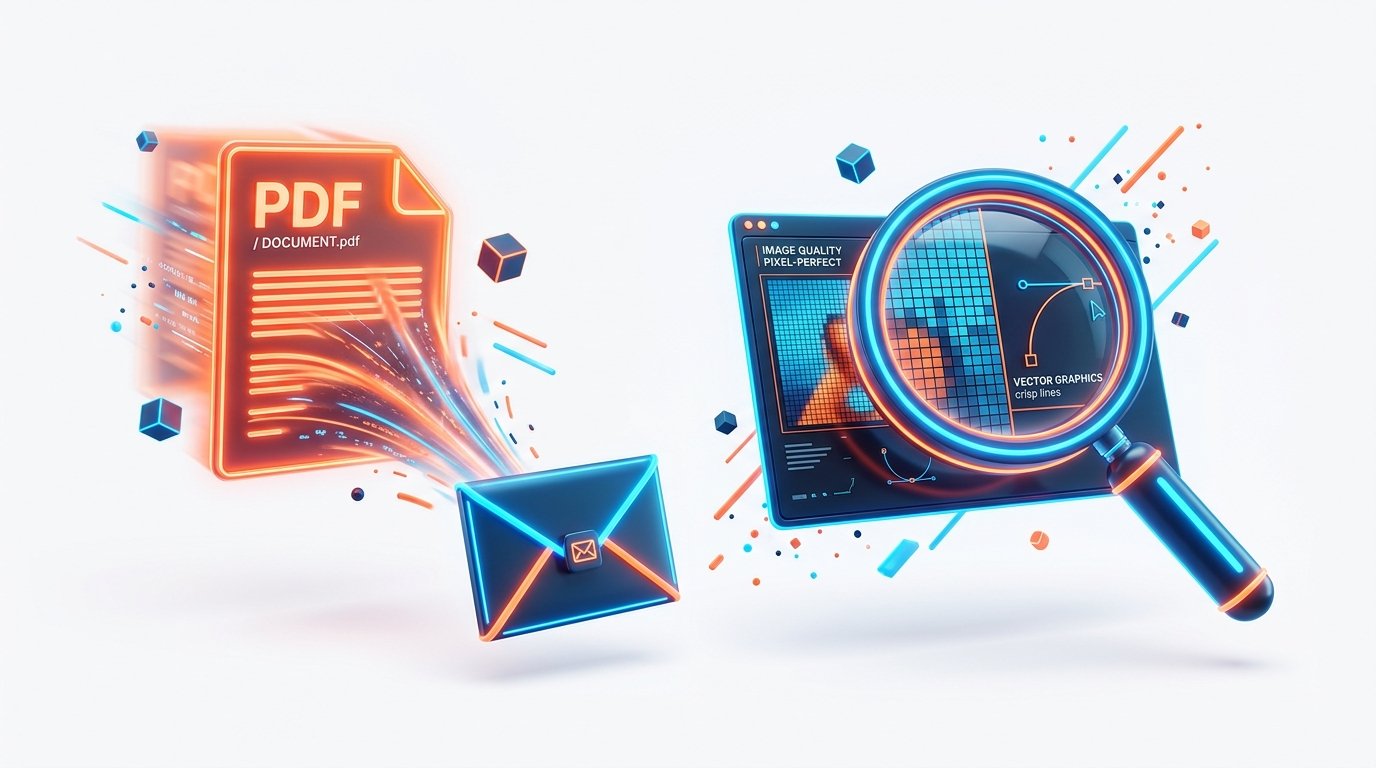
Compress your PDF in three quick steps — upload, choose a level, download.
Want to know how to compress PDF without losing quality? Trim only the parts that bloat the file: oversized images, embedded font data you never use, hidden editing metadata. A good compressor removes those instead of re-encoding everything and blurring the result. That's exactly what our free Compress PDF tool does. Upload, pick a level, download. No account, no watermark, nothing to pay.
Below, we'll walk you through the exact steps, help you pick the right compression level, and point out the mistakes that quietly ruin a good document.
Why use PDFZora to compress your PDF?
If you just want the file smaller right now, our compressor does the job without making you jump through hoops:
Shrink your PDF so it's easier to email, upload, and store.
How your file is handled: it travels over an encrypted 256-bit SSL connection, is processed automatically, and is deleted from our servers within 60 minutes.
Why PDFs get so big (and why it matters)
A PDF is a container, not a single image. When programs like Word, Canva, Photoshop, or InDesign export one, they often pack in high-resolution images, complete font libraries (including characters your document never uses), editing metadata, and embedded preview thumbnails. That guarantees the file reproduces perfectly everywhere, but it also adds megabytes of weight you never see.
All that invisible weight causes three very visible problems:
Email bounce-backs
Gmail limits attachments to 25 MB, and many corporate mail servers are stricter. One oversized PDF and your message bounces or silently converts to a link.
Blocked uploads
Job portals, grant systems, and government forms commonly cap uploads between 5 and 25 MB — a hard limit no cover letter can negotiate.
Slow opens and full storage
Bulky files crawl on mobile connections, stall in previews, and quietly eat up your Drive, Dropbox, and inbox storage.
The goal of compression is simple: remove the weight, keep the content. One quick pass usually takes a bouncing attachment comfortably under the limit.
How to compress a PDF without losing quality: 4 steps
Step 1 — Start from your best copy
Always compress from the highest-quality version of the file, and keep that original safe. Compression makes a smaller copy, but it can't restore detail later, so a clean starting point matters. And if the document has pages you don't need, delete them first. Removing unused pages saves more space than any compression algorithm will.
Step 2 — Upload your PDF to PDFZora
Open PDFZora's Compress PDF tool, then drag your file into the upload box or click to browse. There's nothing to install and no account to create — just upload and go. Like any upload, very large files simply take a little longer on slower connections.
Step 3 — Choose the right compression level
This is the one decision that actually matters, because it sets the balance between size and image quality:
- Recommended — the best balance for everyday sharing: email, web uploads, application forms.
- Low — maximum fidelity for print-ready files, portfolios, and documents with fine detail.
- High — smallest possible size for drafts and internal reviews, where polish matters less.
Print vs. screen: if the document will be printed, keep image resolution around 300 DPI. For screen reading, images can sit well below that and still look perfectly sharp, and that's where most of the savings come from. Adobe's PDF optimization tools follow the same logic, with separate presets for screen and print.
Step 4 — Compress, verify, and download
After compression finishes, download the file and check two things:
- Size: does it fit your target — for example, under 25 MB for Gmail?
- Quality: zoom to 100% and inspect photos, charts, and small text.
If quality isn't where you want it, compress the original again at a lower level. Still too big? Step up one level and repeat. Two or three quick passes will find the sweet spot. That little check-and-adjust loop is the entire secret of how to compress PDF without losing quality.
How to Compress PDF Without Losing Quality Under the Hood
No magic involved. When you finally see how to compress PDF without losing quality, this is what's actually happening. A good compressor doesn't just squeeze everything down and hope for the best. It goes after the four places where PDFs pick up weight:
-
Smart image resampling
Images usually dominate file size. Compression resamples them to a resolution that suits the destination — high for print, much lower for screens — instead of keeping print-grade pixels in a file that will only ever be viewed on a phone.
-
Font subsetting
Embedding a font can include every glyph in the typeface. Subsetting keeps only the characters your document actually uses, trimming font data without changing how the text looks.
-
Metadata cleanup
Edit histories, duplicate objects, and embedded preview thumbnails serve no purpose once the file is final. Stripping them removes dead weight without touching visible content.
-
Lossless stream compression
The remaining data streams are re-encoded with efficient lossless algorithms (such as Flate). Same appearance, fewer bytes.
This is the same approach described in Adobe's Acrobat compression documentation: optimization reduces size by compressing images and removing unnecessary items. And since PDF is an international standard (ISO 32000), a properly compressed file is still a perfectly valid PDF that opens in any reader, from Acrobat to your phone's browser.
Common mistakes to avoid
🖨️ Max compression on a print file
High settings downsample images aggressively. Anything destined for paper should be compressed at Low or Recommended.
🔁 Re-compressing a compressed file
Each pass can degrade images further while saving almost nothing extra. Always compress from the original.
💾 Overwriting the original
Compression removes detail permanently. Keep the source file — you can always compress it again, but you can't un-compress.
👀 Judging by file size alone
A smaller file isn't a win if the charts come out fuzzy. Zoom in and give it a proper look before you send anything out.
These four show up again and again. Dodge them and your compressed files will stay sharp for years.
Bonus tips for smaller, cleaner PDFs
- Name files intentionally. Append a marker like -compressed or the target size (e.g. proposal-12mb.pdf) so you never email the 40 MB original by mistake.
- Compress last. Finish your edits, export once, then compress. Re-exporting from the source document always beats re-compressing an already-compressed file.
- Sending something confidential? Add a password with our Protect PDF tool after compressing, so the file is small and restricted.
- Know your target limit first. 25 MB for Gmail, often 10–20 MB for upload portals — compress toward the number instead of guessing.
- Got a stack of files? Use batch mode to compress several PDFs in one run instead of uploading them one by one.
Frequently Asked Questions (6 FAQs)
It depends on the level you choose. Text and vector graphics stay sharp at every level because they're resolution-independent. Higher compression levels resample images more aggressively, which can soften photos. When fidelity matters most, choose Low compression.
Use Recommended for everyday sharing such as email, web uploads, and application forms. Use Low for print-ready files, portfolios, and documents with fine detail. Use High for drafts and internal reviews where the smallest possible size matters more than polish.
It really depends on the file. Documents full of high-resolution images or scans usually shrink a lot, while text-only PDFs may only drop a little. Anyone quoting a fixed percentage is guessing. Compress a copy, look at the result, and adjust the level if you need to.
Yes. The Compress PDF tool is free to use, requires no account, and adds no watermark to your files.
Your file is transferred over an encrypted 256-bit SSL connection, processed automatically without anyone viewing it, and deleted from the servers within 60 minutes.
Both. PDFZora works in any modern mobile or desktop browser (iOS, Android, Windows, macOS), and batch mode lets you compress multiple PDFs in a single run.
Ready to Compress Your PDF Without Losing Quality?
Reduce file size while keeping every pixel sharp – completely free. Click below to start, or drag a file to our online dashboard to try the process.
Compress PDF Without Losing Quality – Free Tool helps you clear email size limits and free up storage in seconds. Your file travels over an encrypted 256-bit SSL connection, is processed automatically, and is deleted from our servers within 60 minutes — so your documents stay private. Keep your text crisp and your vector graphics sharp by choosing the right compression level.
Popular PDFZora Tools
Free PDF Tools
Student Productivity Tools
Disclaimer: Compression results vary depending on your file's images, fonts, and structure — image-heavy documents shrink far more than text-only ones. Files uploaded to PDFZora are transferred over an encrypted connection and automatically deleted from our servers within 60 minutes.
Pingback: The Ultimate PDF Toolkit: 45 Free PDF & Productivity Tasks