
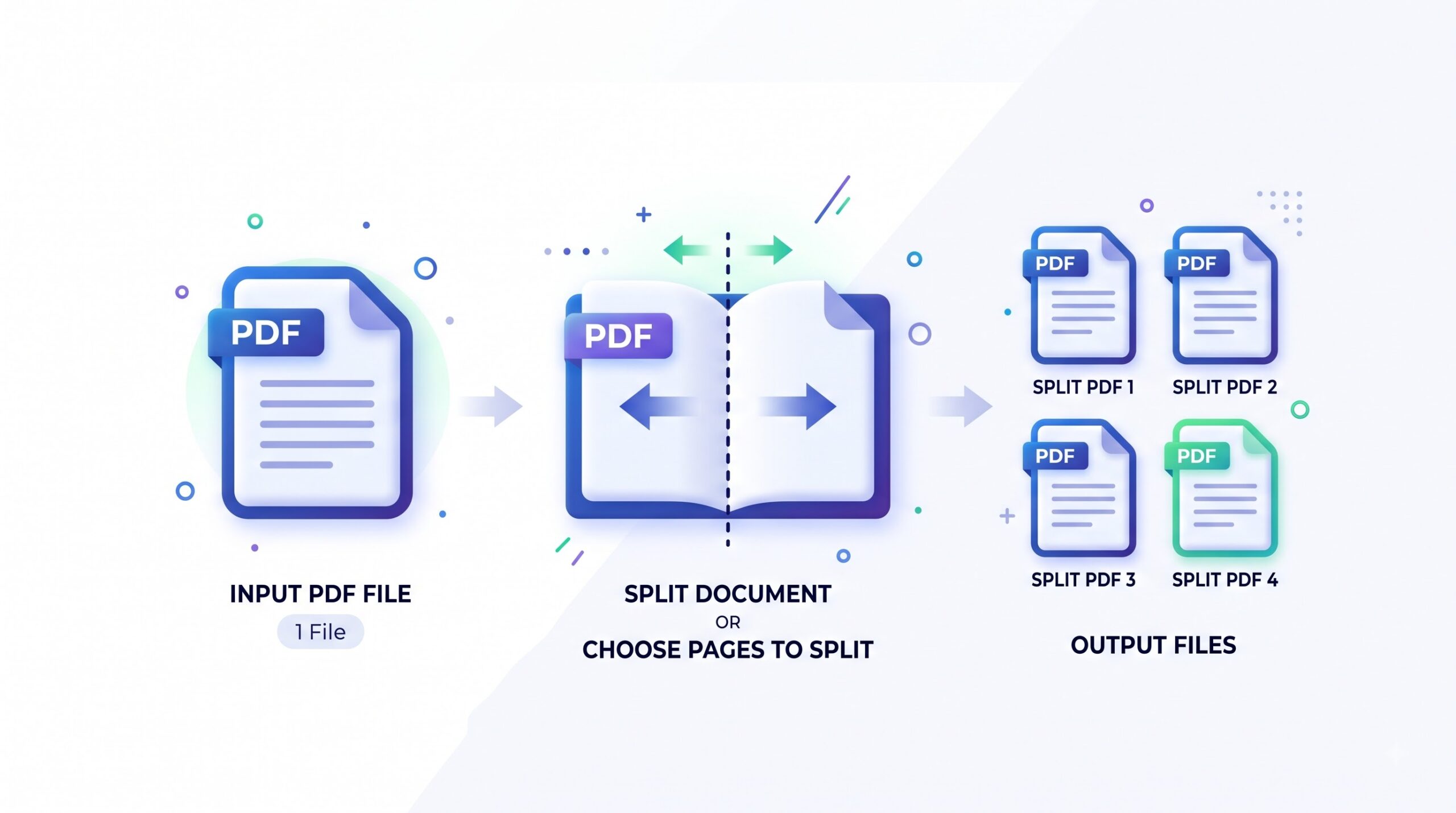
Split PDF
Extract pages or divide a PDF into smaller files by range, page number, or bookmark — right in your browser, with nothing to install.
- Free to use
- No sign-up
- Secure connection
- Works on any device
Ready to split your PDF?
Split PDF nowWhat does Split PDF do?
Upload a PDF, choose how to split it — by page range, individual pages, or bookmarks — then download the results. Everything runs in your browser with no software to install.
How to Split a PDF
Three quick steps. No software, no account, no waiting.
-
Upload your PDF
Drag and drop your file into the upload area or click to browse your device. PDFZora accepts standard PDF documents up to 50 MB.
-
Choose your split method
Select how you want to divide the file — extract a specific page range, split into individual pages, or separate by bookmarks.
-
Download the results
Click Split PDF and wait a few seconds. Your new files will be ready to download individually or as a single ZIP archive.
What Split PDF Does
PDFZora gives you several ways to break a PDF into smaller, more manageable files.
Extract by page range
Enter a range like pages 3–7 to pull out exactly the section you need. Great for pulling a single chapter from a textbook or a specific section from a long report.
Split into individual pages
Turn every page of your PDF into its own separate file. Useful when you need to distribute individual forms, slides, or handouts from a multi-page document.
Splitting options at a glance
| Setting | What it does | Good to know |
|---|---|---|
| Page range | Extracts a continuous set of pages (e.g. 3–7) | Enter start and end page numbers separated by a dash |
| Split by pages | Splits the PDF into individual single-page files | A ZIP download is offered when there are many pages |
| Split by bookmarks | Breaks the file at each bookmarked heading | Only works if the PDF already contains bookmarks |
| Custom selection | Let you pick non-consecutive pages (e.g. 1, 4, 9) | Separate page numbers with commas |
Common Use Cases
-
Students and educators
Extract a single chapter from a textbook PDF for a focused study session, or pull out specific pages for a handout.
-
Accountants and bookkeepers
Separate invoices, receipts, or statements from a merged scan so each document can be filed independently.
-
Legal professionals
Pull specific clauses, exhibits, or contracts from a large legal bundle without altering the original formatting.
-
Office and admin teams
Split a multi-page report into sections for different departments, or create single-page forms from a larger template set.
-
Personal use
Save only the pages you need from an eBook, manual, or downloaded document to keep your files tidy and easy to find.
Limits and Things to Know
Before you start
- File size limit. Each upload can be up to 50 MB.
- Browser-based processing. Your file is handled securely over an encrypted connection.
- Scanned PDFs supported. Splitting works on both native and scanned PDF files.
- Formatting preserved. The split pages keep their original layout, fonts, and images intact.
- Downloads expire. Result files are available temporarily. Download them promptly after splitting.
Troubleshooting
| Problem | Likely cause | What to try |
|---|---|---|
| Upload fails or stalls | The file may exceed 50 MB or the connection may have dropped. | Check your file size and internet connection, then try again. |
| Split pages are blank | The original PDF may contain embedded images or layers that did not process correctly. | Try opening the source PDF in a viewer first to confirm the pages have content. |
| Password-protected PDF won't upload | PDFZora cannot process encrypted files that require a password to open. | Remove the password in your PDF viewer first, then re-upload. |
| The split file is larger than expected | A small page range can still be heavy if the source pages contain high-resolution images. | Consider compressing the result afterwards using PDFZora's Compress PDF tool. |
| Processing takes a long time | Large files or files with many pages require more time to process. | Be patient — most files complete within seconds. If the tab seems stuck, refresh and retry. |
How Your Files Are Handled
- No account, no email. You can use the tools without signing up.
- The connection is encrypted. PDFZora uses HTTPS.
- PDFZora does not sell, rent, or trade personal data. Data may still be shared with the companies that help run the site, or disclosed where the law requires it.
- Processing is largely automated. Access to file content is limited to what is needed to run, maintain, secure, or support the service, or to meet a legal obligation.
Processing method can vary by tool. Some operations may run in the browser, while others may require temporary server-side processing. Retention periods depend on the method used. For the latest information about temporary file storage and deletion, see PDFZora's Data Privacy & Security page.
Frequently Asked Questions
Yes. PDFZora is completely free to use with no hidden charges or subscriptions. You can split as many PDFs as you need without paying anything or creating an account.
No. Split PDF works entirely in your web browser. You just need a browser and an internet connection. There is nothing to download or install.
PDFZora uses HTTPS encryption for all file transfers and automatically deletes uploaded files after processing. The connection is encrypted and no human views your documents.
Yes. PDFZora is fully responsive and works on any modern browser across Windows, macOS, Linux, iOS, and Android devices.
Upload your PDF, select the "Split into single pages" option, and click Split PDF. Each page will be saved as a separate PDF file that you can download individually or as a ZIP archive.
Split Your PDF Online — Free on PDFZora
No registration, no watermarks, no hidden fees. Upload your PDF, pick the pages you want, and download in seconds.
Browse all free toolsExplore more PDFZora tools
Related guides
-
Guide
How to Split a PDF into Pages or Chapters Online
A complete walkthrough on splitting PDFs by page range, chapter, or bookmark — no software needed.
Read the guide -
Guide
The Ultimate PDF Toolkit: 45 Free PDF Productivity Tasks
Discover 45 ways to work with PDFs for free — covering editing, converting, splitting, merging, and more.
Read the guide