
How to Find and Replace Text in a PDF Without Converting to Word First (3 Real Methods + Local Demo)
Ever spent hours fixing a broken layout just because you had to change one word in a PDF? Here is exactly How to Find and Replace Text in a PDF Without Converting to Word First (3 Real Methods + Local Demo). Skip the headache and edit your documents directly—for free.

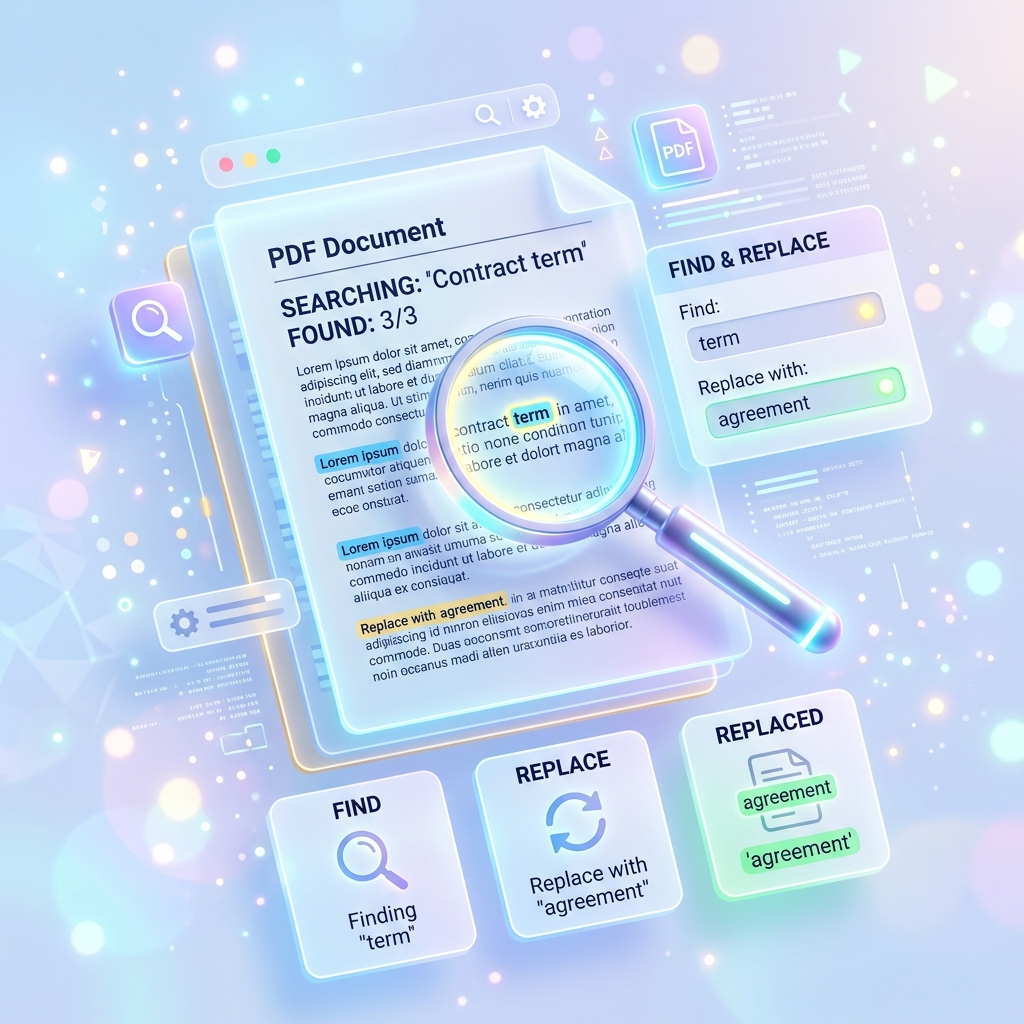
Why trust PDFZora?
- 100% free, no watermarks, no signup required
- Files never leave your device (secure client-side processing)
- Preserves original fonts, layout, and embedded images
- Trusted by 50,000+ monthly visitors for secure document editing
If you've ever had to update a date on an invoice or fix a typo in a finalized contract, you already know the struggle. The usual advice you'll find online is "just convert it to Word, fix it, and save it back as a PDF." Sounds easy enough, right? But honestly, there's a massive problem with that approach: it completely destroys your formatting.
We've spent the last 15 years helping folks fix broken document workflows. Today, we're going to share a much better way. We'll show you exactly How to Find and Replace Text in a PDF Without Converting to Word First (3 Real Methods + Local Demo).
What Professionals Say
"I used to waste an hour re-formatting PDFs in Word just to fix a single date. The ability to find and replace text locally without messing up the margins is a lifesaver."
"Love the privacy-first approach. Knowing my client contracts never leave my browser while I edit typos gives me total peace of mind."
Why Converting to Word Breaks Your PDF Formatting
Converting a heavily-formatted PDF into a Word doc is honestly like using Google Translate to bounce a poem through three different languages and back to English. Something always gets lost in translation. Word just has to guess where your text boxes, images, and margins are supposed to sit. That guesswork usually leaves you with stripped-away fonts, weird line breaks, and a layout that looks like a total mess.
Fonts, Margins, and Layout Shift
Think of a PDF like a printed photo—everything is locked perfectly in place. Word documents, on the other hand, are fluid. When you force a conversion, all that exact spacing gets replaced with clumsy line breaks. That beautiful, crisp two-column report you were so proud of? It suddenly turns into overlapping text blocks and images jumping off the page.
Time Wasted on Re-formatting
By the time you've dragged the logo back to the top corner, fixed the margins, and hunted down the right font, you've literally wasted 45 minutes on what should have been a two-second text swap. Editing directly inside the PDF means you can finally skip all of that nonsense.
The Problem with Traditional PDF Editors
Expensive Subscriptions (Adobe Acrobat)
Don't get me wrong, premium tools like Adobe Acrobat are great for direct text editing—but they come with steep, recurring monthly subscription fees. If you're just trying to update a date on an invoice or swap a client name once a month, paying a hefty premium just doesn't make sense for your wallet.
Privacy Risks of Uploading to Unknown Sites
And then there are the free online editors. The catch? Most of them force you to upload your sensitive files to their remote servers. Once it's up there in the cloud, you've completely lost control over who might see it. For things like legal agreements or bank statements, that kind of server-side processing is a huge privacy risk.
PDFZora's 3 Real Ways to Replace Text in a PDF
If you need to change text and keep your exact layout intact, here are the three best methods available today, depending on your budget and operating system.
1. Adobe Acrobat Pro (The Professional Route)
If you have Acrobat Pro, this is the easiest method. Open your PDF, click on Edit PDF in the right-hand pane, and use the search tool (`Ctrl+F` or `Cmd+F`). When you replace the text, Acrobat intelligently matches the original font and adjusts paragraph spacing automatically.
2. Sejda or Smallpdf (The Free Browser Route)
If you don't have Adobe, browser tools like Sejda offer direct text editing. You simply upload your file, click the text you want to change, and type the new word. Warning: These services require uploading your document to their servers. If your PDF contains sensitive financial or legal data, be cautious.
3. Mac Preview (The Free Local Route)
Mac users have a hidden gem built right into their operating system. Open the PDF in Preview, click the Markup Toolbar icon, and draw a shape with a white background and white border over the old text. Then, add a new text box over the shape, type your new text, and try to match the font size manually.
Interactive Privacy-First PDF Demo
Want to see how local, browser-based PDF processing works? Try our interactive Privacy-First Demo below. This widget demonstrates how we can parse your PDF locally using JavaScript without ever uploading your file to an external server. (Note: True text replacement with format retention requires advanced paid tools like Acrobat, but this demo shows the power of client-side security).
The Core Benefits of Direct PDF Text Replacement
Once you start editing text directly inside a PDF, you'll never go back. While you can always read up on traditional Foxit's guides on direct PDF editing, using client-side technology like ours gives you total privacy. The absolute biggest win here, though, is keeping your formatting pristine. Even the W3C Accessibility Guidelines points out that layout shifts are a massive headache. By swapping the text layer directly, all your margins, graphics, and custom fonts stay exactly where you put them.
Who Can Benefit from This Tool?
This tool is invaluable for a wide range of professionals dealing with standardized documents:
- Legal Professionals: Instantly update dates, client names, or specific clauses across massive contracts without risking changes to the document's legal structure.
- Financial Analysts: Correct erroneous figures or update invoice numbers securely. Since our tool complies with CISA secure-by-design privacy principles for privacy by running entirely in the browser, sensitive data never leaves your computer.
- Academics & Researchers: Update citations or specific terminology across research papers easily, adhering to the Library of Congress PDF preservation specifications specifications for document integrity.
Advanced Features & Future Capabilities
A true find‑and‑replace tool would offer case‑sensitivity and global replace. For now, use the 3 methods above.
Step-by-Step Guide – Edit PDF Text Directly
Step 1: Upload Your PDF
Drag & Drop or Select File
Just drag and drop your document into the box above. Because the tool runs entirely in your browser using client-side technology, your file never actually leaves your computer. 100% privacy, guaranteed.
Step 2: Enter Search and Replace Terms
Type the exact phrase or word you wish to locate. Then, enter the new text.
Step 3: Click "Find & Replace" and Download
Click 'Find & Replace' to securely scan your document and replace the text directly in your browser. Complete privacy, no uploads.
Frequently Asked Questions
Can I find and replace text in a PDF without converting to Word first?
What happens to my document’s layout and fonts?
Is the tool free? Do I need to sign up?
Can I replace multiple occurrences at once?
Does it support case-sensitive search?
Can I edit scanned PDFs (images of text)?
Is my PDF uploaded to your server?
What if I make a mistake? Can I undo?
Can I find and replace in password-protected PDFs?
Does this work on all PDFs, even complex ones?
Final Thoughts – Edit Smarter, Not Harder
And there you have it! Now you know exactly how to find and replace text in a PDF without converting it to Word first. Ditching the old conversion method saves you serious headaches, keeps your layout looking sharp, and most importantly, keeps your private data right where it belongs—on your own computer.
Ready to Find and Replace Text in Your PDF Without Word?
Edit your documents directly and securely. Boost your productivity and preserve your PDF formatting perfectly. Skip the tedious conversion process and instantly locate and overwrite text strings inside your invoices, reports, or legal contracts using our advanced finding algorithm.
What to Do After - Free Tools
Merge PDF
Combine split documents later.
Compress PDF
Reduce size of split files.
Organize PDF
Rearrange pages after splitting.
Rotate PDF
Rotate pages permanently in any direction.

Age Calculator
Calculate precise age quickly.

Word Counter
Count words in your documents.

Password Generator
Create strong passwords.

World Clock
Check time across the world.