
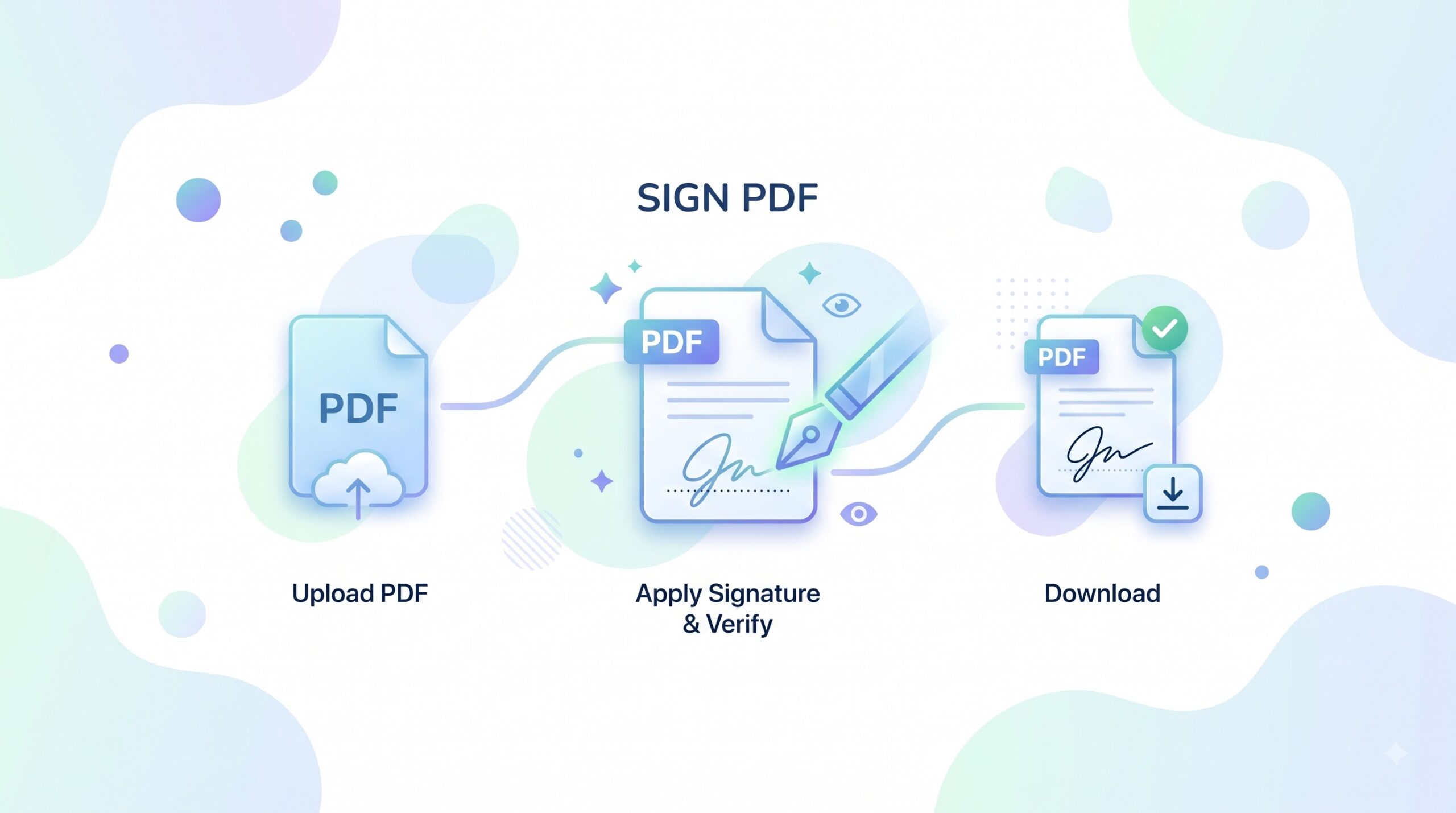
Sign PDF Online
Add a signature to a PDF by drawing or typing it, or by uploading a signature image. Place the mark on the page, then download the signed PDF.
- Free to use
- No account
- Nothing to install
- No watermark
Need a different job done with a PDF?
Browse all free toolsHow do I sign a PDF online?
Choose a PDF, add a drawn, typed, or uploaded signature, place it, then review and download. The tool adds a visible signature mark; it does not, by itself, create a certificate-based digital signature or guarantee legal acceptance.
How to Sign a PDF Online
Add your signature, check its position, and save a copy for your records.
-
Select your PDF
Select the PDF using the file picker or upload area. Check that it is the correct document before continuing.
-
Create or add your signature
Draw a signature, type your name, or upload a signature image. Choose a version that is clear and appropriate.
-
Place and review it
Place the mark on the intended page. Check that it is legible and does not cover text, dates, or fields.
-
Download the signed PDF
Download the finished PDF and open it to confirm the signature appears in the expected place.
What Does the Sign PDF Tool Do?
Add a visible signature mark to a PDF and save a signed PDF copy.
A signature mark you can see
Draw, type, or upload a signature mark, place it on a PDF page, and check that it is legible without obscuring nearby content.
A PDF for review and sharing
Download a signed PDF copy. A visible mark is not the same as a certificate-based signature, identity verification, or a tamper-evident workflow.
Signature options and document notes
| Setting | What it does | Good to know |
|---|---|---|
| PDF input | The tool is intended for signing PDF documents. | Use a PDF version of the document before starting. |
| Signature style | You can draw, type, or upload a signature mark. | Choose a clear version that fits the document and remains readable. |
| Signature placement | The mark is placed on a page of the PDF. | Check its position and make sure it does not cover important text. |
When to Sign a PDF
-
Forms and applications
Sign a PDF form before returning it if the recipient accepts a visible signature mark.
-
Workplace documents
Add a visible sign-off to routine paperwork when a certificate-based digital signature is not required.
-
School and education paperwork
Prepare permission forms or acknowledgements as PDFs, and follow the institution’s signature requirements.
-
Personal records
Add a signature mark to a personal copy for review or record keeping; retain the unsigned original if needed.
Important Notes Before Signing a PDF
Know what a visible signature does
- Visible mark, not proof of identity. A drawn, typed, or uploaded mark does not verify who applied it.
- Legal acceptance varies. Ask the recipient which signing method they accept; requirements can depend on the document and jurisdiction.
- Not certificate-based. This is a visible mark, not a certificate-based digital signature.
- Review the saved copy. Open the downloaded PDF and check the signature’s legibility and placement.
- Keep the unsigned original. Save a source copy in case you need to revise the document.
Troubleshooting Common Signing Problems
| Problem | Likely cause | What to try |
|---|---|---|
| The PDF does not upload | The file may not be a valid PDF, or the upload may have been interrupted. | Check that it is a PDF, then try selecting it again. |
| The signature is hard to read | The mark may be too small or poorly positioned. | Resize or reposition it, then check the saved PDF. |
| The signature is not where expected | The mark may have been placed on the wrong page or area. | Reopen the PDF and place the mark again. |
| The signed PDF will not open | The download may be incomplete, or the source PDF may be damaged. | Download again; if it still fails, test another PDF. |
| The page is slow or unresponsive | A large document or several open tabs may use substantial memory. | Wait briefly, close other tabs, or retry in a new page. |
How Your Files Are Handled
- No account, no email. You can use the tools without signing up.
- The connection is encrypted. PDFZora uses HTTPS.
- PDFZora does not sell, rent, or trade personal data. Data may still be shared with the companies that help run the site, or disclosed where the law requires it.
- Processing is largely automated. Access to file content is limited to what is needed to run, maintain, secure, or support the service, or to meet a legal obligation.
Processing method can vary by tool. Some operations may run in the browser, while others may require temporary server-side processing. Retention periods depend on the method used. For the latest information about temporary file storage and deletion, see PDFZora's Data Privacy & Security page.
Frequently Asked Questions
Yes, it is free to use, and you do not need an account to get started.
Select a PDF, add a drawn, typed, or uploaded signature, place it, then review and download the document.
No. This tool adds a visible mark. A certificate-based digital signature may help verify a signer and detect changes, depending on the certificate and validation process. Check the recipient’s requirements.
It depends on the document, recipient, jurisdiction, and signing requirements. Confirm that a visible mark is sufficient before signing.
Yes, the tool offers a signature upload option. Use a clear image and check the downloaded PDF.
Ready to Sign a PDF?
Add a visible signature mark to your document, check the final placement, and save a PDF copy. If you need another PDF task, explore the free tools available on PDFZora.
Browse all free toolsExplore more PDFZora tools
Related guides
-
Guide
Is It Safe to Upload PDFs Online? A Real Answer
Learn what to consider when choosing an online PDF tool and how to assess file-handling and privacy practices.
Read the guide -
Guide
How to Password-Protect a PDF for Free
Follow a step-by-step guide to password-protecting a PDF and avoiding common mistakes when securing a document.
Read the guide