
How to Password-Protect a PDF For Free
Add an open password to any PDF in four moves, and know what the lock actually covers. And what it doesn't.
- 100% free
- No watermark
- No registration
- Works on mobile

Quick answer
Three moves, start to finish. No account needed.
- Add your file to the Protect PDF tool: drag it in, or pick it from your device.
- Enter a long password (aim for 12+ characters). Optionally set a second, different permissions password.
- Download the locked PDF, open it once to confirm it asks for the password, then send the file on one channel and the password on another.
That's the short version of how to password-protect a PDF for free. Below: what the lock actually blocks, how to choose a password that holds up, and four mistakes that undo it.
What a PDF password actually does
A password doesn't lock your document in a vault. It encrypts the parts a viewer needs to draw the page, and the key comes from the password you type. Hand someone that password and you have handed them the key.
Protecting a PDF normally involves two passwords, and the difference between them matters more than the algorithm name:
- Open password (the document password), which a reader must type before anything displays. This is the one that behaves the same way in almost every reader.
- Permissions password (the master or owner password), which sets rules such as no printing, no copying, no editing. A conforming reader obeys them. Software that ignores the standard can strip them.
| Situation | Does the password help? |
|---|---|
| A file is stolen from a laptop, inbox or shared drive | Yes. Nothing renders without the password, and the contents stay encrypted on the disk. |
| Someone previews the file without the password | Mostly. The filename, the page count and sometimes the document metadata can stay readable. |
| You want to stop printing, copying or screenshots | No, not reliably. Permissions are a request the reader app chooses to honour, and protection ends where access begins. |
The file-level detail is not obvious unless you read the spec: two password classes, encryption applied to strings and streams rather than to the whole file, and a metadata stream that can stay unencrypted. The cpdf manual's encryption chapter covers all three.
Protect it with PDFZora — free, no account
PDFZora's Protect PDF tool runs in the browser on desktop, tablet and phone: add the file, type a password, download the locked copy. No install, no account, no watermark on the result. Encryption does not redraw the page, so what changes is how the file opens, not how it looks.
- Free to use
- No signup
- No watermark
- 50 MB per file
- Batch option
On privacy, PDFZora's own words: files are processed in the browser wherever possible, transfers run over HTTPS, and anything that needs a server is deleted automatically. That is a stated policy, not an audited guarantee. Read the data privacy and security page before you put a regulated document anywhere online.
Password-protect a PDF in 4 steps
Written against the Protect PDF tool. The same order works in Acrobat or LibreOffice, under different menu names.
Add the right file
Drag your PDF into the box or choose it from your device. Keep it under 50 MB, the per-file limit on the tool page. Several files can go in one pass with the batch option.
Before locking anything, decide whether any content should be in the file at all. A password delays a reader; it doesn't delete data. Remove or redact what must not travel (see Redact PDF in the tools list below), then protect the cleaned file.
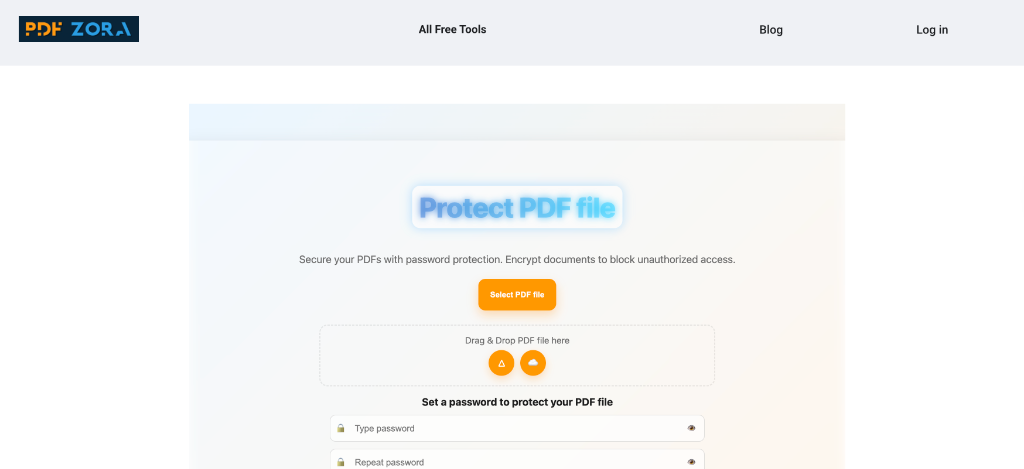
Set the open password
Type something the recipient can realistically enter on a phone. Length matters more than clever symbols: a passphrase with a separator between the words will outlast a short jumble. Avoid names, birthdays, "password" variants and anything you already use elsewhere.
Not sure what to use? Generate one with a password manager, or the Password Generator in the tools list below, and store it where you can get at it tomorrow.
Add permissions only if you need them
Most people can skip this. If you do restrict printing or copying, set a permissions password that differs from the open one; otherwise, sending the file's key also sends the master key. You need it to change the rules later, or to strip the protection with the Unlock PDF tool below.
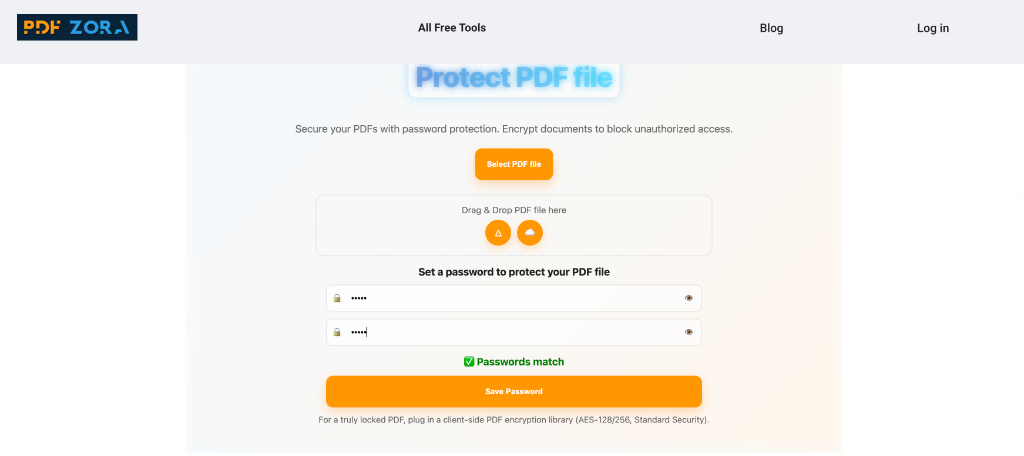
Verify, then send the password separately
Download the file and test it before you send anything. Open it in a second app, your phone's viewer or a browser tab, and confirm the password prompt appears. Then check that the filename and metadata do not give away what the contents now hide.
Send the password somewhere else. Email the file, then text the password, chat it, or say it over the phone. If one mailbox is compromised, both halves of the lock are not sitting in it. Keep the unencrypted original somewhere safe, too: once a password is lost, nothing in the format brings the file back.
Writing a password worth having
A locked PDF can be attacked offline. Someone copies the file and runs guessing software against it, with no lockout and no rate limit. So the password, not the cipher name, is the weak point.
- Go long. NIST's digital identity guidelines make 8 characters the smallest minimum a system may impose, and say it should accept passphrases of at least 64, spaces included. For a file that can be attacked offline, treat 12 as the floor and 16+ as comfortable.
- Prefer a passphrase. Four unrelated words with separators (
Blue-Laptop-Forest-42) are easier to type on a phone and harder to guess than a short "complex" string. - Don't reuse it. Not from another account, and not one password across a folder of client files: a single leak opens the lot.
- Skip the rotation ritual. NIST advises against changing passwords on a fixed schedule with no sign of compromise. Change it if the file, the device or the recipient looks off.
Four mistakes that undo your protection
"The password is in my next email." Locked diary, key taped to the cover. Split the channels: file one way, password the other.
One password for every document. Convenient at first, catastrophic at scale. Give each file or each client its own.
Locking instead of removing. If bank details, IDs or health data should not be in the file, delete them. A password does not fix a document that should not contain them.
Trusting an outdated cipher. Files from older tools can still carry 40-bit or 128-bit RC4. The 40-bit flavour is brute-forceable on ordinary hardware, and RC4 as a family has enough published weaknesses that the IETF banned it in TLS outright (RFC 7465). If a compliance team reviews your files, check that the tool writes a recent PDF revision using AES.
If a password turns out to be the wrong tool: Redaction deletes content instead of gating it. A digital signature proves agreement and shows tampering; a password does neither. Watermarking discourages onward sharing without preventing it. And if the file has to fit an inbox, compress it before you protect it, not after.
Frequently Asked Questions (6 FAQs)
Is it really free to password-protect a PDF on PDFZora?
Yes. Protect PDF costs nothing, asks for no account and adds no watermark. The tool page states a 50 MB per-file limit and lists batch protection; limits change, so check it before a huge job.
Can someone still print, copy or forward a protected PDF?
If they have the open password, assume yes. Print and copy rules come from the permissions settings, which a reader enforces voluntarily and other software can strip. Once someone can read the file, screenshots and forwarding are normal.
What happens if I forget the password?
You stay locked out. PDF has no recovery for a lost open password: no reset link, no backup copy to retrieve. Keep it in a manager, and keep the unencrypted original, before you send anything.
Can I remove the password later?
Yes, with the original password: Unlock PDF decrypts the file so you can edit it or re-protect it with a new password. Changing permissions rules needs the permissions password instead.
Does protecting a PDF reduce quality or change the layout?
No. Encryption changes how a file opens, not how it renders, so fonts, images and layout stay as they were. It does mean previews and text indexers usually cannot read inside the file, which matters if the recipient searches their documents.
Is it safe to protect a PDF with an online tool?
Depends on the file. PDFZora says processing happens in your browser wherever possible and anything needing server processing is deleted automatically afterwards. For a rent statement or an invoice that's usually a sensible trade-off; for regulated records, apply your own policy first. More in Is it safe to upload PDFs online?
Ready to Password-Protect Your PDF For Free?
Secure your sensitive documents before you hit send – no signup, no cost. Click below to go to our main tool, or re-read the four steps above if you want to settle your password first.
Popular PDFZora Tools
Lock, unlock and clean up the PDF
Free everyday utilities