
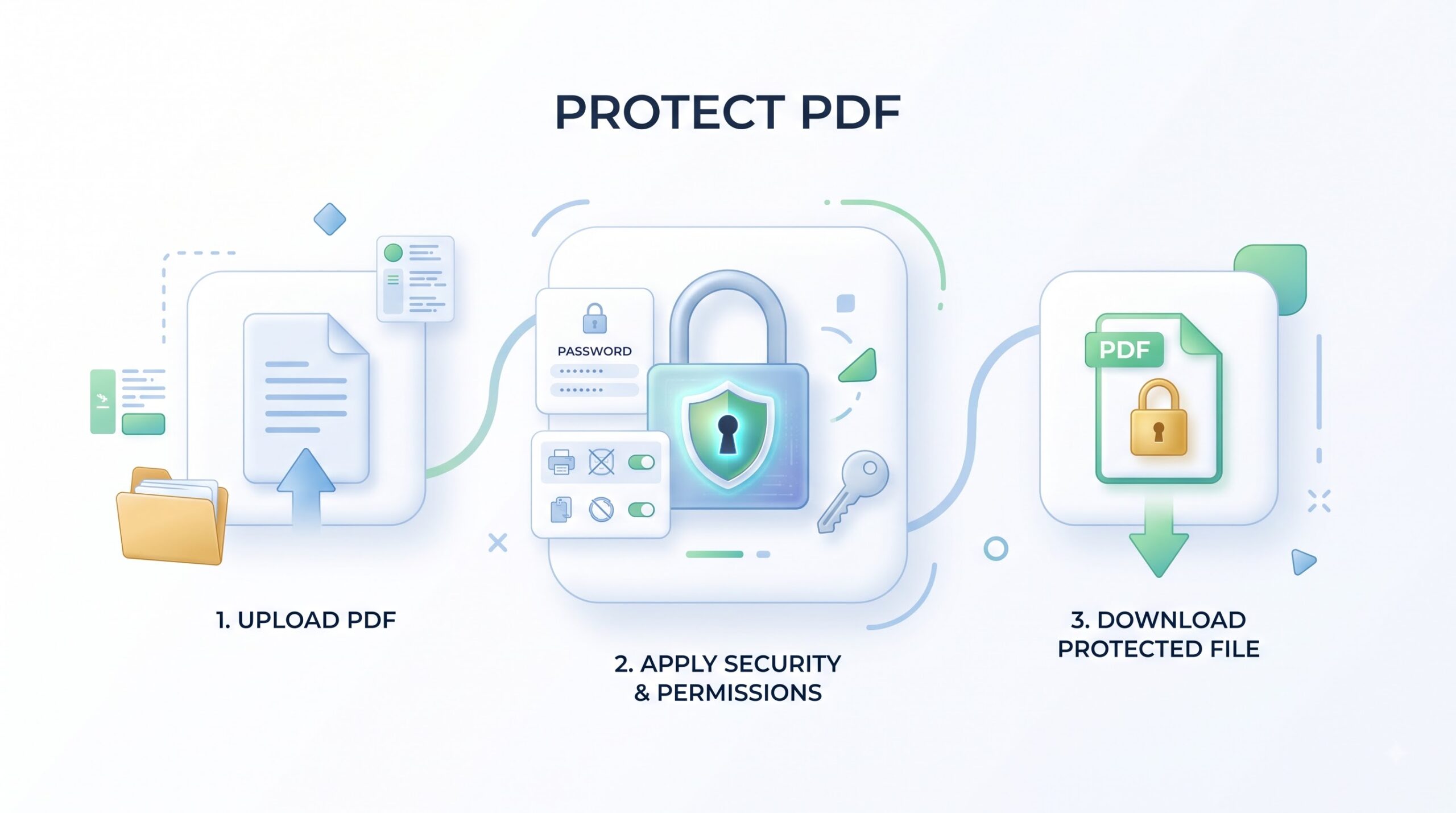
Protect PDF
Add a password to your PDF online, then download the protected copy to share.
- Free to use
- No account
- Nothing to install
- No watermark
Need a different job done with a PDF?
Browse all free toolsWhat does Protect PDF do?
Protect PDF adds an opening password so a reader must enter it before viewing the PDF. Choose a password, download the protected copy, and share the password separately. It limits access; it does not remove content that should not be shared.
How to protect a PDF online
Add a password, download the copy, then verify it before sharing.
-
Choose your PDF
Select a PDF or drag it into the upload area. Check its filename before continuing.
-
Set a password
Set a unique, hard-to-guess password. Store it safely; the recipient will need it to open the copy.
-
Protect the file
Start the protection step shown by the tool and wait for confirmation before downloading the result.
How PDF password protection works
A password can limit access, but it cannot recall a shared file or replace redaction.
An opening password controls access
A protected PDF asks for a password before viewing. Give it only to the intended recipient. When practical, send the file and password separately; sending both together puts both in the same place.
Protection has limits
A password does not erase text or metadata, and it cannot control what someone does after opening a file. Redact sensitive details first. Keep an authorized original and a secure password record.
A few checks before you share
| Setting | What it does | Good to know |
|---|---|---|
| Opening password | Asks the viewer to enter a password before the protected PDF opens. | Use a unique password and send it separately from the file. |
| Protected copy | This is the copy to test and send. | Open the download before sharing it. |
| Sensitive information | A password does not remove text or metadata. | Redact information that should not be included. |
When to password-protect a PDF
-
Invoices and statements
Add a password before sending an invoice or statement to its intended recipient.
-
Client documents
Add an access step when sharing a contract, proposal, or project PDF with a client.
-
Workplace reports
Add a password before sharing an internal report or meeting PDF beyond your team.
-
Coursework and applications
Add a password to a submission or application PDF that contains personal details.
Limitations and safe sharing tips
Know what a PDF password can—and cannot—do
- Choose a strong password. Short or reused passwords can be easier to guess; choose a unique passphrase and keep it private.
- The recipient needs the password. They need it to open the file; share it through a separate channel.
- A password is not redaction. Text or metadata may remain; redact information that must not be included.
- You cannot recall a shared copy. A recipient may save or pass it on; share only with people who should have access.
- PDF readers can behave differently. Check the download in a compatible viewer before an important handoff.
Protect PDF troubleshooting
| Problem | Likely cause | What to try |
|---|---|---|
| The file still opens without a password | You may have opened the original file rather than the protected download. | Check the filename and download folder, then test the protected copy. |
| The password is rejected | A typing error, capitalization difference, or extra space may prevent a match. | Enter the saved password again carefully, including punctuation and capitalization. |
| Upload does not start | The selected item may not be a PDF, or the file selection may not have completed. | Confirm the file is a PDF, then select it again or reload the page and retry. |
| The recipient cannot open the file | The recipient may have the wrong password, or their PDF viewer may not support the file. | Confirm the password through a separate channel and ask them to try another PDF viewer. |
How Your Files Are Handled
- No account, no email. You can use the tools without signing up.
- The connection is encrypted. PDFZora uses HTTPS.
- PDFZora does not sell, rent, or trade personal data. Data may still be shared with the companies that help run the site, or disclosed where the law requires it.
- Processing is largely automated. Access to file content is limited to what is needed to run, maintain, secure, or support the service, or to meet a legal obligation.
Processing method can vary by tool. Some operations may run in the browser, while others may require temporary server-side processing. Retention periods depend on the method used. For the latest information about temporary file storage and deletion, see PDFZora's Data Privacy & Security page.
Frequently Asked Questions
Yes. Protect PDF is listed as free to use, and PDFZora says no account is needed.
Send the protected PDF and its password through separate channels where practical. If both are in the same message or mailbox, someone with access to that message may have both.
No. It controls access to opening the PDF; it does not erase text or metadata. Redact or remove information before protection if it should not be shared.
A forgotten PDF password may not be recoverable, depending on how the file was protected. Keep an authorized original and store the password in a secure password manager.
Protect your PDF before sharing
Choose a unique password, download and test the protected copy, then share the password separately. Redact sensitive information before applying protection if it should not be in the document.
Browse all free toolsExplore more PDFZora tools
Related guides
-
Guide
How to Password-Protect a PDF For Free
A practical walkthrough for adding a password, checking the protected copy, and understanding what a PDF password does—and does not—protect.
Read the guide -
Guide
Is It Safe to Upload PDFs Online? A Real Answer
Learn what to consider before uploading a document, including processing methods, file handling, and privacy risks.
Read the guide