
Add a Watermark to a PDF Online
Add custom text or a logo to your PDF. Adjust its appearance and placement, then download the stamped document.
- Free to use
- No account
- Nothing to install
- Text or image
Need another PDF tool?
Browse all free toolsHow do I watermark a PDF?
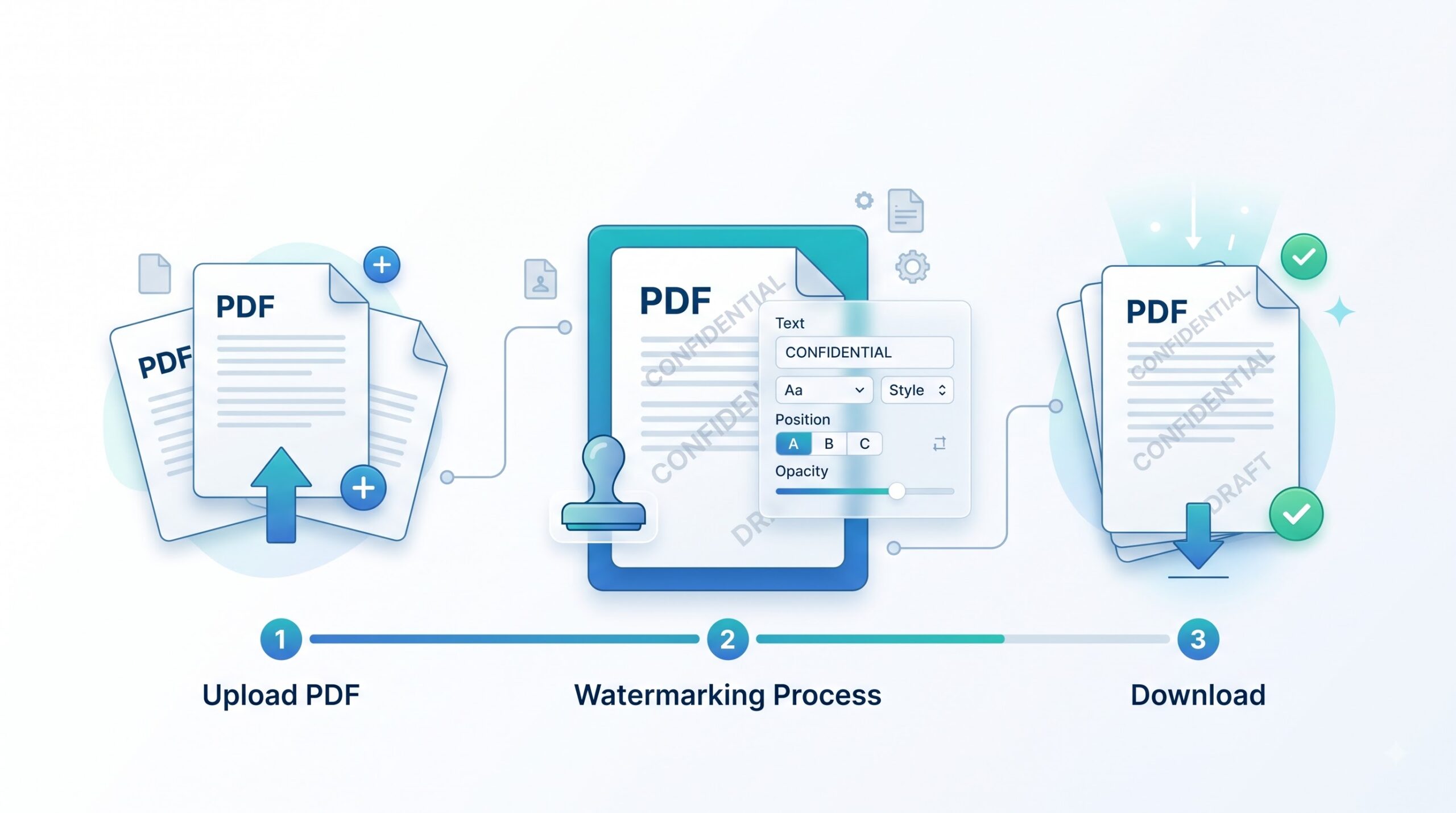
Select a PDF, choose text or an image, adjust the settings, and apply the watermark. Keep the original and check the downloaded copy.
How to Add a Watermark
Keep a clean original for future revisions.
-
Select a PDF
Choose a PDF from your device or drag it into the upload area.
-
Choose your watermark
Enter your text or choose a PNG or JPEG logo. Adjust the available size, opacity, rotation and position settings.
-
Apply and download
Select the pages and a layer. Click Add watermark & download, then review the saved PDF.
Text and Image Watermarks
Choose the mark that fits your document.
Text watermarks
Use labels such as DRAFT, CONFIDENTIAL or SAMPLE. Change the font, size, color and text style.
Image watermarks
Choose a PNG or JPEG file and adjust its scale. A transparent PNG can help avoid a solid background box.
Available Watermark Settings
| Setting | What it does | Good to know |
|---|---|---|
| Position and rotation | Sets the placement and angle. | Avoid covering important details. |
| Opacity | Adjusts visibility. | Keep underlying text readable. |
| Pages and layer | Sets the page selection and layer order. | Check marks placed below artwork. |
Common Uses
-
Drafts
Mark unfinished reports or proposals DRAFT.
-
Internal copies
Add CONFIDENTIAL to indicate intended handling, not access restrictions.
-
Branding
Place a logo on handouts or proposals.
-
Samples
Label preview copies SAMPLE or PROOF.
Before You Watermark
Know what a watermark cannot do
- Not encryption. A stamp does not restrict opening or copying.
- Not redaction. Underlying content may remain readable or selectable.
- Restricted PDFs. Encrypted or damaged files may fail to process.
- Digital signatures. Changing a signed PDF may invalidate its signature.
- Original files. Keep a clean copy for future changes.
Troubleshooting
| Problem | Likely cause | What to try |
|---|---|---|
| Stamp covers text | The stamp is too large or opaque. | Reduce the size or opacity. |
| Stamp is missing | The selected pages or layer may hide it. | Check the page selection and choose “Over the content.” |
| Logo looks blurry | The source image has a low resolution. | Use a clearer source image. |
| Processing fails | The PDF may be restricted or damaged. | Try a working, unrestricted copy. |
How Your Files Are Handled
- No account, no email. You can use the tools without signing up.
- The connection is encrypted. PDFZora uses HTTPS.
- PDFZora does not sell, rent, or trade personal data. Data may still be shared with the companies that help run the site, or disclosed where the law requires it.
- Processing is largely automated. Access to file content is limited to what is needed to run, maintain, secure, or support the service, or to meet a legal obligation.
The processing method can vary by tool. Some operations may run in the browser, while others may require temporary server-side processing. Retention periods depend on the method used. For the latest information about temporary file storage and deletion, see PDFZora's Data Privacy & Security page.
Frequently Asked Questions
Is this tool free?
Yes. This tool is currently free to use and does not require an account.
Can I add a logo?
Yes. The image option accepts PNG and JPEG files. Check the size and placement before downloading.
Can I choose which pages to watermark?
Yes. Choose all pages, odd pages, even pages or a custom page range.
Does a watermark secure my PDF?
No. A watermark labels pages; it does not encrypt the PDF or remove sensitive text.
Review Before Sharing
Check that the text is readable and the intended pages are marked. Keep the unwatermarked original for later revisions.
Browse all free tools