
PDF to JPG Converter
Turn every page of a PDF into a JPG image. Pick a resolution and quality, convert, then download single pages or the whole set as a ZIP.
- Free to use
- No account
- Nothing to install
- No watermark
Need a different job done with a PDF?
Browse all free toolsQuick answer
Upload a PDF, choose a resolution (DPI) and JPEG quality, and each page is rendered as a JPG. Download pages one by one, or all at once with Download all (ZIP). No install, no watermark.
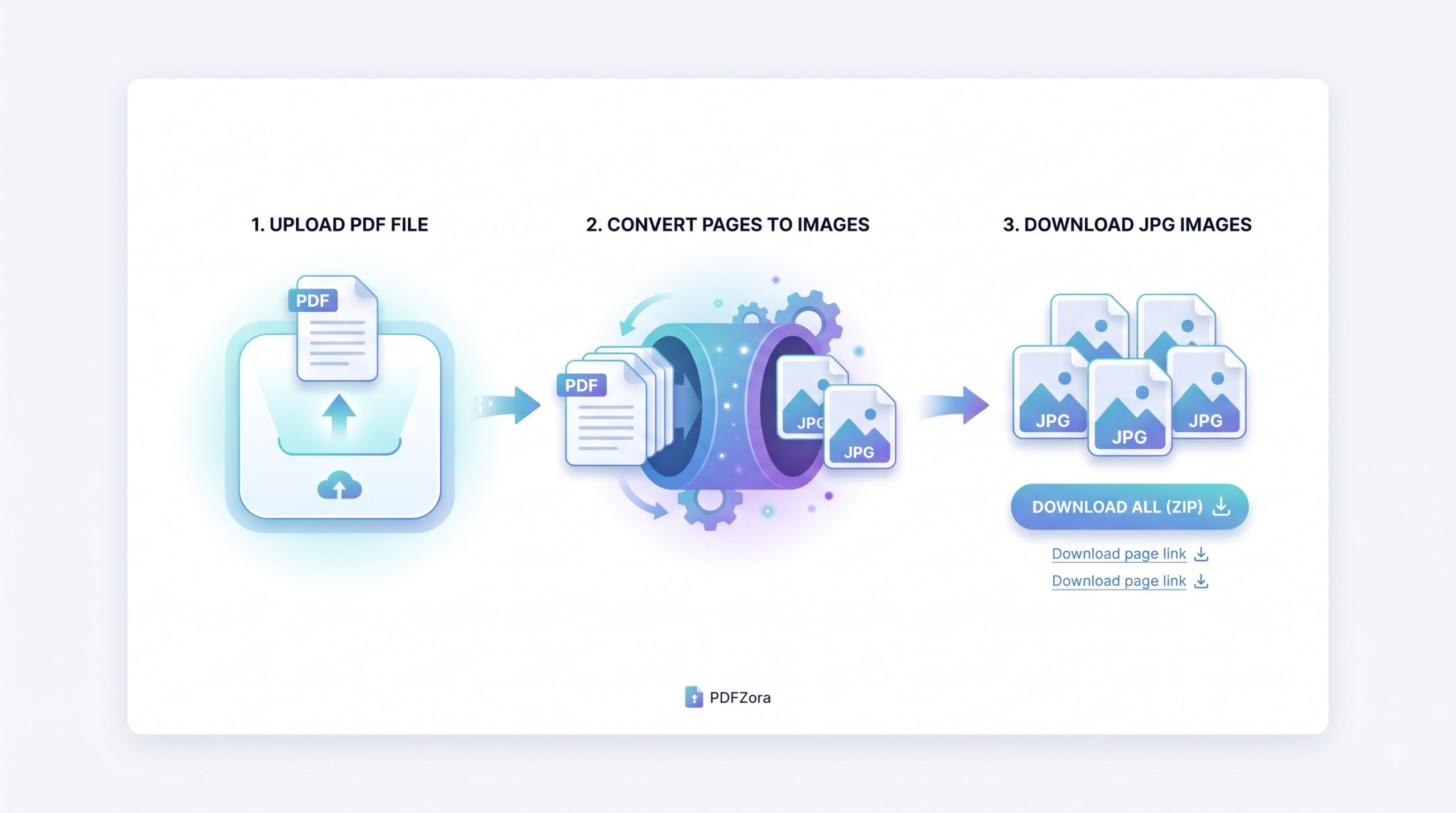
How to convert a PDF to JPG
From PDF file to finished images in four steps.
-
Upload your PDF
Drag a file into the upload area, or pick a document from your device. The original PDF stays untouched.
-
Choose resolution and quality
Set the DPI (150 or 300) and JPEG quality (0.6, 0.8 or 0.95). Higher values mean sharper images and larger files.
-
Convert the pages
Start the conversion and every page is rendered as a JPG, in the original order, with a preview of each.
-
Download your images
Save single pages with their download page links, or take everything in one ZIP archive named after your PDF.
What the PDF to JPG tool does
Your PDF pages become images here, and you decide how they turn out.
Pages become images
Each page of the PDF becomes a standalone JPG, in document order: ordinary images you can insert into slides, attach to emails or upload to forms.
You control the output
Resolution decides how many pixels each page gets; JPEG quality decides how much detail survives compression. Pages are flattened onto white, so images look like paper.
Settings you can change
| Setting | What it does | Good to know |
|---|---|---|
| Resolution (DPI) | Sets the pixel size of each page: 150 or 300 DPI. | 300 DPI suits printing; 150 keeps files small for screens and email. |
| JPEG quality | Controls compression: 0.6 balanced, 0.8 high, 0.95 close to the original rendering. | 0.8 handles most pages; raise it for fine text, lower it to save space. |
| Download all (ZIP) | Bundles every converted page into one ZIP named after the source PDF. | Files inside are ordered: document-page-01.jpg, document-page-02.jpg and so on. |
When PDF pages as JPG images come in handy
-
Slides and reports
Place report or deck pages into a presentation directly, without screenshots.
-
Previews and thumbnails
Create a preview image for a website, a listing or a chat message.
-
Apps that want pictures, not PDFs
Some platforms accept JPG files only. Convert a page and upload it.
-
Printing a single page
Export one page at 300 DPI instead of printing a multi-page PDF.
-
Records and archives
Keep pages of a certificate, receipt or scanned letter as separate images.
Limitations worth knowing
Before you convert
- JPG pages are flat pictures. Text on a converted page is no longer selectable, searchable or editable.
- Scans stay scans. Converting a scan changes its format only; the image is as good as the source.
- Large documents take a while. Many pages at 300 DPI mean many large images; work in batches for very long files.
- One file at a time. The converter processes one PDF per run; start the next after downloading your images.
- Page size drives image size. A JPG matches the proportions of its PDF page, whatever format that page uses.
Common problems and what to try
| Problem | Likely cause | What to try |
|---|---|---|
| The images look blurry | Low DPI or low JPEG quality. | Convert again at 300 DPI and 0.95 quality. |
| The file will not upload | The file may be damaged or may not be a PDF. | Check it in a PDF reader, then try a healthy file. |
| Text looks fuzzy in the images | Small text needs more pixels than low DPI gives it. | Convert again at a higher DPI, such as 300. |
| The tab slows down or crashes | Long, image-heavy PDFs at high DPI need a lot of memory. | Convert in smaller batches, or pick a lower DPI. |
How Your Files Are Handled
- No account, no email. You can use the tools without signing up.
- The connection is encrypted. PDFZora uses HTTPS.
- PDFZora does not sell, rent, or trade personal data. Data may still be shared with the companies that help run the site, or disclosed where the law requires it.
- Processing is largely automated. Access to file content is limited to what is needed to run, maintain, secure, or support the service, or to meet a legal obligation.
Processing method can vary by tool. Some operations may run in the browser, while others may require temporary server-side processing. Retention periods depend on the method used. For the latest information about temporary file storage and deletion, see PDFZora's Data Privacy & Security page.
Frequently Asked Questions
Yes. Conversion is free, with no account, no installation and no watermark on the images.
Use 150 DPI for screens, chat and email; use 300 DPI for printing or pages with small text.
Use Download all (ZIP). It bundles every JPG into one archive named after your PDF.
No. The tool renders new images; your original PDF stays as it is on your device.
Each JPG matches its PDF page at the chosen DPI, so mixed page sizes give images of different dimensions.
Ready to turn your PDF into JPG images?
Turn your PDF pages into JPG images and download them one by one, or all together as a ZIP. For every other PDF job, the toolkit is one click away.
Browse all free tools