
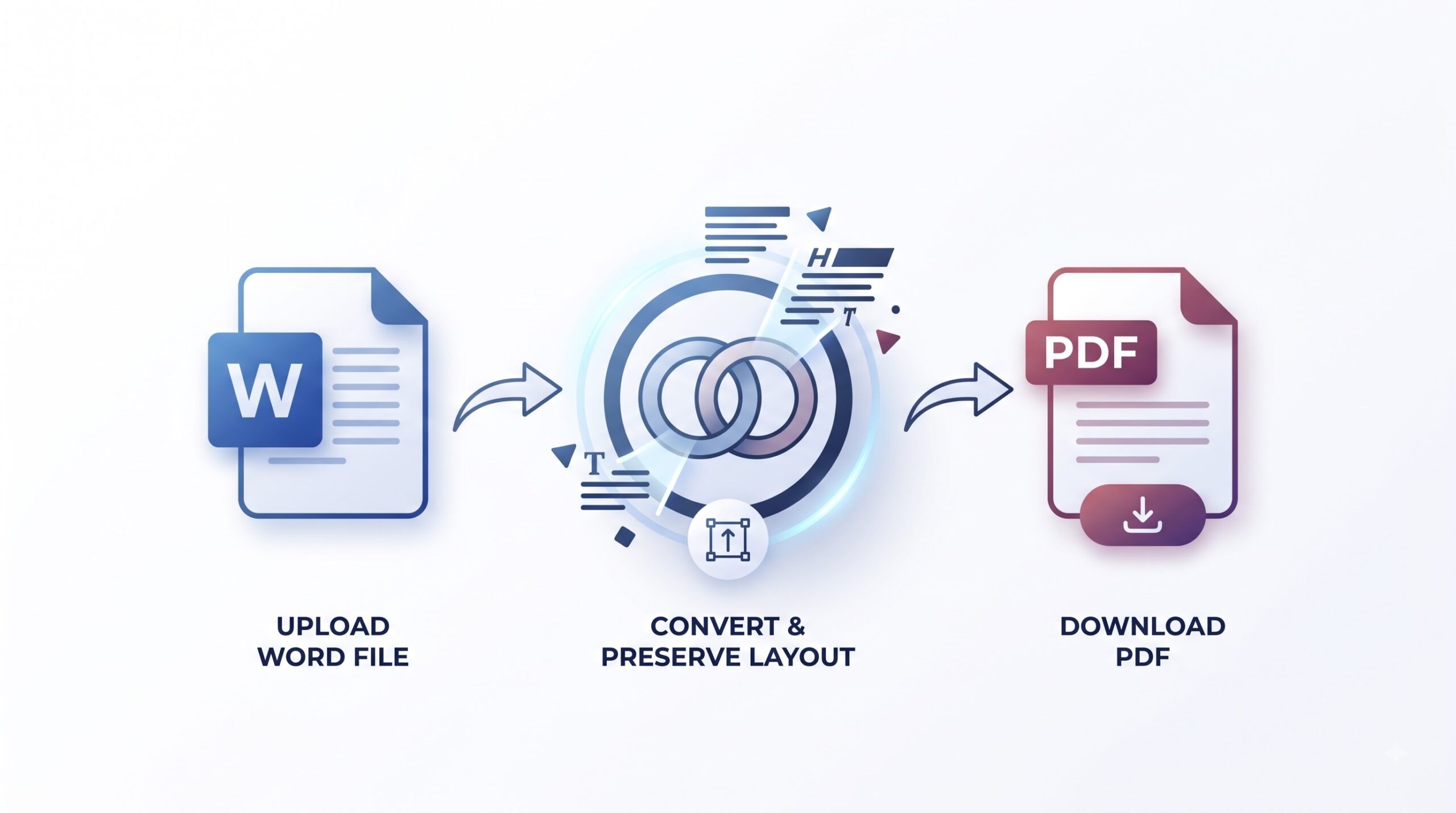
Word to PDF Converter
Turn Microsoft Word documents into clean, shareable PDF files in your browser. Your text, images, and layout stay right where you put them.
- Free to use
- No account
- Nothing to install
- No watermark
Need a different job done with a PDF?
Browse all free toolsQuick answer
Word to PDF converts Microsoft Word documents (.doc and .docx) into PDF files. A PDF keeps your content fixed in place, so the document looks the same on any computer, phone, or tablet. Upload your file and download the finished PDF.
How to Convert Word to PDF Online
Four steps from Word document to finished PDF — no software to install.
-
Select your Word file
Click the upload button and choose a .doc or .docx file, or drag it straight into the upload box.
-
The file uploads over an encrypted connection
Nothing is installed on your device, and you do not need to create an account to convert a document.
-
The converter rebuilds your document
Text, fonts, images, tables, and spacing are recreated in PDF form so the result matches the document you started with.
-
Download your PDF
Save the finished file to your device. It is ready to email, share, or print.
What Is Word to PDF?
What the tool does, and why PDF is the format people rely on for sharing.
What it does
Word to PDF takes a Microsoft Word document and produces a PDF copy of it. A PDF is a fixed-layout format: pages, images, and text sit exactly where they were placed, so the file renders the same way everywhere it is opened.
Why that matters
Word files can shift when they are opened without the same fonts or software. Resumes, contracts, and assignments are therefore usually sent as PDFs, because what the recipient sees matches what the author made.
Formatting details worth checking
| Setting | What it does | Good to know |
|---|---|---|
| Fonts | The PDF uses the fonts named in your document. | Common fonts such as Calibri or Arial carry over cleanly; rare fonts may be swapped for the closest match. |
| Images | Pictures keep their position and size from the Word file. | Photos with text wrapping are worth an extra look after converting; wrapping is the trickiest part of any conversion. |
| Tables and lists | Table structure, bullets, and numbering are rebuilt in the PDF. | Very wide tables can get squeezed; simplify complex ones before converting. |
When to Convert Word to PDF
-
Job applications
Send your CV as a PDF so recruiters see the layout you designed, whatever software they use.
-
Contracts and agreements
Share documents that are not meant to be edited before signing.
-
Academic submissions
Email essays, theses, and reports without worrying that figures or citations will shift.
-
Business reports
Distribute proposals and reports that render consistently for every recipient.
What Word to PDF Cannot Do
Limits to keep in mind
- Scanned pages stay images. If your document contains scans of text, the PDF keeps them as pictures; the converter does not read the text inside them.
- Complex layouts can shift. Documents built from many text boxes, WordArt, or heavy text wrapping may differ slightly from the original.
- Conversion is one-way. The result is a PDF, not an editable document; turning it back into Word needs a separate converter.
- Password-protected files are not supported. Remove the password from the Word document before uploading it.
- Long documents take longer. Files with hundreds of pages or many high-resolution images need more time to process.
Common problems and fixes
| Problem | Likely cause | What to try |
|---|---|---|
| The converted PDF will not open | The download was interrupted or blocked. | Check your downloads folder and pop-up blocker, then convert again. |
| Conversion fails or stalls | The file may be damaged, password-protected, or an unsupported format. | Open the document in Word, re-save it, and upload the new copy. |
| The PDF is larger than the Word file | Fonts and images are embedded in full inside the PDF. | Compress the PDF afterwards if you need it smaller. |
| It is slow or the tab freezes | Many long, image-heavy files take time and memory. | Close other tabs, or convert in two smaller batches. |
How Your Files Are Handled
- No account, no email. You can use the tools without signing up.
- The connection is encrypted. PDFZora uses HTTPS.
- PDFZora does not sell, rent, or trade personal data. Data may still be shared with the companies that help run the site, or disclosed where the law requires it.
- Processing is largely automated. Access to file content is limited to what is needed to run, maintain, secure, or support the service, or to meet a legal obligation.
Processing method can vary by tool. Some operations may run in the browser, while others may require temporary server-side processing. Retention periods depend on the method used. For the latest information about temporary file storage and deletion, see PDFZora's Data Privacy & Security page.
Frequently Asked Questions
Yes. You can convert documents without paying, signing up, or adding a watermark to your files.
The converter accepts the two Microsoft Word formats: the older .doc and the current .docx.
Text, images, tables, and spacing are rebuilt to match your original document. Very complex layouts can shift slightly, so give the result a quick look before you share it.
Yes. The tool runs in a mobile browser, so it works on Android and iOS without installing anything.
Processing is largely automated, and access to file content is limited to what is needed to run the service. The How Your Files Are Handled section above has the details.
Ready to Convert a Word Document to PDF?
Upload your .doc or .docx file and download a PDF that is ready to share anywhere. Free to use, and no account is needed.
Browse all free toolsExplore more PDFZora tools
Related guides
-
Guide
How to Convert PDF to Word Without Losing Formatting
Need to go the other way? This guide walks through turning a PDF back into an editable Word document.
Read the guide -
Guide
Is It Safe to Upload PDFs Online? A Real Answer
A plain-language look at what happens to files you upload, and how to judge whether an online tool is safe to use.
Read the guide