
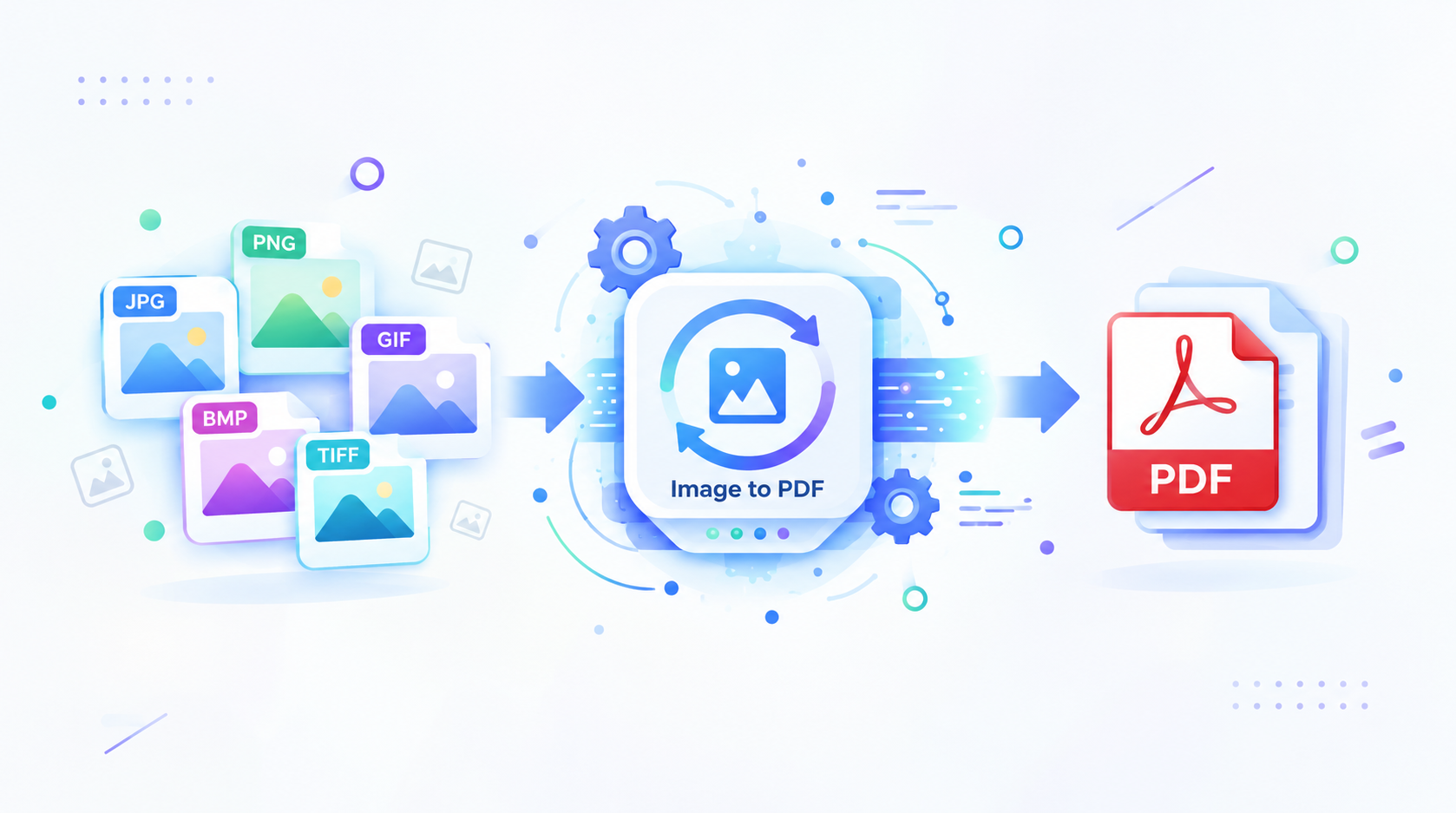
Image to PDF Converter Online
Convert JPG, PNG, and other supported images into one PDF. Upload your pictures, review the selection, and download the document in your browser.
- Free to use
- No account
- Nothing to install
- No watermark
Need a different job done with a PDF?
Browse all free toolsWhat does image to PDF conversion do?
Combine supported images in one PDF for sharing, filing, printing, or keeping related scans together. Use it when a recipient or workflow needs a PDF rather than separate image files.
How to convert images to PDF
Convert images to PDF in three steps.
-
Select your images
Choose JPG, JPEG, PNG, or another accepted file type. Select only the images you need.
-
Review the selection
Check the selection and intended page sequence. Reorder images if the tool offers that option, then confirm every file appears.
-
Convert and download
Convert and download the PDF, then check page order, rotation, and readability before sharing. Keep originals if you need another version.
Make a single PDF from separate pictures
A PDF keeps pictures together for easier storage, sharing, review, or printing. It gives recipients one file to review.
Keep related images together
Combine scans, forms, notes, or photos into one multi-page PDF instead of separate attachments. You get one file to name, save, and share. This can make a set easier to review.
Know what the PDF contains
Image conversion keeps words visual, not selectable. Use OCR separately if you need searchable text. Run OCR before copying details from a receipt.
Review these details first
| Setting | What it does | Good to know |
|---|---|---|
| Image order | Selected sequence sets page order. | Review filenames before converting. |
| Page orientation | Mixed orientations may need review. | Check the PDF for sideways pages. |
| Source clarity | Low-resolution images stay unclear. | Use the clearest source image. |
When an image-based PDF helps
-
Scanned paperwork
File photographed forms or letters together.
-
Class and lecture notes
Collect whiteboard photos and diagrams for study.
-
Receipts and records
Keep receipt images together for later review.
-
Work samples
Share designs or product photos in one file.
Important image-to-PDF limits
Know before you convert
- Text remains an image. Pictured words stay unselectable without OCR.
- Source clarity matters. Conversion cannot restore detail from blurry or dark images.
- File size varies. Large photos can increase PDF size; compress a copy if needed.
- Check the layout. Check page orientation and fit.
- Format support is specific. Confirm accepted types in the upload picker.
Common issues and quick checks
| Problem | Likely cause | What to try |
|---|---|---|
| The PDF is too large | Large photos add data. | Resize images or compress the PDF. |
| A page is missing | The image may not have uploaded. | Check the file list and retry. |
| An image is rejected | The format may be unsupported. | Try an accepted JPG or PNG. |
| A page appears sideways | Source rotation may differ. | Rotate it before conversion. |
How Your Files Are Handled
- No account, no email. You can use the tools without signing up.
- The connection is encrypted. PDFZora uses HTTPS.
- PDFZora does not sell, rent, or trade personal data. Data may still be shared with the companies that help run the site, or disclosed where the law requires it.
- Processing is largely automated. Access to file content is limited to what is needed to run, maintain, secure, or support the service, or to meet a legal obligation.
Processing method can vary by tool. Some operations may run in the browser, while others may require temporary server-side processing. Retention periods depend on the method used. For the latest information about temporary file storage and deletion, see PDFZora's Data Privacy & Security page.
Frequently Asked Questions
The tool supports JPG/JPEG, PNG, BMP, TIFF, GIF, and WebP. Check the upload picker if an image is rejected.
Yes. The tool combines multiple images into a single, multi-page PDF. Review page order in the finished file before sharing it.
No. Picture text remains visual; use OCR for searchable or selectable words.
Use only the images you need, resize large originals, or compress the PDF. Check text readability carefully before you submit or print it.
Ready to create your document?
Select pictures, create a PDF, and review the downloaded file before you share. Explore other free PDF utilities for more tasks.
Browse all free tools