
Rotate PDF Pages Online
Correct sideways or upside-down PDF pages. Select pages, rotate them, and download the result.
- Free to use
- No account
- Nothing to install
- Rotate selected pages
Need a different job done with a PDF?
Browse all free toolsHow do I rotate PDF pages online?
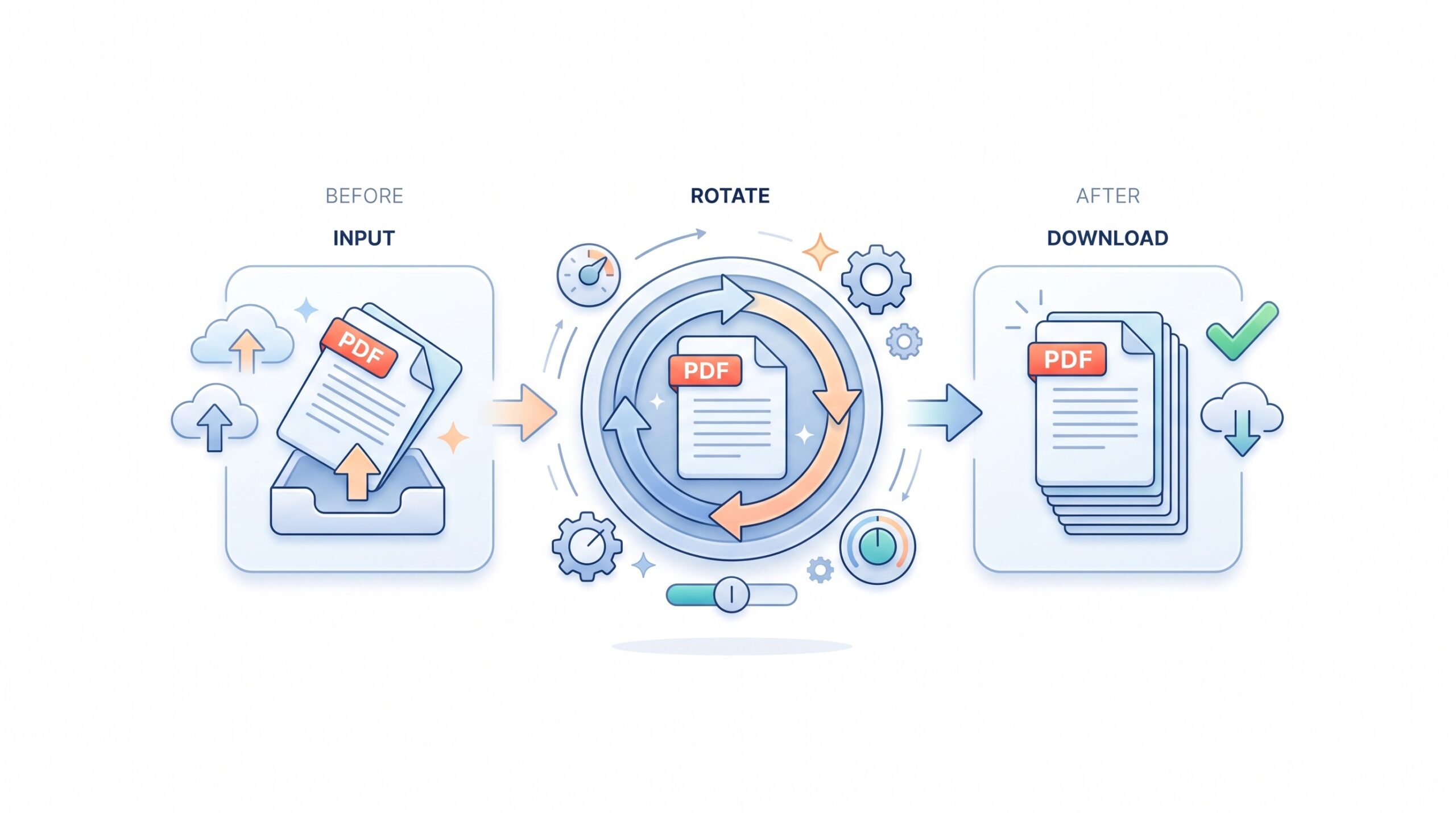
Upload your PDF, select the pages that need a new direction, choose left, right, or 180°, and download the updated file when it looks correct.
How to Rotate a PDF
Correct page direction in three steps in your web browser.
-
Upload your PDF
Select the PDF from your device, or drag it into the upload area to begin.
-
Choose the pages to change
Select the pages that are sideways or upside down, leaving correctly oriented pages unchanged.
-
Pick a rotation direction
Choose a 90° left or right turn, or 180° for pages that are upside down.
What Is a Rotate PDF Tool?
It updates the orientation stored in selected PDF pages so they open in a readable direction.
Fix the reading direction
Correct scanned, photographed, or imported pages that open sideways, making the document easier to read and share.
Adjust selected pages
Rotate only pages that need correction and keep the rest unchanged, including landscape pages for wide content.
Rotation choices at a glance
| Setting | What it does | Good to know |
|---|---|---|
| Rotate right (90°) | Turns selected pages clockwise by 90°. | For pages that face left. |
| Rotate left (90°) | Turns selected pages counter-clockwise by 90°. | For pages that face right. |
| Rotate 180° | Flips selected pages upside down. | For pages saved in reverse. |
When You May Need to Rotate a PDF
-
Scanned paperwork
Correct pages captured in the wrong direction before you send, print, or archive the document.
-
Landscape tables and drawings
Keep wide tables, diagrams, and plans in landscape while other pages stay in portrait.
-
Phone photos saved as PDFs
Correct photo-based pages that open in the wrong direction after a scan or camera upload.
-
Presentation handouts
Correct slides or handouts from mixed sources before sharing your combined document.
Before You Rotate a PDF
A few practical points
- Rotation is not editing. It does not edit text, improve scan quality, or crop page edges.
- Check each selected page. Review the result before saving or sending the updated PDF.
- Protected files may need attention first. You may need a password or permission before editing a locked file.
- Original scan quality remains. Rotation cannot improve an unclear scan or restore missing detail.
- Keep an original copy when needed. Save another version if you may need the original document later.
Troubleshooting rotation issues
| Problem | Likely cause | What to try |
|---|---|---|
| Only some pages need a turn | The document has mixed orientations. | Select only pages that need a rotation. |
| The page still faces the wrong way | The opposite turn was selected. | Use the other 90° turn, or 180° for upside-down pages. |
| The PDF is password protected | Document permissions can block editing. | Unlock it with the password or required permission. |
| The PDF will not open | The file may be incomplete or damaged. | Open the original if possible, then upload a complete copy. |
How Your Files Are Handled
- No account, no email. You can use the tools without signing up.
- The connection is encrypted. PDFZora uses HTTPS.
- PDFZora does not sell, rent, or trade personal data. Data may still be shared with the companies that help run the site, or disclosed where the law requires it.
- Processing is largely automated. Access to file content is limited to what is needed to run, maintain, secure, or support the service, or to meet a legal obligation.
Processing method can vary by tool. Some operations may run in the browser, while others may require temporary server-side processing. Retention periods depend on the method used. For the latest information about temporary file storage and deletion, see PDFZora's Data Privacy & Security page.
Frequently Asked Questions
Yes. It is free to use and no account is required.
Yes. Choose a left or right 90° turn, or 180° for an upside-down page.
It changes the selected page orientation, not its text or other content.
No. Use a current web browser, then download the updated PDF.
Ready to correct your PDF’s orientation?
Choose pages, rotate them, then download the updated PDF.
Browse all free tools