
Organize PDF Pages Online for Free
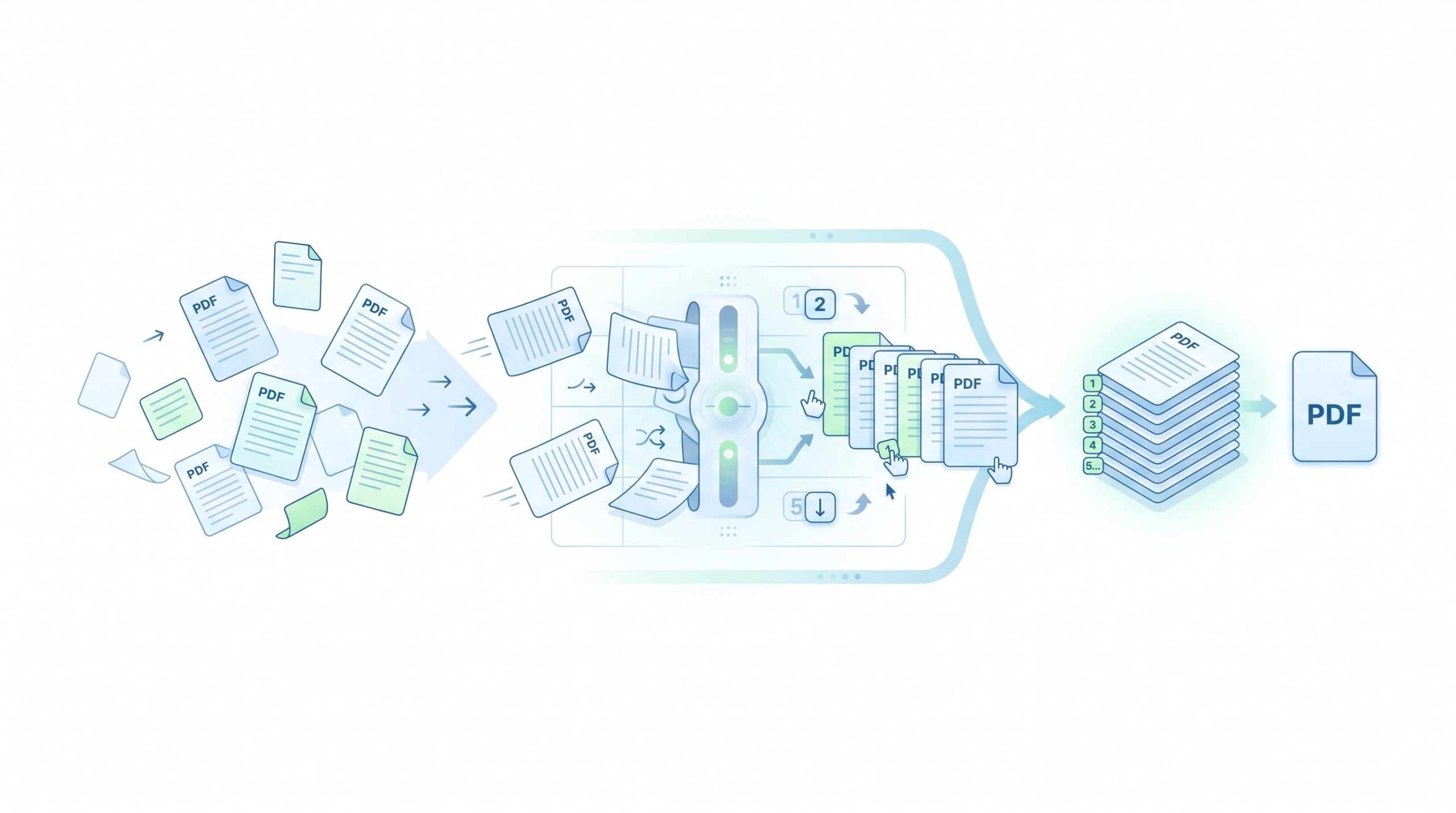
Drag pages into a new order, delete the ones you don’t need, rotate or add blank pages, then download one tidy PDF.
- Free to use
- No account
- Nothing to install
- No watermark
Need a different job done with a PDF?
Browse all free toolsHow do I organize a PDF?
Select your PDF, drag the thumbnails into order, and delete or rotate pages as needed. Click Organize PDF to download the new file. It is free and needs no account.
How to Organize PDF Pages
Three steps, all in your browser.
-
Select your PDF
Click Select a PDF or drag a file onto the card. You can choose several PDFs at once.
-
Arrange the pages
Drag thumbnails to reorder them, or use the ◀︎ ▶︎ buttons under each page (easier on a phone). Each page also has zoom, rotate, delete and duplicate buttons.
-
Download the result
Click Organize PDF to download organized.pdf. Your original file is not changed.
What the Organize PDF Tool Does
It changes the order and set of pages, not what is printed on them.
Reorder, remove and duplicate
Move any page to any position, drop pages you don’t want, or duplicate a page you need twice.
Combine files
Use Add PDF to bring in more files. Each file gets its own letter and color.
Toolbar options
| Setting | What it does | Good to know |
|---|---|---|
| Rotate all | Turns every page 90 degrees clockwise. | Click again to keep turning. |
| Blank page | Adds an empty A4 page at the end. | Use the + between thumbnails to insert one anywhere. |
| Reverse / Sort | Reverse flips the order; Sort restores the original order. | Sort does not bring back deleted pages. |
When to Organize a PDF
-
Fix a jumbled scan
Restore the right order after a bad scan.
-
Assemble a report
Bring sections from several files together in the right order.
-
Clean up before sending
Remove blank, duplicate or internal pages before sharing.
-
Prepare for printing
Insert blank pages so chapters start on a right-hand page.
Limitations and Troubleshooting
Worth knowing before you start
- Page order only. Text and images on the pages are not edited.
- Password-protected files. Encrypted PDFs will not load, so remove the password first.
- Bookmarks. Bookmarks in the original file are not carried over to the new PDF.
- Quarter turns. Rotation works in 90-degree steps and cannot straighten tilted scans.
- Scanned pages. Organizing does not make scanned text searchable.
Common problems
| Problem | Likely cause | What to try |
|---|---|---|
| File will not load | The PDF may be password-protected or damaged. | Remove the password, or check the file in another viewer. |
| Pages look alike | Thumbnails are small. | Use the zoom button on a page to see it at full size. |
| Page in the wrong place | It was dropped one slot off. | Use the ◀︎ ▶︎ buttons to move it one step. |
| Slow or frozen tab | Long, image-heavy files use a lot of browser memory. | Close other tabs and try again. |
How Your Files Are Handled
- No account, no email. You can use the tools without signing up.
- The connection is encrypted. PDFZora uses HTTPS.
- PDFZora does not sell, rent, or trade personal data. Data may still be shared with the companies that help run the site, or disclosed where the law requires it.
- Processing is largely automated. Access to file content is limited to what is needed to run, maintain, secure, or support the service, or to meet a legal obligation.
Processing method can vary by tool. Some operations may run in the browser, while others may require temporary server-side processing. Retention periods depend on the method used. For the latest information about temporary file storage and deletion, see PDFZora's Data Privacy & Security page.
Frequently Asked Questions
Yes. It is free to use, needs no account and does not add a watermark.
No. Pages are processed in your browser, and the new PDF is created on your device.
Yes. Select several files at once, or use Add PDF, then arrange the pages together.
There is no undo. Sort restores the original order of the remaining pages, and Reset all clears everything.
Need to do more with your PDF?
Merge, split, compress and convert files with PDFZora’s other free tools.
Browse all free tools