
OCR to PDF
Turn scanned PDFs, images, and photos into searchable, selectable PDF text with high-accuracy OCR in 59 languages.
- Free to use
- No account
- Nothing to install
- No watermark
Need a different job done with a PDF?
Browse all free toolsWhat this OCR to PDF tool does
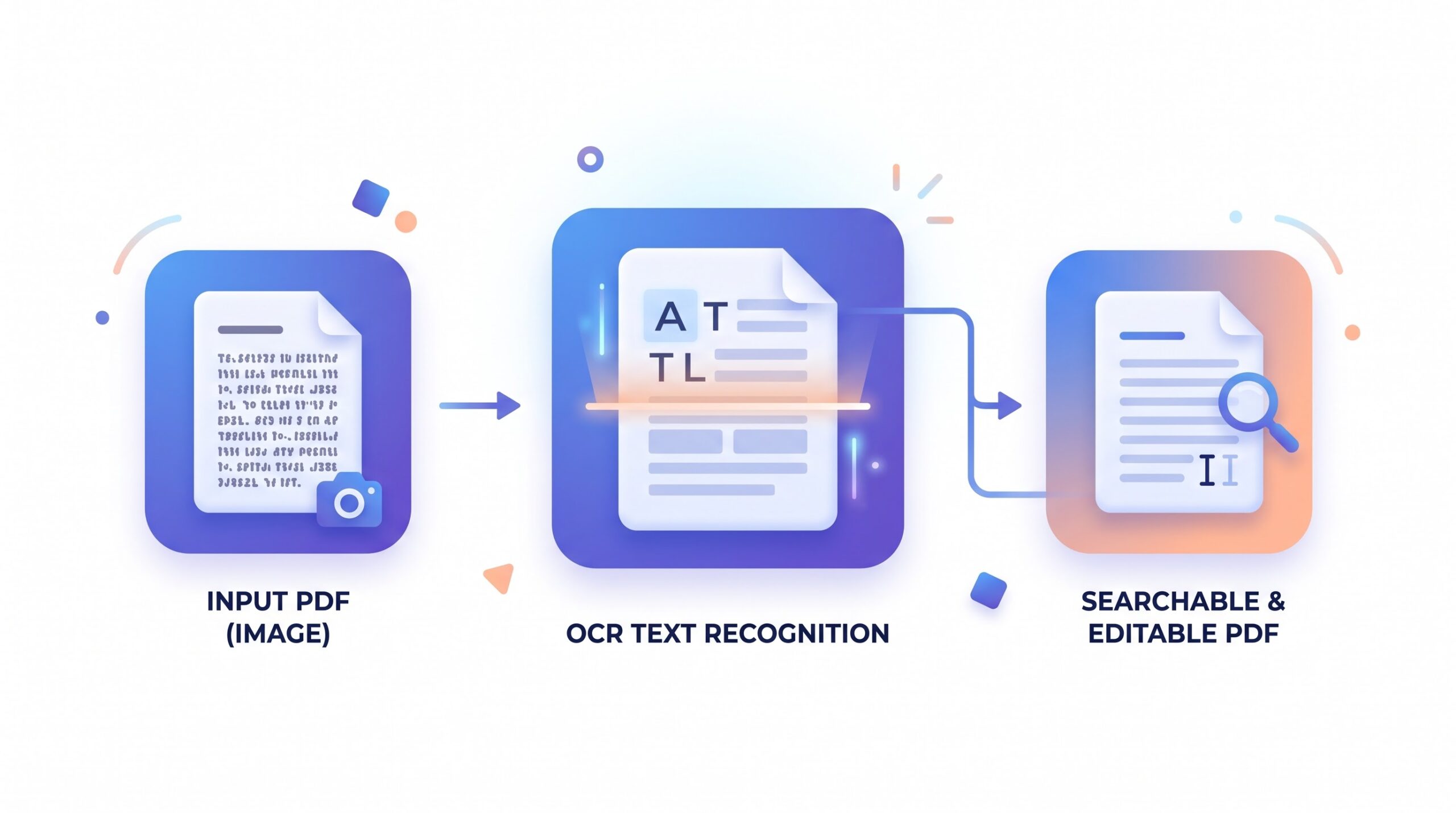
OCR to PDF adds a real text layer to a scanned page, so the finished PDF keeps its look while the words become searchable and selectable. Upload a scanned PDF or a JPG, PNG, or photo and download a searchable PDF. The recognition runs in your browser, so files never leave your device.
How to make a scanned PDF searchable
Four steps from scan to searchable text.
-
Upload your scanned PDF or image
Drag and drop a scanned PDF, JPG, PNG, or photo into the upload card, or tap to choose a file.
-
Start the conversion
The OCR engine reads each page in your browser and adds a text layer that matches the words on it.
-
Download the searchable PDF
When recognition finishes, save the document straight to your device.
-
Search, copy, or edit the text
Open the PDF in any reader to find words, copy passages, or move the text into another program.
What you get after OCR
The page stays as it was — the recognized text is added behind it.
Text you can search and select
Every recognized word becomes real text, so you can search the PDF, select lines, and copy them instead of retyping the page.
Pages that keep their layout
Scanned images and photos stay in place. The text layer sits behind the page, so the document still looks like the original scan.
What the converter works with
| Setting | What it does | Good to know |
|---|---|---|
| Scanned PDF input | Runs text recognition on image-only PDF pages. | Built for pages that were never digitally typed. |
| Image input | Turns JPG and PNG images and photos into a PDF with text. | Scans and page photos both work. |
| Searchable PDF output | Keeps the original page and adds selectable text behind it. | Search, copy, and highlight in any PDF reader. |
Who converts scans with OCR to PDF?
-
Students
Turn scanned textbook pages and handouts into text you can search while you study.
-
Professionals
Digitize invoices, receipts, and contracts so details can be found later.
-
Archives
Turn old paper records into digital files that can be searched by keyword.
-
Admin teams
Convert filled forms and letters into PDFs that are easy to file and retrieve.
-
Legal work
Pull exact wording from scanned exhibits without retyping whole pages.
Limitations and good to know
What OCR can and cannot do
- Scan quality matters. Blurry, faded, or skewed pages make recognition less accurate.
- Printed text is easier. Handwriting and decorative fonts are harder to recognize.
- Complex graphics. Text inside charts, stamps, and seals may come out incomplete.
- Large files. Big, image-heavy documents use more memory and can be slow to convert.
- It is not an editor. The tool adds a text layer; it does not redesign the page.
Common problems and what to try
| Problem | Likely cause | What to try |
|---|---|---|
| Text cannot be selected after converting | The page may be a low-quality scan that is hard to read. | Scan the page again more clearly and run the conversion once more. |
| Recognized text has mistakes | Small, uneven, or blurry text is harder to read. | Use a cleaner scan at a higher resolution and convert again. |
| The finished PDF is larger than the original | The page image is kept at full quality and text is added behind it. | Compress the result afterwards if the file size matters. |
| The converted file will not open | The source PDF or image may be damaged or incomplete. | Open the source on its own and replace it if it fails. |
| It is slow or the tab freezes | Long, image-heavy files take memory in the browser. | Close other tabs, or try a smaller file. |
How Your Files Are Handled
- No account, no email. You can use the tools without signing up.
- The connection is encrypted. PDFZora uses HTTPS.
- PDFZora does not sell, rent, or trade personal data. Data may still be shared with the companies that help run the site, or disclosed where the law requires it.
- Processing is largely automated. Access to file content is limited to what is needed to run, maintain, secure, or support the service, or to meet a legal obligation.
Processing method can vary by tool. Some operations may run in the browser, while others may require temporary server-side processing. Retention periods depend on the method used. For the latest information about temporary file storage and deletion, see PDFZora's Data Privacy & Security page.
Frequently Asked Questions
Yes. PDFZora's current tools are free to use, with no account needed and no watermark on exported files.
No. The converter runs in your browser on a computer, tablet, or phone.
Scanned PDFs, JPG or PNG images, and photos. Each file comes back as a searchable, selectable PDF.
No. The OCR engine runs in your browser, and files never leave your device.
The OCR engine recognizes text in 59 languages.
Ready to make your scans searchable?
Upload a scanned PDF or photo and get back a PDF you can search, copy, and edit. Free to use, with no account and nothing to install.
Browse all free toolsExplore more PDFZora tools
Related guides
-
Guide
Is It Safe to Upload PDFs Online? A Real Answer
A plain-language look at uploading PDFs online, and how PDFZora explains its own file handling.
Read the guide -
Guide
Free PDF Tools for Students – The Complete Guide
How to merge, compress, and convert PDFs for coursework and research papers.
Read the guide