
Merge PDF Online — Combine PDF Files Into One Document
Merge PDF combines two or more PDF files into a single document. Put your files in order, then download the merged PDF. You don't need an account, and the result carries no watermark.
- Free to use
- No account
- Nothing to install
- No watermark
Need a different job done with a PDF?
Browse all free toolsQuick answer: how do I merge PDF files?
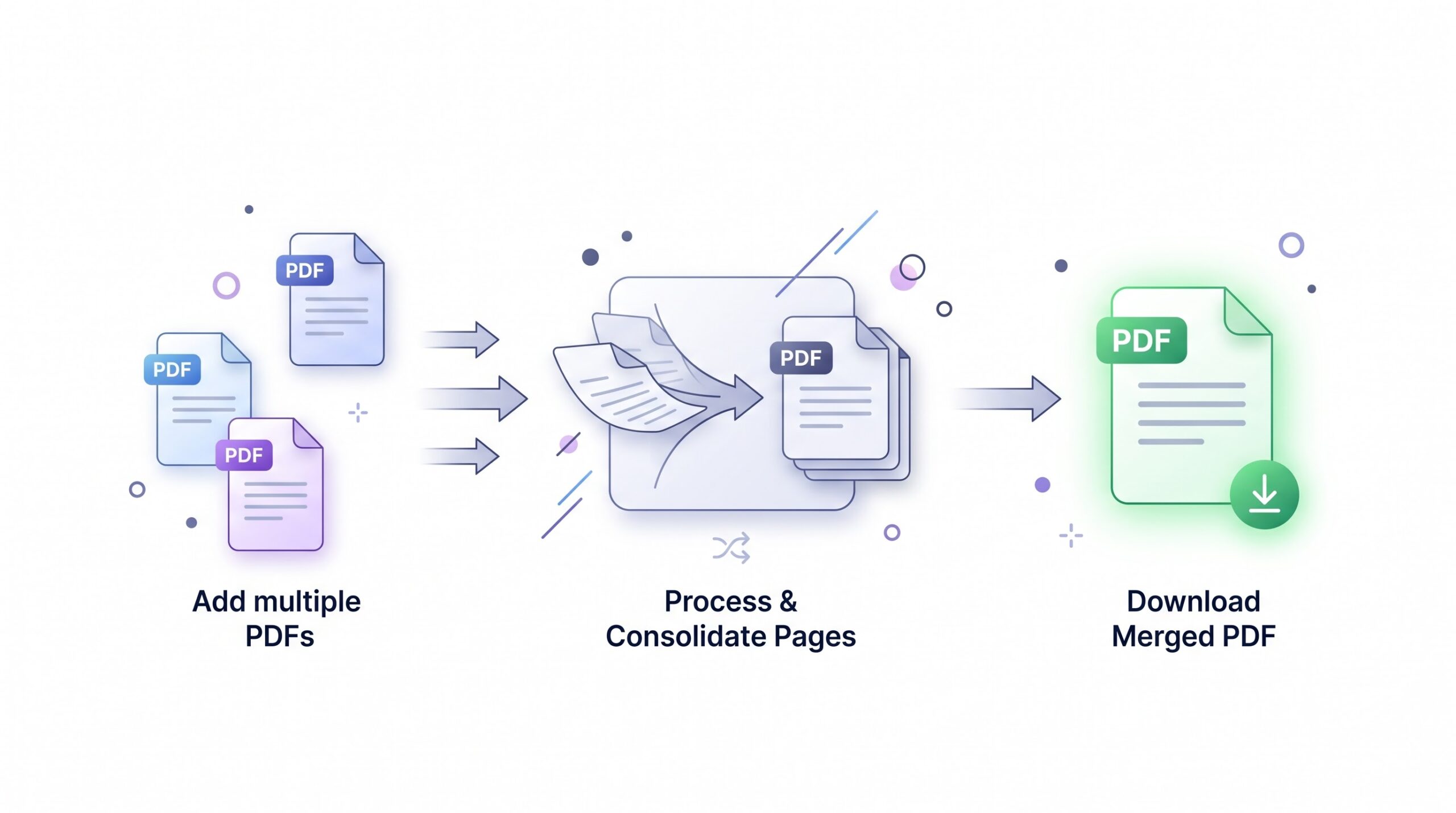
Add two or more PDFs, drag them into the order you want, and start the merge. PDFZora joins the files into a single PDF that follows the same order. Open the result and check the pages before you share the file.
How to Merge PDF Files
Four steps, from separate files to one PDF.
-
Add your PDF files
Click Select PDF files or drop two or more PDFs onto the upload box. They show up in a list you can rearrange.
-
Arrange the order
Drag the files into the sequence you want. Pages inside each file keep their own order.
-
Merge the files
Start the merge and wait while the tool joins the pages into one document.
-
Download and check
Download the combined PDF and open it. Have a quick look at the page order and layout.
What PDFZora's Merge PDF Tool Does
It joins whole files, in the order you choose.
Files joined in your order
Merge PDF appends the pages of each file into one PDF, following the order in the list.
No PDFZora watermark added
The Merge PDF tool does not add a watermark, cover page, or PDFZora branding to the merged file.
Merge settings at a glance
| Setting | What it does | Good to know |
|---|---|---|
| File order | Files merge in the list order. | Drag files into place before merging. |
| Number of files | Combine two or more PDFs in one merge. | Practical limits depend on file size and your device. |
| Output | One PDF containing every page from every file. | Output size depends on the source PDFs and may be similar to their combined size. |
When You May Need to Merge PDFs
-
Students
Combine assignments, notes, and handouts into one PDF for a submission portal.
-
Professionals
Put a report, cover page, and invoices into a single file for a client or finance team.
-
Forms and applications
Merge a form and its supporting documents into one upload-ready PDF.
-
Scanned pages
Join separately scanned chapters, receipts, or letters into one document.
-
Records and archiving
Keep related PDFs together in a chosen order for storage or later reference.
What to Expect, and Where Merging Has Limits
Read this before you merge
- Results can vary. Output depends on how the source PDFs are built.
- Locked PDFs need unlocking first. A merge can't include a file that's still password protected.
- Bookmarks and form fields may change. They might not carry over into the combined PDF.
- Merging does not shrink files. Compress the PDF afterwards if size matters.
- Very large jobs depend on your device. Long, image-heavy merges can fail when memory runs short.
Common problems and what to do
| Problem | Likely cause | What to try |
|---|---|---|
| Nothing happens when I add a file | The PDF is password protected, encrypted, or damaged. | Unlock or repair the file, then add it again. |
| The pages are in the wrong order | The files were in the wrong sequence in the list. | Rearrange the files in the tool and merge again. |
| The merged file is much larger than expected | It holds everything from the source files, scans and images included. | Check file sizes first, or compress the result afterwards. |
| The merged file will not open | One of the source PDFs may be damaged or incomplete. | Open each source PDF on its own and replace the one that fails. |
| It is slow or the tab freezes | Many long, image-heavy files take time and memory. | Close other tabs, or merge in two smaller batches. |
How Your Files Are Handled
- No account, no email. You can use the tools without signing up.
- The connection is encrypted. PDFZora uses HTTPS.
- PDFZora does not sell, rent, or trade personal data. Data may still be shared with the companies that help run the site, or disclosed where the law requires it.
- Processing is largely automated. Access to file content is limited to what is needed to run, maintain, secure, or support the service, or to meet a legal obligation.
Processing method can vary by tool. Some operations may run in the browser, while others may require temporary server-side processing. Retention periods depend on the method used. For the latest information about temporary file storage and deletion, see PDFZora's Data Privacy & Security page.
Frequently Asked Questions
Yes. You can merge multiple PDFs in one session. Practical limits may depend on file size, document complexity, browser memory, and your device.
Yes. The merged PDF follows the file order in the list, and pages inside each file stay as they are.
Not while they're locked. Remove the password first. Only do this for files you are authorized to modify.
It works in modern mobile browsers on iPhone, iPad, and Android, including Safari and Chrome. There's no app to install.
They are used to complete the merge. Any temporary copies follow PDFZora's retention schedule, which is explained on the Data Privacy & Security page.
Merge your PDFs into one file
Add your files, set the order, and download the combined PDF.
Browse all free toolsExplore more PDFZora tools
Related guides
-
Guide
How to merge PDF files on iPhone or Android
A short browser walkthrough for phones and tablets. Merge and download without installing an app.
Read the guide -
Guide
How to merge PDF files online for free without watermarks
How to combine PDFs in a browser and what to look for in the final file.
Read the guide