
Unlock PDF Online — Remove Passwords & Restrictions
Remove a password you know, or clear printing and copying restrictions, and download a copy that just opens. Free, in your browser.
- Free to use
- No account
- Nothing to install
- No watermark
Need a different job done with a PDF?
Browse all free toolsQuick Answer: How to Unlock a PDF
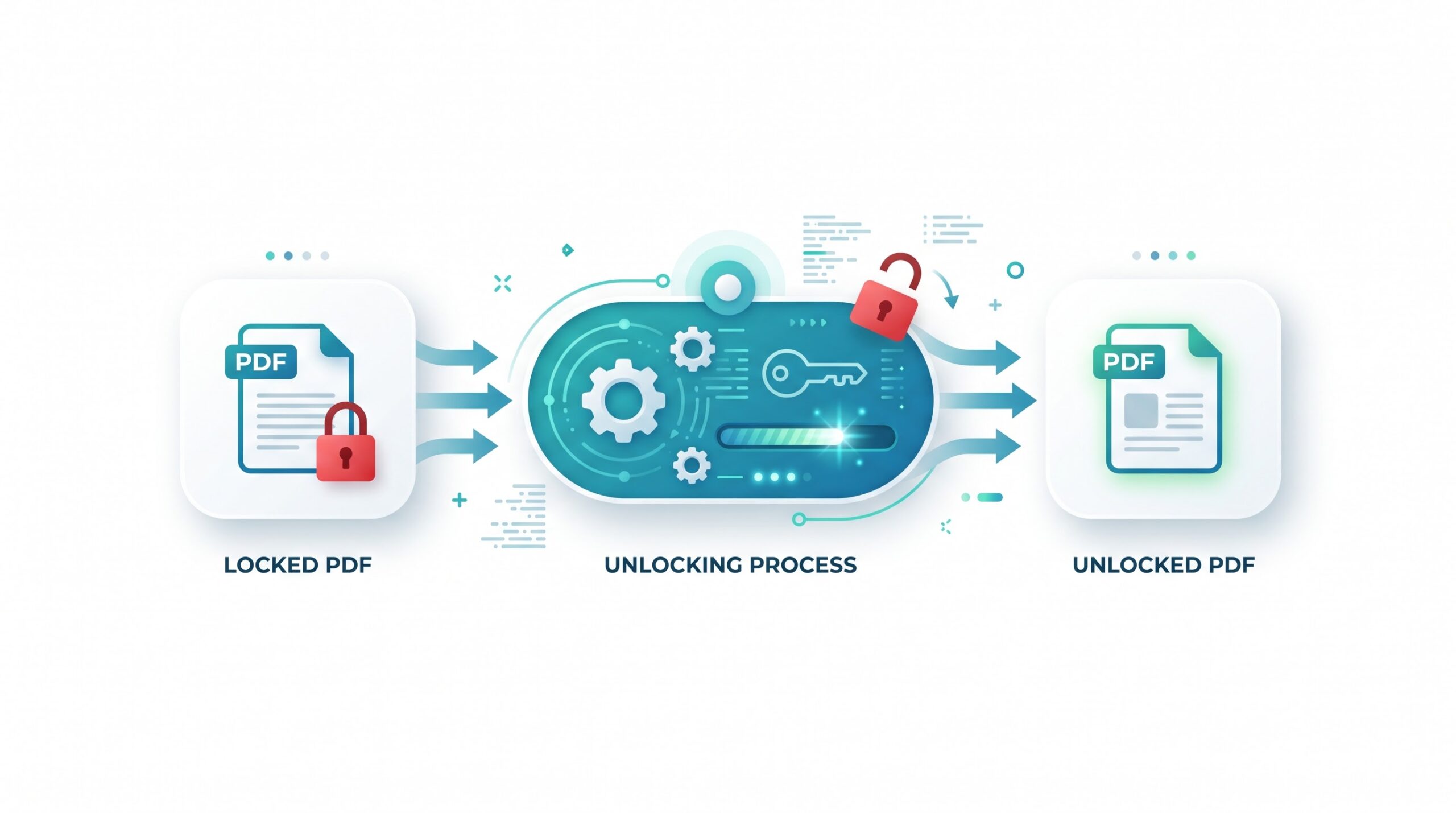
Upload the locked PDF, enter the password if the file asks for one to open, and click Unlock. The tool removes the encryption and any printing, copying, or editing restrictions, then gives you an unlocked copy to download.
How to Unlock a PDF Online
Three short steps from a locked file to an open one, right in the browser.
-
Upload your locked PDF
Click Select PDF file, or drag and drop the document into the upload box.
-
Enter the password if asked
If the PDF needs a password to open, type it in. Files that only restrict printing or copying usually skip this step entirely.
-
Unlock the file
Click Unlock, then download the new copy and open it once to confirm it no longer asks for a password.
What the Unlock PDF Tool Does
PDFs can be locked in two ways; this tool handles both.
Removes an open password you know
Some PDFs are encrypted so they cannot be opened without a password. Enter that password once, and the tool produces a decrypted copy that opens normally everywhere — no more prompts.
Clears printing and copying restrictions
Other PDFs open fine but block printing, text copying, form filling, or commenting. These owner restrictions are stripped from the unlocked copy, so it behaves like an ordinary PDF again.
The two kinds of PDF locks
| Setting | What it does | Good to know |
|---|---|---|
| Open (user) password | Encrypts the file so it cannot be opened without the password. | You enter it once here; the unlocked copy never asks again. |
| Permissions (owner) password | Leaves the file readable but blocks printing, copying, or editing. | Usually removable without typing any password at all. |
| Both at once | The file asks for a password and still restricts actions after opening. | Enter the open password; the restrictions are cleared in the same pass. |
When Unlocking a PDF Makes Sense
-
Your own archived documents
Bank statements, payslips, and insurance papers often arrive password-protected. Unlock the ones you keep so they still open without a prompt years from now.
-
Printing and copying at work
A report you are allowed to use blocks printing or quoting. Clearing the restrictions saves retyping content you already have rights to.
-
Forms that refuse to save
Some forms restrict filling or saving your answers. An unlocked copy lets you complete and keep the form like a normal file.
-
Preparing files for other edits
Many PDF tools refuse encrypted input. Unlocking first lets you merge, compress, or convert the document afterwards.
Limitations Worth Knowing
What this tool cannot do
- It does not crack passwords. If a PDF needs a password to open and you do not know it, decryption is impossible here.
- Unlock only files you may use. Remove protection from documents you own or have permission to change. Bypassing someone else’s security may break laws or agreements.
- DRM is not supported. E-books and files protected by store or enterprise rights management use a different system from PDF passwords and will not unlock.
- Signatures can lose their seal. Rewriting an encrypted file can invalidate existing digital signatures, so unlock before signing, not after.
- Very large files take longer. Long, scan-heavy documents need more time and memory to process than small text PDFs.
Common problems and quick fixes
| Problem | Likely cause | What to try |
|---|---|---|
| The password is rejected | A typo, the wrong case, or a password other than the one that opens the file. | Check caps lock and retype it. Make sure it is the password used to open the file. |
| The file will not upload | The document may be damaged, or it is not really a PDF. | Open it on your device first; if it fails there too, re-download or repair the file. |
| An e-book will not unlock | Store-bought e-books use DRM, not a PDF password. | DRM removal is not supported; use the store’s own reading apps. |
| The copy still seems restricted | The viewer may have the old locked file open or cached. | Close the original and open the freshly downloaded copy instead. |
How Your Files Are Handled
- No account, no email. You can use the tools without signing up.
- The connection is encrypted. PDFZora uses HTTPS.
- PDFZora does not sell, rent, or trade personal data. Data may still be shared with the companies that help run the site, or disclosed where the law requires it.
- Processing is largely automated. Access to file content is limited to what is needed to run, maintain, secure, or support the service, or to meet a legal obligation.
Processing method can vary by tool. Some operations may run in the browser, while others may require temporary server-side processing. Retention periods depend on the method used. For the latest information about temporary file storage and deletion, see PDFZora's Data Privacy & Security page.
Frequently Asked Questions
Only partly. Printing and copying restrictions can usually be removed without a password, but a file that needs a password to open can only be unlocked by entering that password.
Unlocking documents you own, or have permission to modify, is generally fine. Removing protection from someone else’s file without consent may violate laws or agreements, so ask the owner first when in doubt.
No. Pages, fonts, images, and layout stay as they are. Only the encryption and restriction settings are removed from the copy you download.
No. The tool creates a new, unlocked copy for you to download. The protected original on your device stays exactly as it was.
Unlock a PDF Free — Right in Your Browser
Drop in the locked file, enter the password if it asks, and download an open copy. No account, no watermark.
Browse all free toolsExplore more PDFZora tools
Related guides
-
Guide
How to Password-Protect a PDF For Free
Four steps to lock a PDF with a password, what the lock really covers, and the mistakes that quietly undo it.
Read the guide -
Guide
How to Compress PDF Without Losing Quality
Shrink an unlocked PDF for email and uploads while keeping text sharp and images clean.
Read the guide